

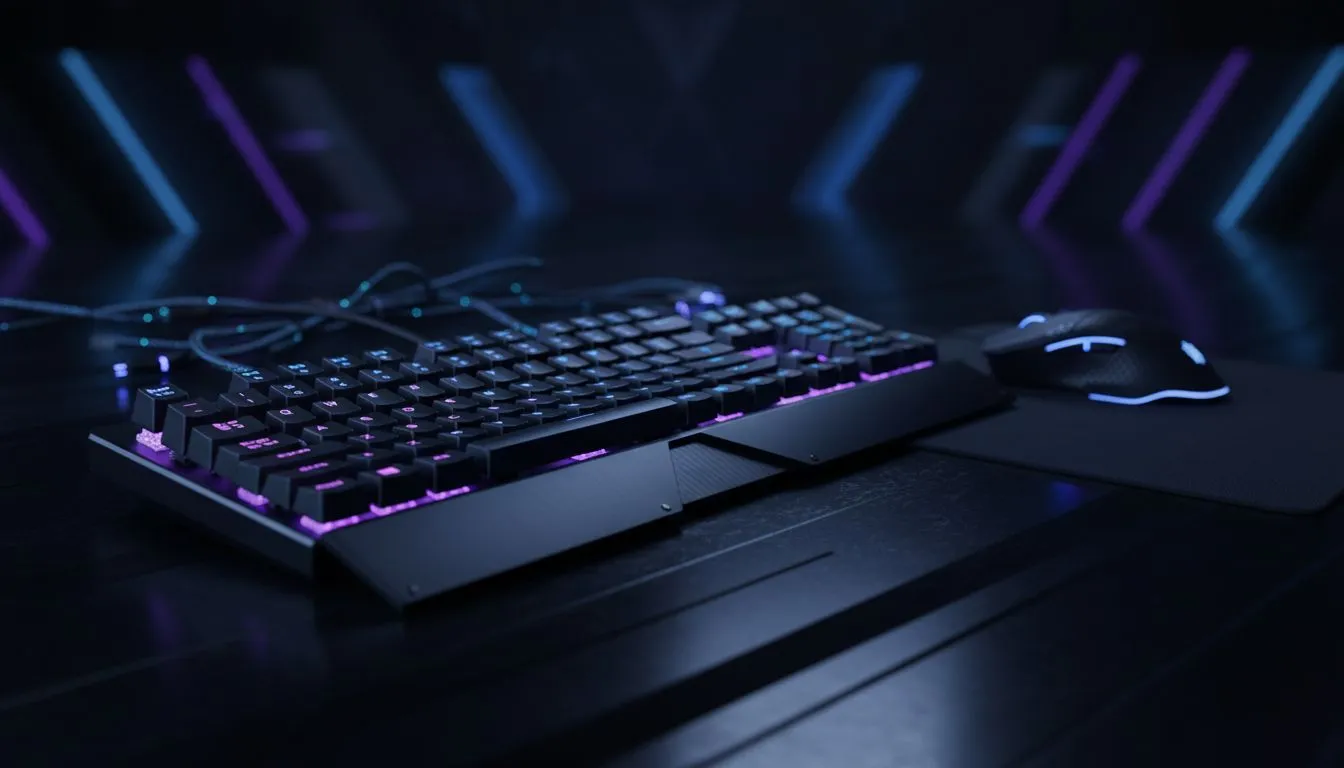
That new-tech smell... awesome, right? You’ve just unboxed your shiny new gaming gear, but now what? Getting it all connected and optimised can feel a bit daunting. Don’t stress! This guide will walk you through how to set up your gaming peripherals like a pro, turning that box of potential into a true battle station. Let’s get you plugged in and ready to dominate the leaderboards in no time.
First Steps: Unboxing and Physical Connections
Before diving into complex software, let's get the basics right. This initial part of setting up your gaming peripherals is thankfully straightforward. Most modern gear is plug-and-play, meaning it will work the moment you connect it to your PC.
- Unbox Everything: Carefully remove your new gaming keyboard and gaming mouse from their packaging. Keep the manuals handy... they often have important software download links.
- Find Your USB Ports: Look for available USB-A ports on the back or front of your PC tower. For key peripherals like your mouse and keyboard, it's best to use the ports directly on your motherboard (the ones at the back) for the most stable connection.
- Plug Them In: Connect your devices. Your PC's operating system should automatically detect them and install basic drivers. You'll see a notification, and within seconds, you should be able to type and move the cursor.
A clean setup is a fast setup. Try to route your cables neatly to avoid a tangled mess. A few cable ties can make a massive difference to the look and feel of your gaming space.
Dialling In Your Keyboard 🔧
Your keyboard is your command centre. While it works out of the box, the real magic happens when you install the manufacturer's software. This unlocks custom lighting, macros, and other powerful features that define a true gaming experience.
Software is Key
Whether you've picked up a popular Razer gaming keyboard with its Synapse software or one of the ultra-customisable and lightweight Glorious keyboards that uses CORE, the first step is to download and install this control panel.
Inside the software, you can:
- Customise RGB Lighting: Sync the colours across your devices or create unique patterns.
- Record Macros: Assign complex command sequences to a single key press... perfect for MMOs or productivity tasks.
- Re-map Keys: Change what any key does to suit your personal workflow.
Whether you prefer the zero-latency of reliable wired keyboards or the clean aesthetic of clutter-free wireless keyboards, the software is what elevates it from a simple typing tool to a powerful piece of your gaming arsenal.
Mastering Your Mouse for Pinpoint Accuracy ✨
A proper gaming mouse setup is crucial for competitive play. Getting this part of your gaming peripherals setup right will directly impact your in-game performance. Again, the manufacturer's software is your best friend here.
After plugging in your mouse—perhaps one you found in our amazing gaming mouse deals—and installing its software, you'll want to tweak two key settings:
- DPI (Dots Per Inch): This is mouse sensitivity. A lower DPI means you have to move the mouse further for the cursor to travel, allowing for more precise, small adjustments. Most pro FPS players use a low DPI between 400-1600.
- Polling Rate: Measured in Hz, this is how often your mouse reports its position to the PC. Always set this to the highest value available, usually 1000Hz, for the smoothest tracking.
Pro Aim Tip 🎯
Most gaming mice let you set multiple DPI stages in their software. Set a low DPI (e.g., 400-800) for precise aiming in FPS games like Valorant, a medium one for general gameplay, and a high one for navigating your desktop quickly. You can then switch between them on-the-fly with a dedicated mouse button. It's a massive advantage!
Whether you choose a responsive wireless mouse or a classic wired mouse, taking ten minutes to configure these settings is one of the most important steps to set up your gaming peripherals for victory. Don't forget to grab any essential mouse accessories like a large mousepad to give yourself plenty of room to move.
Final Touches: Audio and Headsets
The final piece of the puzzle is your audio. Plug your gaming headset into the correct 3.5mm jacks (mic and headphones) or a USB port. Right-click the speaker icon in your Windows taskbar, go to "Sounds," and on the "Playback" and "Recording" tabs, set your new headset as the "Default Device."
Now you’re all set. Your peripherals are connected, configured, and ready for action. Go get those wins! 🚀
Ready to Complete Your Dream Setup? A proper gaming setup is more than just the PC... it's the gear that connects you to the game. Now that you know how to set up gaming peripherals, it's time to find the perfect tools for your playstyle. Explore our massive range of PC components and peripherals and build the ultimate battle station.











