

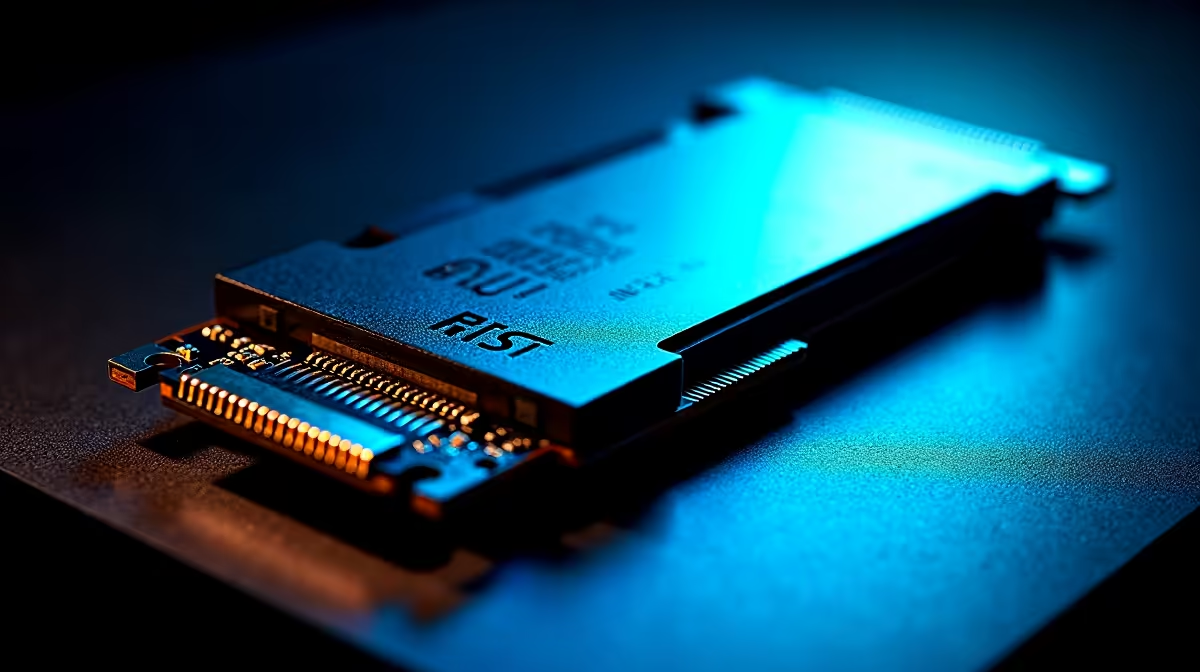
You just dropped thousands of Rands on four blazing-fast NVMe drives. You slot them into your high-end motherboard, expecting record-breaking load times. Instead... your system feels sluggish. Experiencing slow NVMe speeds with four M.2 slots is incredibly frustrating. Before you blame the hardware, let us look at the most common storage setup mistakes to avoid. The culprit is usually how your motherboard handles its data traffic.
The PCIe Lane Bottleneck Explained ⚡
Modern processors only have a set number of PCIe lanes available. Your graphics card usually hogs 16 of them. When you populate four M.2 slots, you force the drives to share the remaining lanes.
Some M.2 slots connect directly to the CPU. Others route through the motherboard chipset. If you plug your primary Windows drive into a chipset slot, it shares bandwidth with your USB ports and networking. This creates a massive traffic jam. The result is heavily throttled performance. If building and configuring a rig from scratch sounds like a headache, you can always explore our best gaming PC deals for systems perfectly balanced by our expert technicians.
Common Storage Setup Mistakes to Avoid
Ignoring the Motherboard Manual
Your motherboard manual is your best friend here. It tells you exactly which M.2 slots share lanes with SATA ports or PCIe expansion slots. A major mistake is populating slot four and accidentally halving your graphics card bandwidth. Always read the lane distribution chart.
Thermal Throttling Nightmares
NVMe drives run incredibly hot under heavy loads. When they overheat, they slow down to protect their memory chips. If you stack four drives next to a blazing graphics card without proper heatsinks, performance will tank. Need to upgrade your cooling or grab a motherboard with better built-in armour? Keep an eye on our latest tech specials to save some ZAR while you optimise your airflow.
Storage Configuration Tip 🔧
Always install your primary OS and gaming drive in the top M.2 slot closest to the CPU. This slot almost always uses dedicated CPU PCIe lanes. This guarantees maximum unbottlenecked speed for your most important files.
Desktop Complexity vs Mobile Simplicity 🚀
Managing PCIe lanes on a desktop requires careful planning. You need to balance your GPU, high-speed storage, and capture cards. Laptops handle this entirely differently. Mobile motherboards are custom-engineered. They ensure the built-in M.2 slots run at their advertised speeds without manual user configuration.
If you prefer a plug-and-play experience without doing the lane-sharing math, browsing notebooks for sale in South Africa might be your best bet. Modern gaming laptops offer incredible NVMe performance right out of the box.
Fixing Your Drive Speeds ✨
To fix slow NVMe speeds with four M.2 slots, start by moving your primary drives to the CPU-linked slots. Leave the chipset-linked slots for slower mass storage. Next, ensure your motherboard BIOS is fully updated.
Finally, check your PCIe generation settings in the BIOS. Make sure your Gen 4 drives are actually set to Gen 4 speeds... and not capped at older Gen 3 limits. Mixing older and newer drives can sometimes force the motherboard to default to the slowest speed. Take the time to map out your drives, and you will unlock the true speed you paid for.
Ready to Upgrade Your Storage Game? Do not let storage bottlenecks ruin your gaming experience. Whether you need a massive Gen 4 NVMe drive, a new motherboard with better PCIe lane distribution, or a whole new rig... Evetech has you covered. Explore our massive range of PC components and build the ultimate machine today.











