Is your timeline stuttering more than a nervous public speaker? Are render times so long you could braai a whole brisket while you wait? You’re not alone. Many South African creators invest in powerful parts, only to face frustrating lags and crashes. The culprit is often poor video editing PC compatibility—a mismatch between components that cripples performance. This guide will help you diagnose and fix these issues, turning your editing rig into the smooth, creative powerhouse it was meant to be.
Decoding Common Compatibility Culprits
Before we dive into specifics, let's get one thing straight. Great performance isn't just about having the most expensive CPU or GPU. It's about how well your components communicate and work together. A bottleneck in one area can bring your entire workflow to a grinding halt. Understanding this synergy is the first step to mastering your video editing PC compatibility. Let's break down the key relationships in your system.
The CPU and RAM Partnership: Your Timeline's Engine ⚙️
Your Central Processing Unit (CPU) and Random Access Memory (RAM) are the heart and soul of your editing experience, especially for timeline scrubbing and raw playback.
The CPU: Cores vs. Clock Speed
For video editing, a CPU with a higher core count is generally better for tasks like rendering and encoding, as the workload can be split across multiple cores. This is where modern processors shine. For example, many of the processors found in our AMD Ryzen PC deals are famous for their multi-core performance, which chews through export queues. However, a high clock speed is vital for smooth, real-time playback in your software's preview window. Many creators find a sweet spot with the powerful single-core performance offered in our Intel PC deals. An imbalance here is a classic compatibility issue.
RAM: Your Digital Workspace
Think of RAM as your desk space. Not having enough (we recommend 32GB as a solid starting point for 4K editing) means your PC is constantly shuffling data to and from your slower storage drives, causing stutters. But it's not just about size. RAM speed and timings must be compatible with your motherboard and CPU to avoid system instability—a critical aspect of video editing PC compatibility.
The GPU's Role: More Than Just Gaming Muscle
Your Graphics Processing Unit (GPU) is no longer just for gaming. In modern editing software like DaVinci Resolve and Adobe Premiere Pro, the GPU does the heavy lifting for rendering effects, colour grading, and accelerating exports.
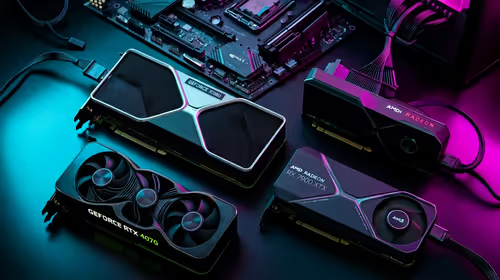
This is where technologies like NVIDIA's CUDA cores and AMD's OpenCL come in. Your choice of software might favour one over the other. Many professional applications are heavily optimised for the CUDA architecture found in our NVIDIA GeForce gaming PCs, offering significant performance gains. However, the powerful hardware in AMD Radeon gaming PCs also provides fantastic value and performance, especially in programs like DaVinci Resolve. A common compatibility problem arises from outdated GPU drivers, which can cause unexpected crashes and visual glitches. ✨
Driver Diligence Pro Tip ⚡
Always perform a "clean installation" of your GPU drivers. Both NVIDIA's GeForce Experience and AMD's Adrenalin Software have an option for this (usually under custom install settings). This process removes old driver files completely, preventing conflicts that can cause instability in your editing software. It’s a simple step that solves a world of headaches.
Storage and Software: The Final Pieces of the Puzzle 🔧
Even with the best processor and graphics card, your workflow can be bottlenecked by slow storage or software issues. True video editing PC compatibility means optimising every part of the chain.
A modern storage setup is non-negotiable:
- NVMe SSD: For your operating system and applications for lightning-fast boot and program load times.
- SATA SSD: For your active project files and media cache for smooth timeline playback.
- HDD: For long-term storage and archiving completed projects.
If you're editing high-bitrate 4K or 8K footage, a fast NVMe drive for your active files is essential. This is a standard feature in purpose-built Workstation PCs, which are designed from the ground up to eliminate these bottlenecks.
The Path to a Flawless Workflow
Achieving perfect video editing PC compatibility is about creating a balanced system where no single component holds another back. It’s a symphony of hardware and software working in harmony. While troubleshooting can be rewarding, it can also steal valuable time you'd rather spend creating. For many, the most efficient solution is a system built by experts who live and breathe component synergy. Exploring a range of pre-built PC deals can be a fantastic way to get a guaranteed-compatible rig without the guesswork. 🚀
Ready to Build a Bottleneck-Free Rig? Now that you know what to look for, take control. Use our powerful PC builder to pair the perfect components and design a machine that matches your creative ambition. Start building with our Custom PC Builder and craft your ultimate editing powerhouse today.