

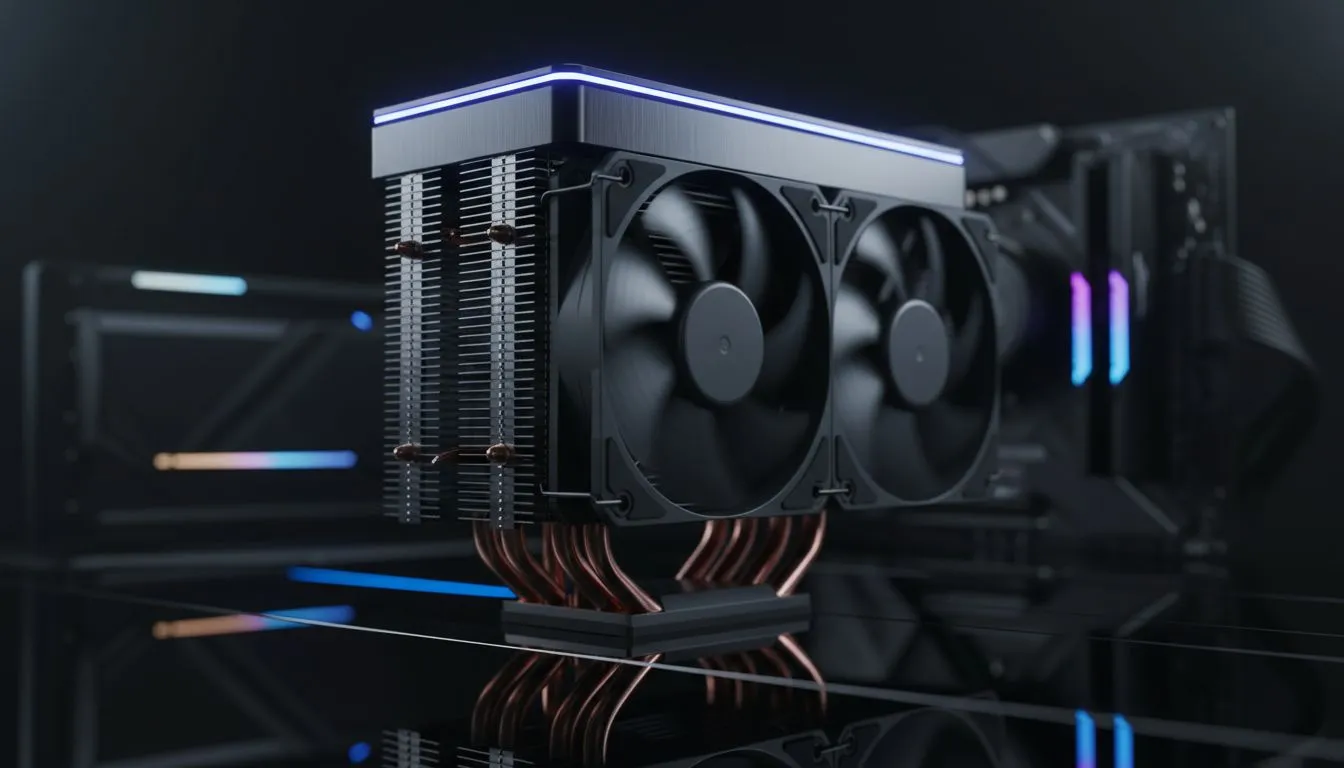
Tower CPU Cooler Installation: Step-by-Step Guide for Beginners
New to building PCs in South Africa? This short, clear guide walks you through a tower CPU cooler installation step by step. You’ll learn what parts to check, how to mount a backplate and heatsink, and how to avoid common mistakes. Perfect for gamers and first-time builders shopping on Evetech or upgrading an older rig. 🔧✨
Preparation: What you need before you start
Before you open your case, gather a Phillips head screwdriver, thermal paste, and some patience. Pick a cooler that fits your case and socket. Browse Evetech’s full CPU coolers range to compare sizes and mounts. Evetech CPU coolers category lists compatibility details for most models, which helps avoid fit issues.
Choose the right tower cooler for your build
Tower coolers vary by height, fan count and TDP rating. If your case has restricted clearance, filter for air coolers only to find compact options. Use the air cooler filter on Evetech to see only compatible models. Shop air coolers to check measurements before buying.
Step-by-step installation
- Power down and unplug. Remove side panels.
- Remove the existing cooler and clean the CPU with isopropyl alcohol.
- Fit the backplate. Align it with the motherboard holes, then hold it in place.
- Apply a pea-sized drop of thermal paste to the CPU centre.
- Lower the heatsink vertically and secure using the mounting screws. Tighten crosswise and evenly.
- Connect the fan header to the CPU_FAN header on the motherboard.
If you prefer 120mm fan configurations, there are many 120mm-friendly towers. 120mm fan coolers often balance airflow and clearance well.
Brands and local options
Looking for trusted names? Deepcool has several popular tower designs that balance price and performance. Compare models and mounting systems before buying. Deepcool range is a good starting point for mainstream builds. If you want budget-friendly alternatives, check smaller brands like EINAREX for value options. EINAREX options on Evetech often fit mid-tower cases.
Testing and tuning after installation
Boot into BIOS and monitor CPU temps at idle and under load. Aim for sensible numbers based on your CPU model. If temps are unexpectedly high, re-seat the cooler and reapply thermal paste. Use fan curves in BIOS or motherboard software to find a quiet but cool balance. 🚀
Installation Pro Tip ⚡
For a smoother mount, loosely attach all mounting screws first. Then tighten them in an X pattern until snug. This prevents uneven pressure and improves contact between the CPU and heatsink.
Troubleshooting common issues
- No fans spinning: Confirm the 4-pin/3-pin connector is on CPU_FAN.
- Poor cooling: Check RAM clearance and ensure fans aren’t blocked.
- Clearance conflicts: If your cooler hits RAM sticks, consider low-profile RAM or a slimmer cooler.
Ready to Find Your Perfect Match? The Mac vs Windows debate is complex, but for maximum power, choice, and value in South Africa, Windows is hard to beat. Explore our massive range of laptop specials and find the perfect machine to conquer your world.











