

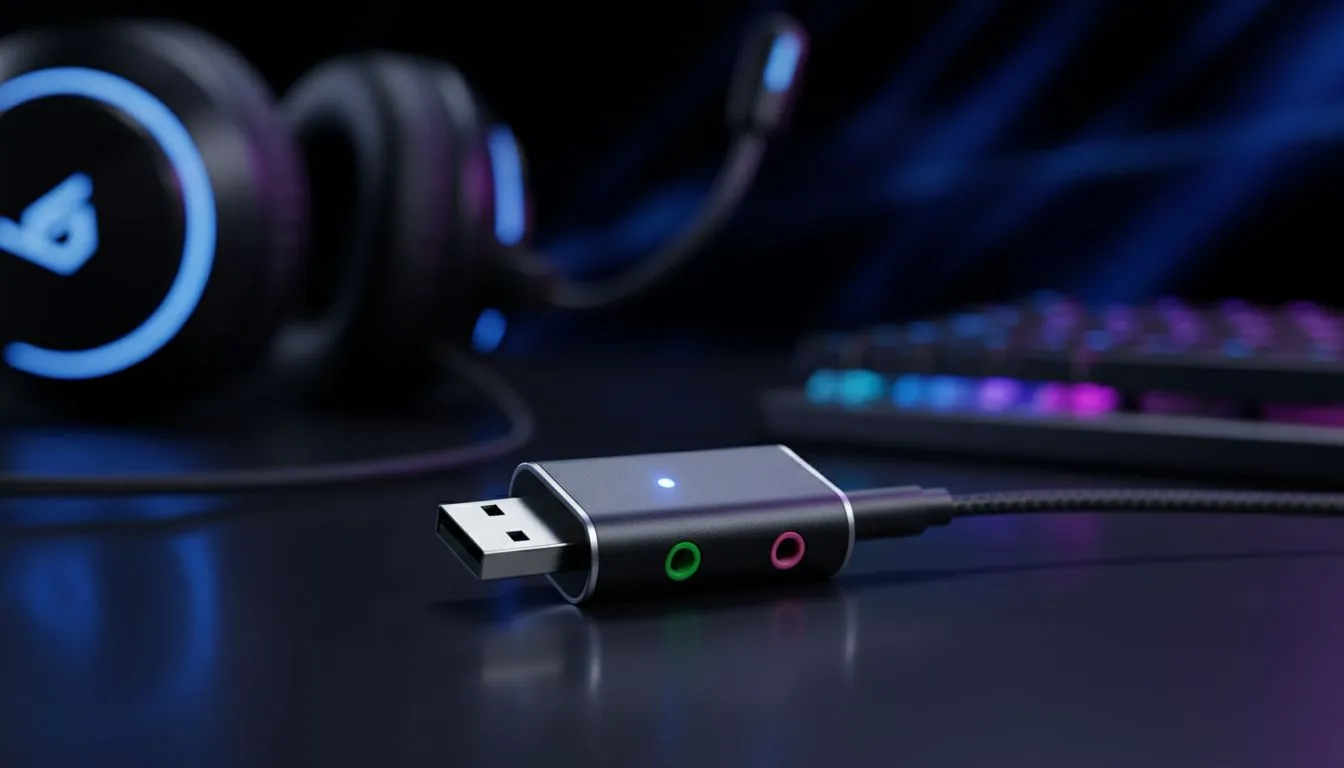
Master Your USB Audio Adapter Setup on Windows
Ever been mid-clutch in Valorant only for your mic to cut out? It is a frustrating reality for many South African gamers dealing with worn-out 3.5mm jacks. Whether you are bypassing a noisy motherboard or upgrading your laptop audio, a USB audio adapter setup on Windows is the quickest fix. This guide ensures your comms stay crystal clear so your squad never misses a callout. 🎙️
Why Use a USB Sound Card for Gaming?
Onboard audio often picks up electrical interference from your GPU or power supply. This creates that annoying buzzing sound your friends complain about on Discord. When you buy gaming accessories like a dedicated USB adapter, you move the digital-to-analogue conversion outside the PC case. This results in cleaner sound and a much better microphone signal for a few hundred ZAR.
Step-by-Step USB Audio Adapter Setup on Windows
Getting your hardware recognised is usually simple... but Windows can be finicky with default devices. Follow these steps to ensure everything is routed correctly.
- Plug and Play: Insert the adapter into a direct USB port on your PC. Avoid using unpowered USB hubs as they can cause voltage drops.
- Sound Settings: Right-click the speaker icon in your taskbar and select "Sound settings".
- Input and Output: Under the "Output" section, select your USB Audio Device. Do the same for the "Input" section to activate your microphone.
If you are looking for the best value, keep an eye on our gaming accessories deals to snag a high-quality adapter for less.
Audio Quality Pro Tip 🎙️
Always set your default format to 2-channel, 16-bit, 48000 Hz (DVD Quality) in the Advanced Sound Control Panel. This matches the sample rate used by most modern games and Discord. It prevents weird popping sounds or robotic voices during intense matches.
Fine-Tuning Voice Chat for South African Servers
Latency is already a challenge when playing on international servers... you do not need audio lag adding to it. Once your hardware is set up, open your preferred chat app. Ensure the "Input Device" is specifically set to your USB adapter rather than "Default". This prevents Windows from switching to your webcam mic by mistake. 🔧
If you need a more robust solution, you can browse the full Gaming Accessories collection to find headsets with built-in USB sound cards. These often include dedicated software to customise EQ profiles and noise cancellation. 🔊
Troubleshooting Common Issues
Is your mic still silent? Check your Windows Privacy settings. Navigate to Settings > Privacy & security > Microphone and ensure "Microphone access" is toggled on. Many users forget this step after a fresh Windows update... it is a common reason for "broken" hardware that is actually working perfectly. 🚀
Ready to Upgrade Your Audio Experience? Clear communication is the difference between a win and a loss. Whether you need a simple adapter or a pro-grade headset, we have the gear to keep you in the game. Explore our massive range of gaming accessories and find the perfect match for your setup.











