

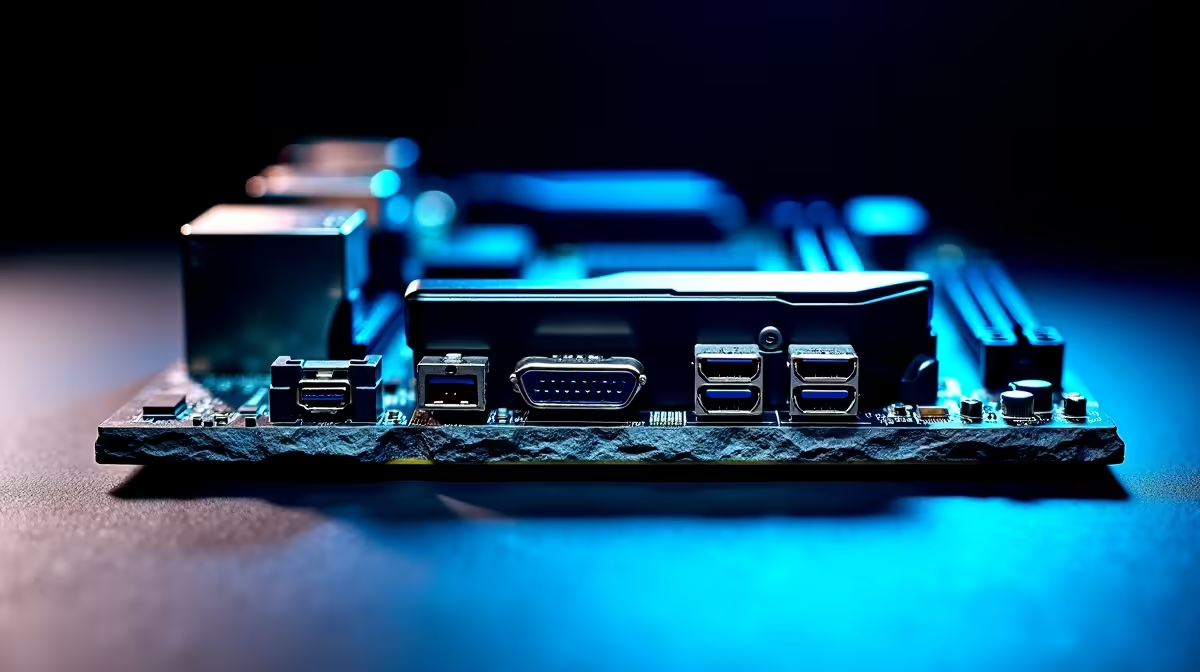
You just dropped thousands of ZAR on a fresh PC build. You eagerly plug in your monitor, power up, and... nothing. A black screen stares back at you. If your USB-C, DisplayPort and HDMI are not working as expected, do not panic. Before you start returning parts, let us look at some common motherboard setup fixes that will get you back in the game.
The Classic Monitor Connection Mistake
The most frequent reason your display is blank is surprisingly simple. You might have plugged your cable into the motherboard instead of your dedicated graphics card. If you bought one of our pre-built gaming PCs, you definitely have a dedicated GPU. Motherboard display ports only work if your CPU has integrated graphics. Always connect your DisplayPort or HDMI directly to the graphics card located lower down on the back panel. Plugging into the wrong port is a common error. It takes two seconds to fix... and saves you hours trying to optimise your setup.
Update Your BIOS for Display Stability 🔧
Sometimes the hardware is fine, but the software is lagging behind. If your USB-C, DisplayPort or HDMI is not working as expected, an outdated BIOS could be the culprit. When looking to buy motherboards, remember that newer models might need a quick flash. This helps them communicate properly with the latest processors. This is especially true if you are running a high-end setup. For instance, premium ASUS Intel motherboards often receive firmware updates. These updates can significantly improve USB-C bandwidth and display output stability.
RAM Issues Disguised as Display Problems
A blank screen does not always mean your ports are broken. Sometimes your system is just struggling to boot. If your new high-speed memory kits are not seated correctly, the motherboard will halt the boot process. Reseat your RAM sticks until you hear a satisfying click. If you are using the latest Ryzen processors on ASUS AMD motherboards, memory training is required. The first boot can take a few minutes to train the memory. Give it some time before assuming your display ports are dead.
Troubleshooting Pro Tip ⚡
Always test with a different cable before blaming your expensive hardware. A cheap or damaged HDMI cable can easily cause signal drops or black screens. Invest in a certified DisplayPort cable to ensure maximum refresh rates and vibrant colour for your gaming monitor.
Understanding USB-C Video Output 🚀
USB-C is incredibly versatile... but it can also be confusing. If your USB-C port is not outputting video, check your motherboard manual. Not every Type-C port supports DisplayPort Alternate Mode. Many are just for data transfer and charging your phone. You need a specific Thunderbolt or display-enabled port to push pixels to your monitor. Look for a tiny display logo next to the port. If it is missing, that port will not run your screen.
Check Your Monitor Input Settings ✨
This sounds completely obvious... but it catches people out daily. Modern gaming monitors do not always auto-detect the active input source. If you have a DisplayPort cable plugged in, but the monitor is searching for an HDMI signal, you get a blank screen. Use the physical buttons on your monitor to manually select the correct input.
Ready to Build Your Dream Rig? Troubleshooting old hardware is tricky, but upgrading your setup should not be. For maximum power, choice, and value in South Africa, Evetech is hard to beat. Explore our massive range of PC deals and find the perfect hardware to conquer your world.











