

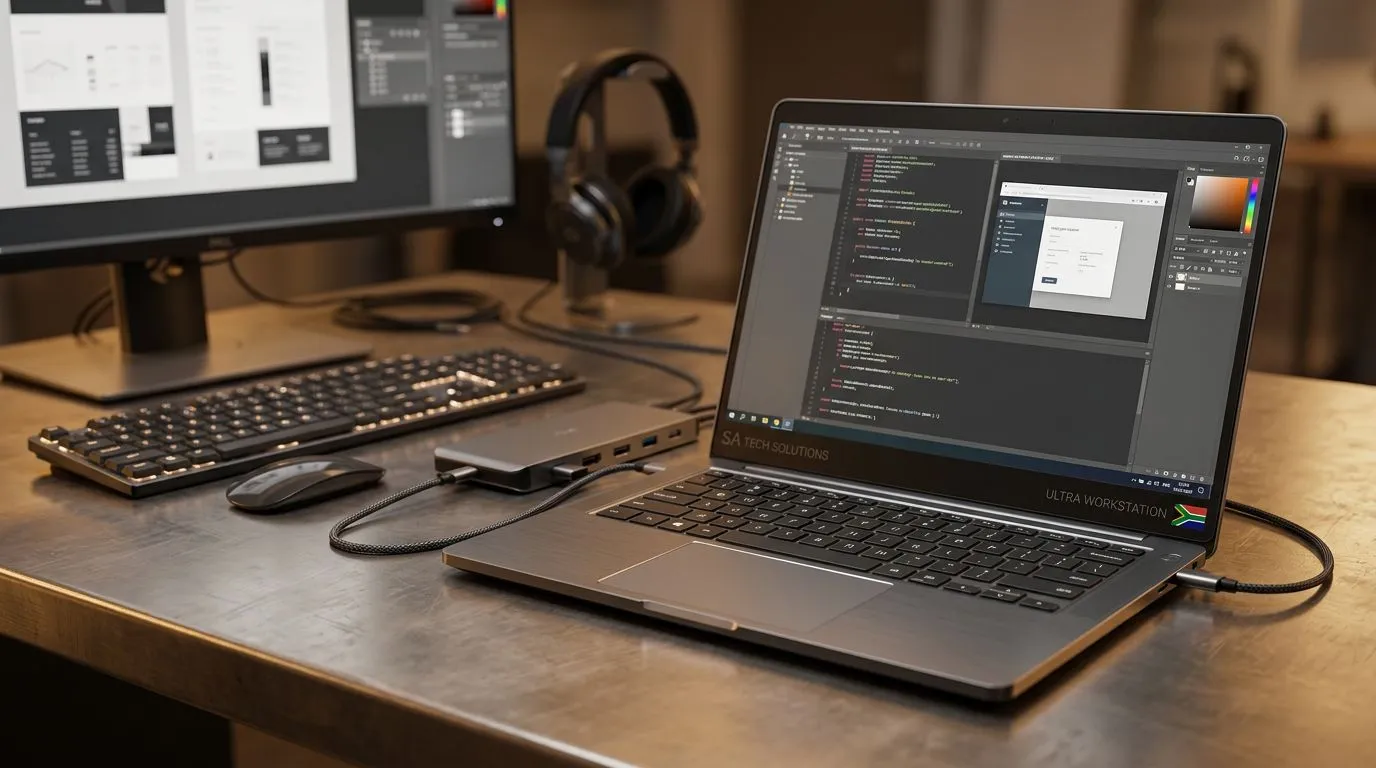
USB‑C Workstation Setup Guide for South African Freelancers: Start with the desk that works
If you’re freelancing from home, you don’t need “more gear”… you need a cleaner setup. The kind that wakes fast, charges reliably, and keeps your files and work apps organised. Whether you’re answering client emails, cutting clips for a brand, or building a portfolio for the next big contract, a smart USB‑C workstation setup guide for South African freelancers can save you time every single day. 🔧
This guide walks you through the essential pieces: docks, cables, monitors, storage, and a few practical workflow habits. No fluff. Just what actually reduces downtime in SA homes and offices.
USB‑C workstation basics: what to check before you buy 🔌
Before you order a dock or plug in that “one cable solution”, confirm what your laptop supports. USB‑C isn’t one universal thing. Some ports carry data only. Others support video over USB‑C and power delivery (charging).
The three USB‑C capabilities that matter
- Power Delivery (PD): lets the dock charge your laptop.
- Video output (DisplayPort Alternate Mode or HDMI alt mode): runs monitors from the dock.
- Data speed: helps with fast SSDs and smooth external drives.
If you’re unsure, check your laptop’s manufacturer specs or the product listing details before purchasing. For South African buyers, Evetech’s laptop deal pages make it easy to find suitable models quickly:
- Intel laptop options on special: Intel laptops on special
- Ryzen laptop deals: Ryzen laptop deals
USB‑C workstation setup guide for South African freelancers: build the ideal “dock + monitors” layout 🚀
A good workstation isn’t just about connections. It’s about reducing cable clutter and making your day predictable.
Monitor strategy: one main, one assistant
For most freelancers:
- Use one primary external monitor (comfortable height and brightness).
- Add a second screen only if you truly need it (notes, client calls, reference docs).
Many USB‑C docks support dual displays, but performance depends on your laptop’s graphics and the dock model. If you’re buying specifically for productivity with a side of gaming, start with a laptop that gives you headroom.
Need gaming-level performance in a workstation-friendly style? Browse:
And if you want NVIDIA graphics options (useful for creative workloads and AI-assisted tools that need CUDA), check:
Cable reality check: don’t let “compatible” become chaos
Use a USB‑C cable that supports charging and video (not a random charger cable). If your monitor “sometimes” works, it’s usually cable bandwidth or port compatibility.
For reliable desk power:
- Pick a dock that provides enough watts for your laptop’s typical use.
- If you often run demanding apps, avoid low-watt docks that force the laptop to run on battery.
Productivity Pro Tip ⚡
On Windows, create a consistent “work layout” using PowerToys FancyZones. Assign client email to one zone, your creative app to another, and keep files or project notes in a third. It cuts setup time when you switch tasks all day, especially on ultrawide or dual-monitor desks.
USB‑C workstation setup guide for South African freelancers: storage, backups, and downtime prevention ✨
Freelancers live and die by their files. If a client asks for revisions and your SSD isn’t connected… that’s not “tech”—that’s lost money.
Choose external storage based on your work style
- Fast external SSD for active projects and quick exports.
- Network storage only if you already know it will stay reachable (load shedding and Wi‑Fi hiccups are real).
- Cloud backup for peace of mind. Local is great, but it’s not a plan.
A smart habit: keep a “Today” folder on your external SSD, and a “Client Archive” folder on a second drive. That way, you can roll back quickly if you need older assets.
Power + stability: plan for SA interruptions
In many homes, power fluctuations can shorten device life. If you can, use:
- a surge-protected power strip
- and ideally a UPS if your work depends on stable connectivity
This isn’t glamorous… but it’s the difference between “I’m rendering” and “why is everything offline?”
USB‑C workstation setup guide for South African freelancers: day-to-day workflow that clients notice ✅
Even a great workstation can feel messy if your workflow is inconsistent. Here’s a practical approach that works for design, video editing, coding, and general freelancing.
A simple start-of-day routine (10 minutes)
- Plug in dock (USB‑C).
- Confirm both displays are active (keep it consistent).
- Open only what you need: one main app + your communication tool.
- Start your first export or task within the first 15 minutes.
Your clients might not see your desk… but they feel the result: faster replies, fewer mistakes, and smoother delivery.
Quick troubleshooting checklist (when USB‑C acts up)
- Unplug and reconnect the dock.
- Try a different USB‑C cable if video fails.
- Restart the laptop only after confirming your cable and dock lights.
- Check Windows display settings for “extend” vs “duplicate”.
CALLTOACTION
Ready to Find Your Perfect Match? A great USB‑C workstation starts with the right laptop. Get the power you need for freelancing and the value South Africans look for, then pair it with a dock that fits your monitors and workflow. Explore our massive range of laptop specials and build your setup the smart way.











