

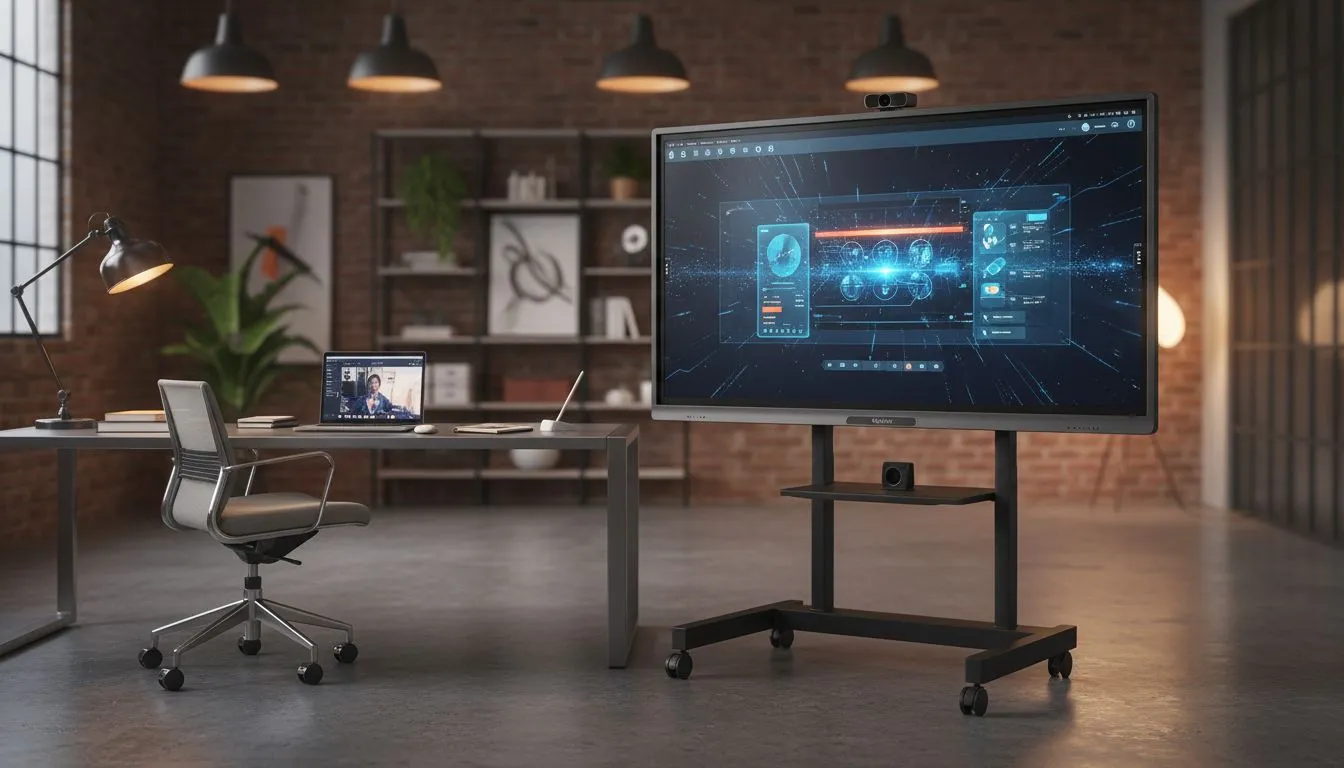
Get your ViewSonic ViewBoard setup right — fast 🔧
South African gamers and hybrid workers: ready to turn a presentation screen into a daily workstation? A tidy ViewSonic ViewBoard setup saves space, cuts cable mess, and keeps your squad call-ready. Start by picking the right panel for fast motion and crisp colour — Evetech's core PC monitors selection is a good place to browse options.
Choose the right panel and size
Picking the display type shapes the entire build. For colour accuracy and wide viewing angles, prioritise IPS panels. If your room needs a narrow footprint, a flat screen often sits closer to a wall. For immersive demos or split-screen workflows, consider curved monitors. Flat options still excel for multi-monitor arrays — see the range of flat monitors.
Sync, refresh and smooth motion for gaming and video
A hybrid workspace often doubles as a casual gaming setup. Match your ViewBoard's refresh tech to your GPU. AMD users should prioritise FreeSync monitors. Nvidia users will want G-Sync compatible screens. If you need broad compatibility, browse Adaptive Sync options to balance cost and performance: Adaptive Sync options.
Desk layout, mounts and cable management
Place the ViewBoard at eye level for long edit sessions and calls. Use an articulating arm or secure wall mount to free desk surface. Run power and USB across the back, and label each cable. Keep a compact KVM or USB hub for switching between a work laptop and a gaming rig.
Productivity Pro Tip ⚡
On Windows, use the PowerToys FancyZones utility to create custom snap layouts for your windows. It's a lifesaver for managing multiple apps on an ultrawide monitor, letting you organise your timeline, preview window, and asset folders perfectly for video editing.
Software, calibration and collaboration tools
Calibrate colour with a simple colourimeter if you do photo or video work. For meetings, set up dual-input sources and test the ViewBoard's touch or annotation features. Integrate a low-latency webcam and a USB audio interface to keep voice quality crisp during long calls. Keep drivers updated and use display profiles for different tasks.
Buy local, optimise value
Shopping locally means faster support and warranty in ZAR. Evetech lists a wide monitor range to help you compare specs and prices. Browse monitors and filter by feature or budget to optimise your setup.
Ready to Find Your Perfect Match? The Mac vs Windows debate is complex, but for maximum power, choice, and value in South Africa, Windows is hard to beat. Explore our massive range of laptop specials and find the perfect machine to conquer your world.











