


Headset Stock Levels in Bloemfontein: January 2026 Report
Headset Stock Levels in Bloemfontein: January. Current stock data & price tracking for SA buyers. See what is available and where prices are heading.
Read more5G Gaming During Video Call: Solutions. SA-focused analysis with local pricing data, real-world insights & actionable buying advice.
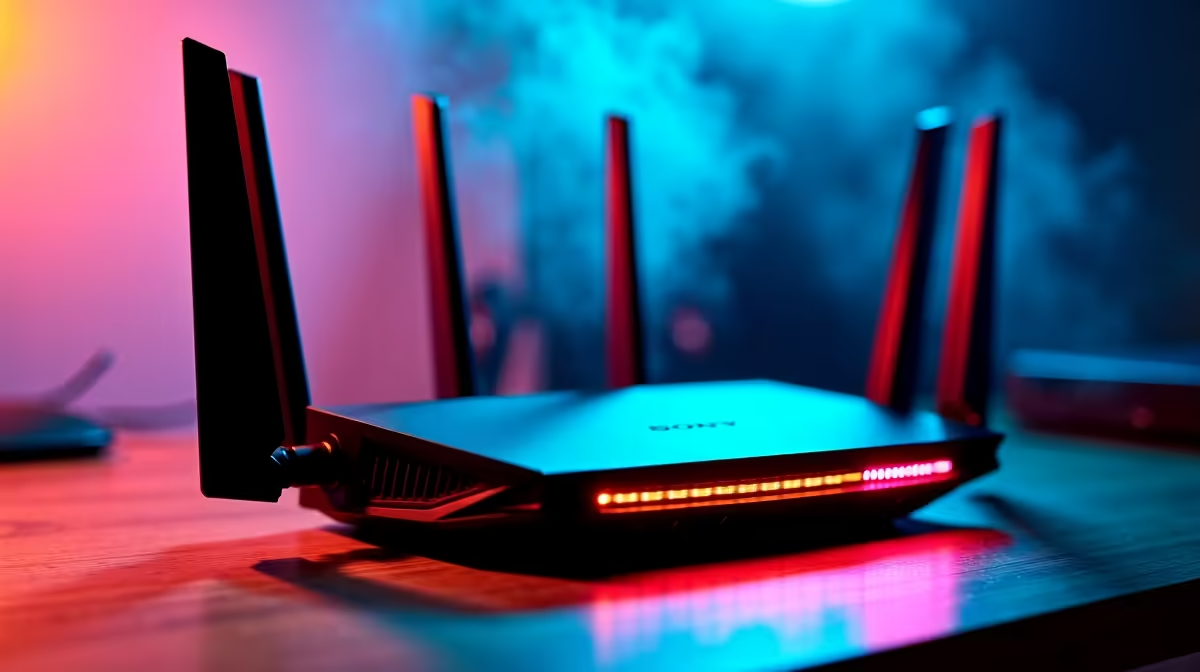
Gaming while on a video call strains your 5G connection because both applications compete for bandwidth and CPU resources simultaneously. The fix involves traffic prioritisation, reducing video call quality settings, and optimising your network configuration to give gaming the lower-latency share of available bandwidth.
Running a gaming session and a video call at the same time on 5G sounds seamless on paper - 5G promises fast speeds and low latency. In practice, the two workloads compete in ways that cause stuttering, call drops, and degraded gaming performance. South African 5G networks, while rapidly improving, operate under real-world congestion that makes simultaneous high-demand applications genuinely challenging to manage. Here''s how to bring both workloads under control.
Video calls are bandwidth-hungry and latency-sensitive. Gaming is latency-critical but relatively low in bandwidth. The problem is that your router or mobile hotspot doesn''t automatically know to treat gaming packets as higher priority. Video call applications often aggressively consume available upload bandwidth - especially with cameras enabled - which creates packet loss and jitter on your gaming connection. On 5G specifically, signal fluctuation between cells can cause momentary bandwidth drops that hurt both workloads simultaneously.
Start by reducing your video call resolution. Dropping your camera output to 720p or even 480p dramatically cuts upload bandwidth consumption while keeping the call functional. Most major video conferencing apps offer manual resolution controls in their settings. Next, if your router supports Quality of Service (QoS) settings, configure gaming traffic as the highest priority queue - this ensures gaming packets are processed before video data during congestion events. If you''re tethering via a 5G mobile hotspot, consider splitting the workload: run your gaming device on the 5G hotspot and your video call device on a separate Wi-Fi connection if one is available. Finally, close all background applications that may be syncing data - cloud storage, system updates, and streaming services all consume bandwidth invisibly during active sessions.
A dedicated 5G router with advanced QoS controls offers significantly better traffic management than a mobile hotspot. These devices allow per-application or per-device bandwidth rules, giving you granular control over how your connection is shared. A gaming-focused router with 5G SIM support processes traffic more intelligently and typically has lower internal latency than consumer hotspot devices. If your gaming PC has a wired connection option to such a router, always prefer Ethernet over Wi-Fi - it eliminates the additional latency layer introduced by wireless protocols on the gaming side, even when your WAN connection remains 5G.
Q: Does enabling 5G SA mode improve gaming and call performance simultaneously? A: 5G Standalone (SA) mode offers lower latency than Non-Standalone (NSA) mode, which can help both workloads. However, availability depends on your network provider''s infrastructure rollout in your area.
Q: Should I turn my camera off during gaming sessions on a video call? A: Yes, if bandwidth is constrained. Disabling your camera during intense gaming moments can free up significant upload bandwidth, reducing latency spikes on your game connection.
Q: Can a Wi-Fi 6E router improve this situation if I''m using 5G as the backhaul? A: Wi-Fi 6E reduces wireless congestion between your router and devices, which helps if multiple devices are competing locally. The 5G backhaul limitation remains, but internal network efficiency improves meaningfully.
Ready to Find Your Perfect Match? Shop gaming PC deals at Evetech - South Africa''s leading gaming and tech retailer.
5G Gaming During Video Call: Solutions available at Evetech.co.za with local warranty and fast delivery.
5G Gaming During Video Call: Solutions - check Evetech for latest stock and SA pricing.
Depends on your use case. 5G Gaming During Video Call: S offers good value at current Rand pricing.
Headset Stock Levels in Bloemfontein: January. Current stock data & price tracking for SA buyers. See what is available and where prices are heading.
Read more
iMac for Medical Practice: Patient Management. SA-focused analysis with local pricing data, real-world insights & actionable buying advice.
Read more
RTX 5060 Fortnite Ultra Settings at 1080p: FPS. Real-world benchmark data, FPS numbers & performance analysis. What SA gamers can actually expect.
Read more
Headset Stock Levels in Cape Town: August Report. Current stock data & price tracking for SA buyers. See what is available and where prices are heading.
Read more
Eskom Load Shedding During Video Call: Solutions. SA-focused analysis with local pricing data, real-world insights & actionable buying advice.
Read more
LoL Performance on Extreme Gaming PC. Real-world benchmark data, FPS numbers & performance analysis. What SA gamers can actually expect.
Read more
Is a Ultra Short Throw Projector Good for Gaming?. Diagnosis steps, proven fixes & when to seek professional help. SA-specific support info included.

Is a Short Throw Projector Good for Gaming? Input. Diagnosis steps, proven fixes & when to seek professional help. SA-specific support info included.

Top Mouse Settings for Competitive FPS: Sensitivity picks evaluated on performance, value & SA availability with current Rand pricing from Evetech.

Top Speakers for MacBook Desk Setup picks evaluated on performance, value & SA availability with current Rand pricing from Evetech.

Is a Ergonomic Chair Better Than a Standard Office Chair for Gaming Detailed answer with SA data, expert analysis & practical recommendations for local buyers.

Use Spotlight Search Like a Pro on macOS. Step-by-step instructions with SA-specific tips, common pitfalls to avoid & expert recommendations.

wireless keyboard Fan Noise Too Loud: Quiet. Everything you need to know with SA pricing, step-by-step instructions & expert recommendations.

Connection Timeout: Troubleshooting Guide #2. Diagnosis steps, proven fixes & when to seek professional help. SA-specific support info included.
Headset Stock Levels in Bloemfontein: January. Current stock data & price tracking for SA buyers. See what is available and where prices are heading.
iMac for Medical Practice: Patient Management. SA-focused analysis with local pricing data, real-world insights & actionable buying advice.
RTX 5060 Fortnite Ultra Settings at 1080p: FPS. Real-world benchmark data, FPS numbers & performance analysis. What SA gamers can actually expect.
Headset Stock Levels in Cape Town: August Report. Current stock data & price tracking for SA buyers. See what is available and where prices are heading.