


Headset Stock Levels in Bloemfontein: January 2026 Report
Headset Stock Levels in Bloemfontein: January. Current stock data & price tracking for SA buyers. See what is available and where prices are heading.
Read moreArc B580 BIOS Not Detecting: Solutions. SA-focused analysis with local pricing data, real-world insights & actionable buying advice.
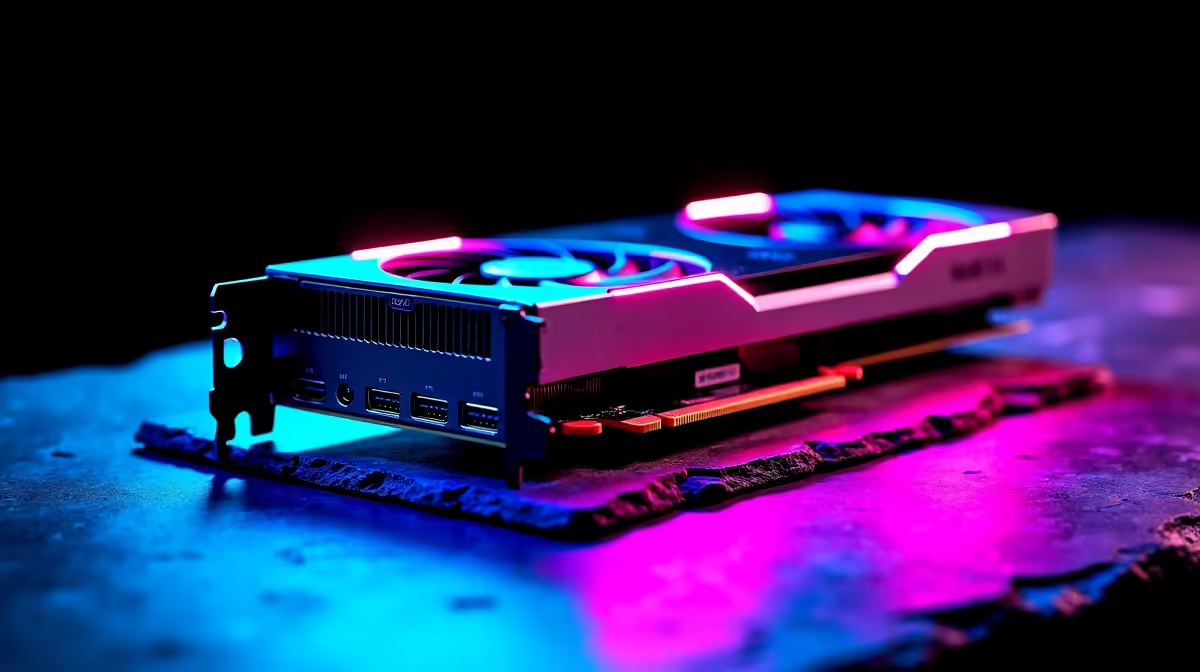
If your Intel Arc B580 is not being detected in BIOS, the most common causes are an improperly seated card, a PCIe slot that needs reseating, or a BIOS that requires an update to support the Arc B580. In some cases, CSM mode or Resizable BAR settings in BIOS need adjustment before the card registers correctly.
The Intel Arc B580 landed as a compelling mid-range GPU, but like any newly released graphics card it occasionally runs into BIOS detection issues - particularly on older platforms. If you have installed the card and your system either refuses to POST, shows no display output, or does not list the GPU under PCIe devices in BIOS, the fix is almost always one of a handful of known causes. Here is how to work through them systematically.
Before touching BIOS settings, go back to basics. Power down completely, unplug the machine from the wall, and reseat the Arc B580. The card should click firmly into the PCIe x16 slot - a partial insertion is the most common reason for no detection. Also ensure the PCIe power connectors are fully seated; the B580 requires a 16-pin (12VHPWR) connector or the bundled adapter, and a loose connection can prevent the card from initialising. If your motherboard has multiple PCIe x16 slots, try the primary slot (usually the one closest to the CPU) if you were using a secondary slot. Some boards only expose full PCIe bandwidth on the primary slot.
The Arc B580 has specific requirements around certain BIOS settings. First, Resizable BAR (also called Smart Access Memory on AMD platforms or ReBAR) must be enabled - the Arc architecture relies on this more than most GPUs, and some systems will not detect the card correctly without it. Look for ReBAR or Above 4G Decoding in your BIOS advanced settings and enable both. Second, if your BIOS has a CSM (Compatibility Support Module) setting, set it to Disabled - CSM is a legacy mode that can interfere with modern GPUs. Finally, check that the PCIe slot is set to Auto or Gen 4 rather than being forced to a specific generation that may not negotiate correctly with the B580.
Intel Arc cards, including the B580, are known to require reasonably recent BIOS versions on many motherboards - particularly on Intel 10th and 11th gen platforms where Arc support was added via firmware updates rather than being native. Download the latest BIOS for your specific motherboard model from the manufacturer's site. If you cannot boot with the B580 installed, you may need to temporarily reinstall your previous GPU or use a CPU with integrated graphics to perform the BIOS update. After updating, clear CMOS (reset BIOS to defaults) before reinserting the Arc B580.
Q: My Arc B580 shows no display output but the system boots - is the card being detected? A: Enter BIOS and check under PCIe device information or your system's hardware monitor. If the card appears there but shows no display, the issue is likely a driver or display output problem rather than a detection failure. Try a different cable and a different monitor port on the card.
Q: Does the Arc B580 need Resizable BAR to function at all? A: The card will sometimes function without ReBAR but performance will be significantly reduced and detection issues are more common. Intel strongly recommends enabling Above 4G Decoding and ReBAR for all Arc GPUs. Most BIOS versions from 2021 onward support this.
Q: I updated the BIOS and the Arc B580 still is not detected - what next? A: Reset CMOS, then reseat the card. If still no detection, test the card in a known-working system if possible to rule out a DOA unit. Also check whether your PSU is delivering adequate power - the B580 can draw up to 190W and a borderline PSU may cause detection failures.
Ready to Find Your Perfect Match? Find a fully compatible gaming PC build at Evetech with your next GPU already dialed in
Arc B580 BIOS Not Detecting: Solutions available at Evetech.co.za with local warranty and fast delivery.
Arc B580 BIOS Not Detecting: Solutions - check Evetech for latest stock and SA pricing.
Depends on your use case. Arc B580 BIOS Not Detecting: S offers good value at current Rand pricing.
Headset Stock Levels in Bloemfontein: January. Current stock data & price tracking for SA buyers. See what is available and where prices are heading.
Read more
iMac for Medical Practice: Patient Management. SA-focused analysis with local pricing data, real-world insights & actionable buying advice.
Read more
RTX 5060 Fortnite Ultra Settings at 1080p: FPS. Real-world benchmark data, FPS numbers & performance analysis. What SA gamers can actually expect.
Read more
Headset Stock Levels in Cape Town: August Report. Current stock data & price tracking for SA buyers. See what is available and where prices are heading.
Read more
Eskom Load Shedding During Video Call: Solutions. SA-focused analysis with local pricing data, real-world insights & actionable buying advice.
Read more
LoL Performance on Extreme Gaming PC. Real-world benchmark data, FPS numbers & performance analysis. What SA gamers can actually expect.
Read more
Is a Ultra Short Throw Projector Good for Gaming?. Diagnosis steps, proven fixes & when to seek professional help. SA-specific support info included.

Is a Short Throw Projector Good for Gaming? Input. Diagnosis steps, proven fixes & when to seek professional help. SA-specific support info included.

Top Mouse Settings for Competitive FPS: Sensitivity picks evaluated on performance, value & SA availability with current Rand pricing from Evetech.

Top Speakers for MacBook Desk Setup picks evaluated on performance, value & SA availability with current Rand pricing from Evetech.

Is a Ergonomic Chair Better Than a Standard Office Chair for Gaming Detailed answer with SA data, expert analysis & practical recommendations for local buyers.

Use Spotlight Search Like a Pro on macOS. Step-by-step instructions with SA-specific tips, common pitfalls to avoid & expert recommendations.

wireless keyboard Fan Noise Too Loud: Quiet. Everything you need to know with SA pricing, step-by-step instructions & expert recommendations.

Connection Timeout: Troubleshooting Guide #2. Diagnosis steps, proven fixes & when to seek professional help. SA-specific support info included.
Headset Stock Levels in Bloemfontein: January. Current stock data & price tracking for SA buyers. See what is available and where prices are heading.
iMac for Medical Practice: Patient Management. SA-focused analysis with local pricing data, real-world insights & actionable buying advice.
RTX 5060 Fortnite Ultra Settings at 1080p: FPS. Real-world benchmark data, FPS numbers & performance analysis. What SA gamers can actually expect.
Headset Stock Levels in Cape Town: August Report. Current stock data & price tracking for SA buyers. See what is available and where prices are heading.