


Headset Stock Levels in Bloemfontein: January 2026 Report
Headset Stock Levels in Bloemfontein: January. Current stock data & price tracking for SA buyers. See what is available and where prices are heading.
Read moreCan't Get 1440p 360Hz: Display Setup. Clear setup instructions with SA-specific considerations, troubleshooting tips & recommended components.
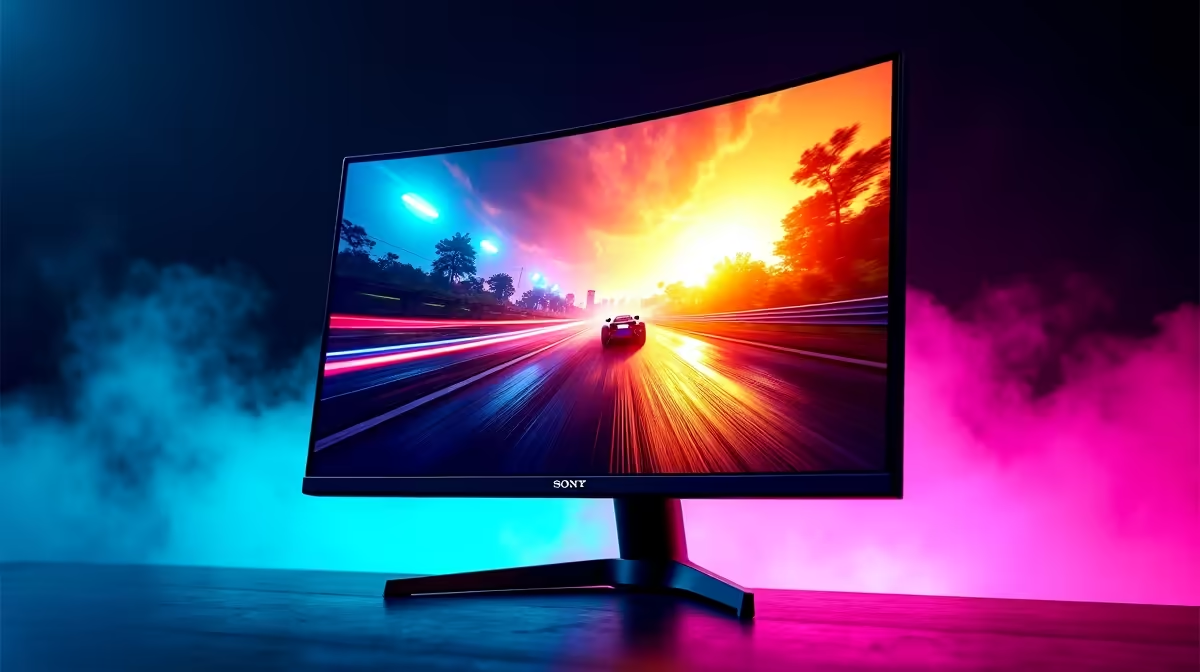
Getting 1440p at 360 Hz requires a monitor that supports the resolution and refresh rate, a GPU capable of delivering 360+ fps at 1440p, and a DisplayPort 2.1 cable. Most current monitors cap at 360 Hz only at 1080p, so hardware and display selection are both critical.
Chasing 1440p at 360 Hz is one of the most demanding display goals in competitive gaming, and there are several independent bottlenecks that can each prevent you from reaching that target. The display, the cable, the GPU output, and in-game resolution settings all need to align before you see the full number on screen. This guide walks you through each layer so you can diagnose exactly where the problem sits.
The vast majority of 360 Hz monitors currently on the market are 1080p panels - the 1440p 360 Hz category is still emerging in 2026. Confirm in the monitor''s official spec sheet that 360 Hz is achievable at 2560 x 1440 natively and not only via resolution scaling or at a lower native resolution. Some displays advertise 360 Hz but only reach it at 1080p, dropping to 240 Hz at QHD. Check the manufacturer''s resolution-to-refresh-rate table in the manual or product page before purchasing.
DisplayPort 1.4 cannot carry 1440p at 360 Hz without Display Stream Compression. For an uncompressed signal you need DisplayPort 2.1, which delivers up to 80 Gbps of bandwidth - more than enough for QHD at 360 Hz. HDMI 2.1 can also carry this signal at 48 Gbps but not all GPU HDMI ports implement the full 48 Gbps variant. Use a certified DisplayPort 2.1 cable and connect directly from GPU to monitor, bypassing any KVM switches or adapters that may limit bandwidth.
The display can only show 360 Hz if the GPU delivers 360 frames per second to it. At 1440p in competitive titles, high-end GPUs like the RTX 5080 and above can hit this target natively in less demanding games. For heavier titles, enable DLSS or FSR at Quality mode to bring frame rates into the 300-plus range. In Windows display settings, after connecting the monitor, navigate to Display > Advanced Display and manually set the refresh rate to 360 Hz - it will not always default there.
Q: Why does my monitor show 240 Hz maximum in Windows even though it is rated for 360 Hz? A: Your cable is likely the bottleneck. Replace it with a certified DisplayPort 2.1 cable and recheck the available refresh rates in Windows Advanced Display Settings.
Q: Does my GPU need a DisplayPort 2.1 output specifically? A: Yes. If your GPU only has DisplayPort 1.4 outputs, you are limited to 1440p 360 Hz with DSC compression enabled. RTX 4000 series and newer, plus RX 7000 series and newer, include DP 2.1 on most models.
Q: Can I use HDMI instead of DisplayPort for 1440p 360 Hz? A: HDMI 2.1 at 48 Gbps can theoretically carry this signal, but confirm your specific GPU and monitor both implement the full 48 Gbps HDMI 2.1 spec - many consumer implementations cap at lower bandwidth.
Ready to Find Your Perfect Match? Find high-refresh gaming hardware and displays at Evetech to complete your competitive setup.
Can't Get 1440p 360Hz: Display Setup available at Evetech.co.za with local warranty and fast delivery.
Can't Get 1440p 360Hz: Display Setup - check Evetech for latest stock and SA pricing.
Depends on your use case. Can't Get 1440p 360Hz: Display offers good value at current Rand pricing.
Headset Stock Levels in Bloemfontein: January. Current stock data & price tracking for SA buyers. See what is available and where prices are heading.
Read more
iMac for Medical Practice: Patient Management. SA-focused analysis with local pricing data, real-world insights & actionable buying advice.
Read more
RTX 5060 Fortnite Ultra Settings at 1080p: FPS. Real-world benchmark data, FPS numbers & performance analysis. What SA gamers can actually expect.
Read more
Headset Stock Levels in Cape Town: August Report. Current stock data & price tracking for SA buyers. See what is available and where prices are heading.
Read more
Eskom Load Shedding During Video Call: Solutions. SA-focused analysis with local pricing data, real-world insights & actionable buying advice.
Read more
LoL Performance on Extreme Gaming PC. Real-world benchmark data, FPS numbers & performance analysis. What SA gamers can actually expect.
Read more
Is a Ultra Short Throw Projector Good for Gaming?. Diagnosis steps, proven fixes & when to seek professional help. SA-specific support info included.

Is a Short Throw Projector Good for Gaming? Input. Diagnosis steps, proven fixes & when to seek professional help. SA-specific support info included.

Top Mouse Settings for Competitive FPS: Sensitivity picks evaluated on performance, value & SA availability with current Rand pricing from Evetech.

Top Speakers for MacBook Desk Setup picks evaluated on performance, value & SA availability with current Rand pricing from Evetech.

Is a Ergonomic Chair Better Than a Standard Office Chair for Gaming Detailed answer with SA data, expert analysis & practical recommendations for local buyers.

Use Spotlight Search Like a Pro on macOS. Step-by-step instructions with SA-specific tips, common pitfalls to avoid & expert recommendations.

wireless keyboard Fan Noise Too Loud: Quiet. Everything you need to know with SA pricing, step-by-step instructions & expert recommendations.

Connection Timeout: Troubleshooting Guide #2. Diagnosis steps, proven fixes & when to seek professional help. SA-specific support info included.
Headset Stock Levels in Bloemfontein: January. Current stock data & price tracking for SA buyers. See what is available and where prices are heading.
iMac for Medical Practice: Patient Management. SA-focused analysis with local pricing data, real-world insights & actionable buying advice.
RTX 5060 Fortnite Ultra Settings at 1080p: FPS. Real-world benchmark data, FPS numbers & performance analysis. What SA gamers can actually expect.
Headset Stock Levels in Cape Town: August Report. Current stock data & price tracking for SA buyers. See what is available and where prices are heading.