


Headset Stock Levels in Bloemfontein: January 2026 Report
Headset Stock Levels in Bloemfontein: January. Current stock data & price tracking for SA buyers. See what is available and where prices are heading.
Read moreComponent Diagnostics: Testing Hardware Health. Systematic diagnosis process, recovery options & when to seek professional data recovery in SA.
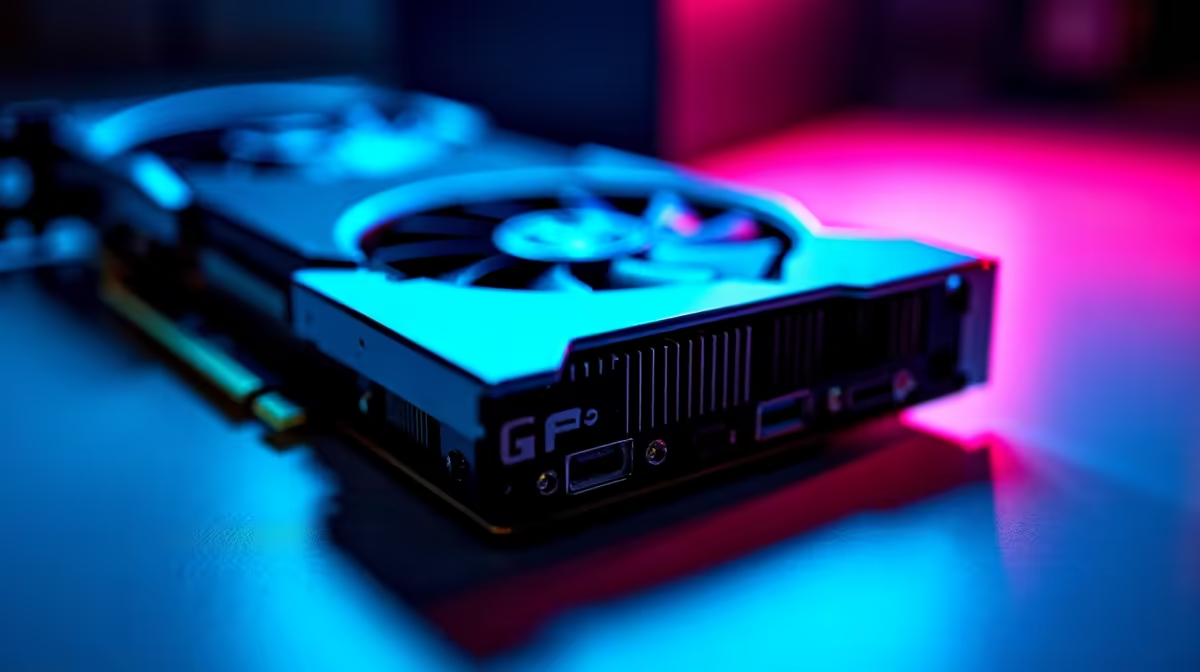
When a PC behaves erratically - random crashes, failed boots, corrupted files, or unexpected slowdowns - knowing which component is at fault saves you from replacing parts that aren't broken. Component diagnostics are a methodical process that any South African builder or upgrader can run at home with free tools.
Test each component systematically: use MemTest86 for RAM, CrystalDiskInfo for storage health, HWiNFO64 for temperature and sensor data, and FurMark or 3DMark for GPU stability. CPU stability can be assessed with Cinebench or Prime95. Isolating one component at a time gives you a clear picture of where the fault lies.
Faulty RAM causes some of the most unpredictable symptoms - random blue screens with different error codes, application crashes, memory corruption errors, and even failed Windows installs. MemTest86 is the gold standard for RAM testing. Create a bootable USB drive from the MemTest86 website, boot from it, and run at least two full passes. Any errors indicate faulty RAM modules.
For quicker in-Windows testing, Windows Memory Diagnostic (accessible via the Start menu) runs a basic scan that catches obvious faults during reboot. It's less thorough than MemTest86 but faster for a first check. If errors appear, test modules one at a time in slot 1 to identify which stick is faulty. Replace identified faulty modules through the RAM range at Evetech, selecting a kit that matches your motherboard's supported speeds.
CrystalDiskInfo reads SMART data directly from your drives and flags warning signs before catastrophic failure. Key indicators to watch include Reallocated Sectors Count (anything above 0 is concerning for an HDD), Uncorrectable Sector Count, and Pending Sector Count. For SSDs, watch Total Bytes Written against the drive's rated endurance, and check the Media Wearout Indicator if present.
For active drive testing, HD Tune (free version) runs a read benchmark that surfaces bad sectors and performance degradation not always visible in SMART data. An SSD that reads at 200MB/s when it should be doing 550MB/s is a sign of failing flash or controller issues. Back up data immediately when you see anomalous SMART readings. The SSD range at Evetech has replacement options across capacity tiers - a timely replacement before complete failure preserves your data.
GPU instability typically manifests as visual artefacts, driver crashes, or complete system resets under graphics load. FurMark applies maximum stress to the GPU - run it for 15–20 minutes while monitoring temperatures with HWiNFO64 or MSI Afterburner. GPU temperatures above 90°C under load suggest inadequate cooling. Artefacts or crashes during FurMark point to GPU hardware issues or insufficient power delivery.
For CPU testing, Cinebench R24 or Prime95 Small FFTs stress the processor under sustained load. Monitor core temperatures throughout - anything consistently above 95°C under load indicates a cooling problem, which may be as simple as dried thermal paste that needs replacing. CPU cooler options at varying performance tiers are available through the CPU cooler range at Evetech.
PSU faults are harder to diagnose without a dedicated tester, but symptoms include random shutdowns under load, instability that clears when reducing system power draw, and voltage readings outside spec in HWiNFO64. If voltage rails show significant deviation from 12V/5V/3.3V targets, the PSU warrants replacement - browse the PSU range for reliable options with appropriate wattage for your build.
Q: What's the fastest way to diagnose a PC that won't boot? A: Start with the minimum boot configuration - one RAM stick in slot A2, integrated graphics if available, and no peripherals beyond keyboard. If it boots, add components back one at a time to identify what prevents the boot. This isolation method is faster than running software tests on an unstable system.
Q: How do I tell if my PC problem is hardware or software? A: Hardware issues typically persist across OS reinstalls, appear under specific load conditions, or produce physical symptoms like artefacts, beep codes, or unusual sounds. Software issues usually respond to driver updates, rollbacks, or OS repairs. Running diagnostic tools from a bootable USB (outside Windows) confirms whether issues follow the hardware.
Q: Is overheating a common cause of PC instability in South Africa? A: Yes - ambient temperatures in SA, particularly in summer and in poorly ventilated spaces, push component temperatures higher than in cooler climates. Reapplying thermal paste, cleaning dust from heatsinks and fans, and improving case airflow are high-impact, low-cost fixes for temperature-related instability.
Evetech stocks Graphics Card Deals and Evetech Best Sellers — shop online with fast delivery across South Africa.
Ready to Find Your Perfect Match? Explore relevant Evetech options, compare current South African pricing, and choose hardware that fits your setup. Shop now
Component Diagnostics: Testing Hardware available at Evetech.co.za with local warranty and fast delivery.
Component Diagnostics: Testing Hardware - check Evetech for latest stock and SA pricing.
Depends on your use case. Component Diagnostics: Testing offers good value at current Rand pricing.
Headset Stock Levels in Bloemfontein: January. Current stock data & price tracking for SA buyers. See what is available and where prices are heading.
Read more
iMac for Medical Practice: Patient Management. SA-focused analysis with local pricing data, real-world insights & actionable buying advice.
Read more
RTX 5060 Fortnite Ultra Settings at 1080p: FPS. Real-world benchmark data, FPS numbers & performance analysis. What SA gamers can actually expect.
Read more
Headset Stock Levels in Cape Town: August Report. Current stock data & price tracking for SA buyers. See what is available and where prices are heading.
Read more
Eskom Load Shedding During Video Call: Solutions. SA-focused analysis with local pricing data, real-world insights & actionable buying advice.
Read more
LoL Performance on Extreme Gaming PC. Real-world benchmark data, FPS numbers & performance analysis. What SA gamers can actually expect.
Read more
Is a Ultra Short Throw Projector Good for Gaming?. Diagnosis steps, proven fixes & when to seek professional help. SA-specific support info included.

Is a Short Throw Projector Good for Gaming? Input. Diagnosis steps, proven fixes & when to seek professional help. SA-specific support info included.

Top Mouse Settings for Competitive FPS: Sensitivity picks evaluated on performance, value & SA availability with current Rand pricing from Evetech.

Top Speakers for MacBook Desk Setup picks evaluated on performance, value & SA availability with current Rand pricing from Evetech.

Is a Ergonomic Chair Better Than a Standard Office Chair for Gaming Detailed answer with SA data, expert analysis & practical recommendations for local buyers.

Use Spotlight Search Like a Pro on macOS. Step-by-step instructions with SA-specific tips, common pitfalls to avoid & expert recommendations.

wireless keyboard Fan Noise Too Loud: Quiet. Everything you need to know with SA pricing, step-by-step instructions & expert recommendations.

Connection Timeout: Troubleshooting Guide #2. Diagnosis steps, proven fixes & when to seek professional help. SA-specific support info included.
Headset Stock Levels in Bloemfontein: January. Current stock data & price tracking for SA buyers. See what is available and where prices are heading.
iMac for Medical Practice: Patient Management. SA-focused analysis with local pricing data, real-world insights & actionable buying advice.
RTX 5060 Fortnite Ultra Settings at 1080p: FPS. Real-world benchmark data, FPS numbers & performance analysis. What SA gamers can actually expect.
Headset Stock Levels in Cape Town: August Report. Current stock data & price tracking for SA buyers. See what is available and where prices are heading.