


Headset Stock Levels in Bloemfontein: January 2026 Report
Headset Stock Levels in Bloemfontein: January. Current stock data & price tracking for SA buyers. See what is available and where prices are heading.
Read moregaming keyboard Not Recognised After Windows. SA-focused analysis with local pricing data, real-world insights & actionable buying advice.
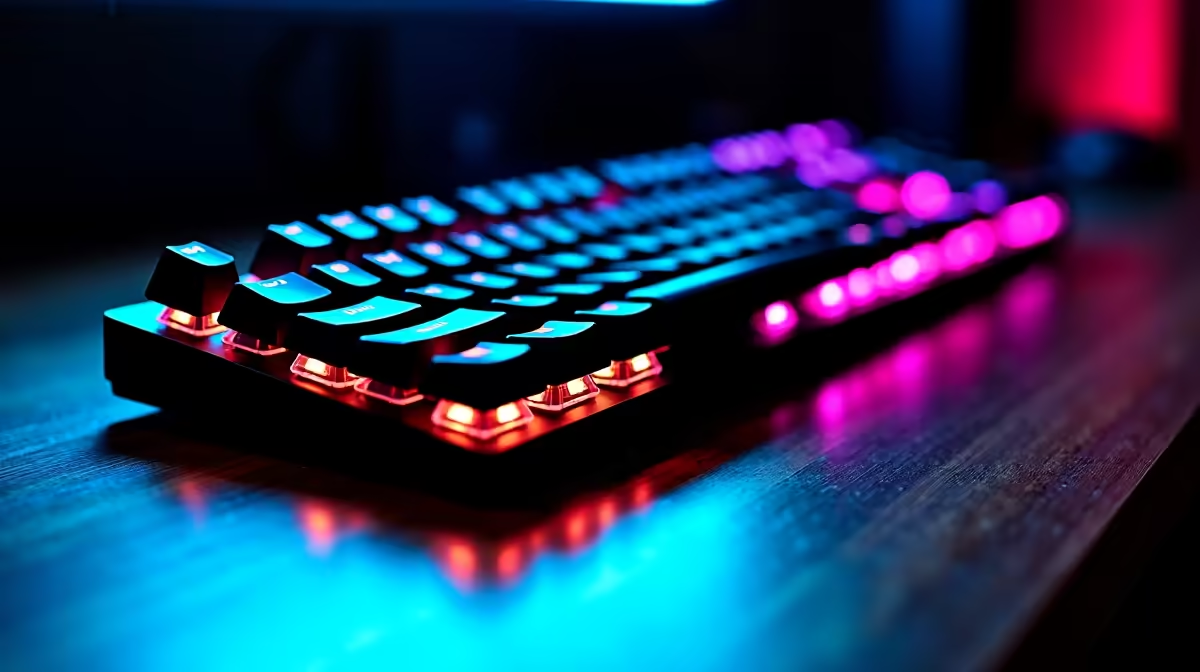
Windows updates can be essential for security and features, but sometimes a fresh update causes frustration—like your gaming keyboard not being recognised. South African gamers, we know how damaging this can be, especially when battling in ranked matches or loading into raids. Don’t stress; this is a common snag that’s usually fixable without having to replace your entire setup. Let’s dive into practical steps to get your keyboard back in the game.
Typically, a Windows update might reset drivers or alter USB controller settings. Your gaming keyboard could stop responding because Windows doesn’t automatically reinstall the right driver. Or the update introduced compatibility glitches with your device’s firmware.
Another reason could be a disabled USB port or power management setting meant to save energy but interfering with your peripherals. It’s worth inspecting your Device Manager and USB settings to pinpoint the cause.
Make sure your keyboard’s firmware is up to date. Some of the top brands send updates to enhance compatibility with new Windows versions. Check your manufacturer’s app or website for the latest patches.
Open Device Manager (Windows + X), find your keyboard under ‘Keyboards’ or ‘Universal Serial Bus controllers’. Right-click and select ‘Uninstall device’. Then, disconnect and reconnect your keyboard. Windows should reinstall the driver automatically.
If it doesn’t, visit your keyboard’s brand website for the latest drivers or consider browsing Evetech’s gaming keyboards collection to compare and possibly upgrade to a model with top Windows 11 compatibility.
Navigate to Device Manager → Universal Serial Bus controllers → USB Root Hub (you may see several). Right-click and select ‘Properties’, then ‘Power Management’. Uncheck ‘Allow the computer to turn off this device to save power’. This often resolves recognition dropouts caused by update power tweaks.
Windows includes a troubleshooter that detects and fixes many USB or keyboard problems. Go to Settings → Update & Security → Troubleshoot → Additional troubleshooters → Keyboard → Run the troubleshooter. Follow prompts to fix recognised issues.
If your gaming keyboard stopped working immediately after an update, consider rolling it back. Head into ‘Update history’ under Windows Update and uninstall the most recent one causing trouble. Just be cautious—check for security risks with older versions.
Try your keyboard on another PC or laptop to make sure the problem is on the Windows side and not hardware failure. If it works elsewhere, you can be confident it’s a software-side fix.
You might also want to explore some killer pre-built PC deals or check out notebooks for sale in South Africa if you’re considering upgrading your entire setup.
Double-check your USB port itself! Sometimes ports get dusty or wear out. Try cleaning the port gently, or switch to a USB 2.0 slot if available—some peripherals behave better there post-update.
If you keep hitting update issues, it might be time to ditch legacy gear. Newer gaming keyboards often come with firmware that auto-updates with Windows changes in mind. Plus, modern keyboards offer better durability, lighting, and custom macros for that competitive edge.
And while you’re at it, browsing the latest gaming PC deals at Evetech can help you refresh your rig too—keeping your entire setup free from compatibility headaches.
To avoid future headaches:
This approach reduces downtime and ensures your gear keeps pace with software changes. Gaming in South Africa's competitive scene demands stable gear.
Evetech stocks a vast range of peripherals crafted for durability and performance. Whether you want high-quality keyboards, mice, or headsets, their specials often deliver top value priced perfectly for the local market.
Gaming isn’t just about graphics and FPS—your keyboard is your weapon. Fix recognition issues quickly or upgrade to gear optimised for Windows 11 and beyond.
Upgrade Your Gaming Gear Today Getting your gaming keyboard running after a Windows update doesn’t have to be tricky. Find your perfect match now—Shop now at Evetech for performance that leaves lag in the dust.
gaming keyboard Not Recognised After Win available at Evetech.co.za with local warranty and fast delivery.
gaming keyboard Not Recognised After Win - check Evetech for latest stock and SA pricing.
Depends on your use case. gaming keyboard Not Recognised offers good value at current Rand pricing.
Headset Stock Levels in Bloemfontein: January. Current stock data & price tracking for SA buyers. See what is available and where prices are heading.
Read more
iMac for Medical Practice: Patient Management. SA-focused analysis with local pricing data, real-world insights & actionable buying advice.
Read more
RTX 5060 Fortnite Ultra Settings at 1080p: FPS. Real-world benchmark data, FPS numbers & performance analysis. What SA gamers can actually expect.
Read more
Headset Stock Levels in Cape Town: August Report. Current stock data & price tracking for SA buyers. See what is available and where prices are heading.
Read more
Eskom Load Shedding During Video Call: Solutions. SA-focused analysis with local pricing data, real-world insights & actionable buying advice.
Read more
LoL Performance on Extreme Gaming PC. Real-world benchmark data, FPS numbers & performance analysis. What SA gamers can actually expect.
Read more
Is a Ultra Short Throw Projector Good for Gaming?. Diagnosis steps, proven fixes & when to seek professional help. SA-specific support info included.

Is a Short Throw Projector Good for Gaming? Input. Diagnosis steps, proven fixes & when to seek professional help. SA-specific support info included.

Top Mouse Settings for Competitive FPS: Sensitivity picks evaluated on performance, value & SA availability with current Rand pricing from Evetech.

Top Speakers for MacBook Desk Setup picks evaluated on performance, value & SA availability with current Rand pricing from Evetech.

Is a Ergonomic Chair Better Than a Standard Office Chair for Gaming Detailed answer with SA data, expert analysis & practical recommendations for local buyers.

Use Spotlight Search Like a Pro on macOS. Step-by-step instructions with SA-specific tips, common pitfalls to avoid & expert recommendations.

wireless keyboard Fan Noise Too Loud: Quiet. Everything you need to know with SA pricing, step-by-step instructions & expert recommendations.

Connection Timeout: Troubleshooting Guide #2. Diagnosis steps, proven fixes & when to seek professional help. SA-specific support info included.
Headset Stock Levels in Bloemfontein: January. Current stock data & price tracking for SA buyers. See what is available and where prices are heading.
iMac for Medical Practice: Patient Management. SA-focused analysis with local pricing data, real-world insights & actionable buying advice.
RTX 5060 Fortnite Ultra Settings at 1080p: FPS. Real-world benchmark data, FPS numbers & performance analysis. What SA gamers can actually expect.
Headset Stock Levels in Cape Town: August Report. Current stock data & price tracking for SA buyers. See what is available and where prices are heading.