


Headset Stock Levels in Bloemfontein: January 2026 Report
Headset Stock Levels in Bloemfontein: January. Current stock data & price tracking for SA buyers. See what is available and where prices are heading.
Read moreMacBook Screen Flickering? Causes and Solutions. SA-focused analysis with local pricing data, real-world insights & actionable buying advice.
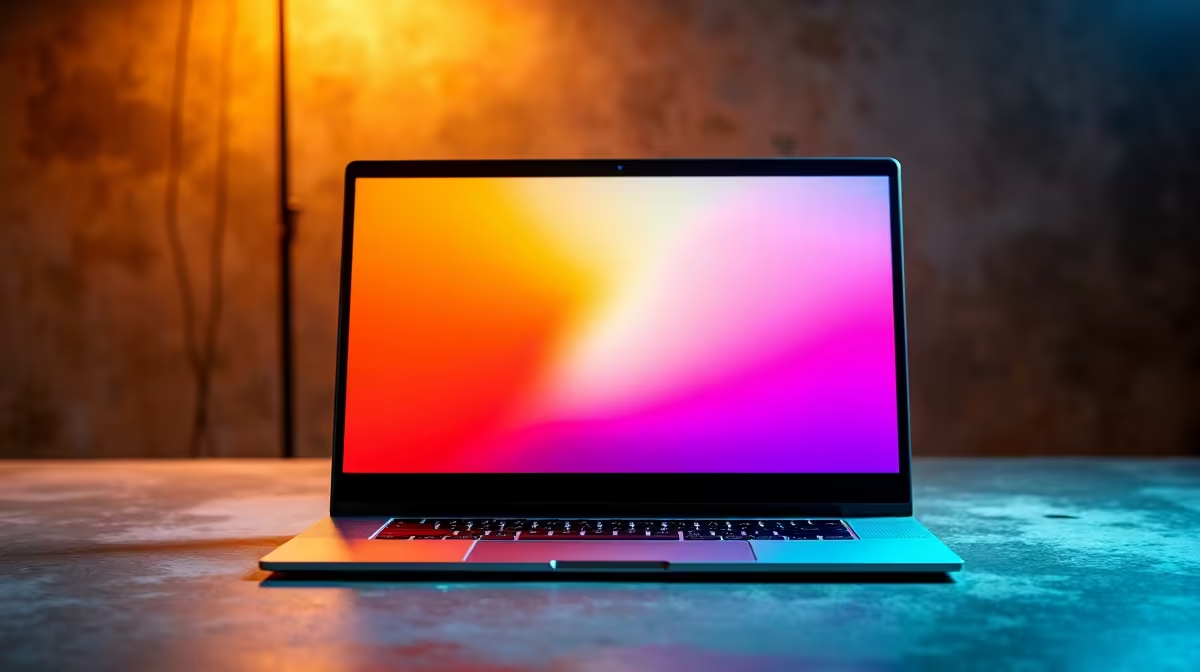
Ever been mid-match or working late when your MacBook screen starts flickering? It’s frustrating, especially if it’s your main device for gaming, creative work, or daily tasks. Screen flickering can mean many things, from software glitches to hardware faults—missing a smooth display can seriously disrupt your flow. If you’re in South Africa and dealing with this, keep reading for clear causes and practical fixes you can try today.
One usual suspect? Software conflicts after macOS updates can cause temporary flickering. Also, incompatible apps or outdated drivers might mess with your graphics display. Check if your system and apps are up-to-date. An easy step is booting in Safe Mode to see if flickering stops—this helps narrow down software-related issues.
Hardware is another key area. The LCD connector inside your MacBook could be loose or damaged. More seriously, if your MacBook has a failing graphics card, flickering might be a sign it’s struggling to render frames smoothly. Unlike desktops where you can swap graphics cards easily, MacBooks need expert servicing—especially older models.
If these don’t help, it might be time for a hardware check or to consider a replacement.
A fresh macOS reinstall can reset problematic system files causing flicker. Backup your data first, then try a clean install for best results.
If your MacBook screen keeps giving you grief, South African gamers and creatives shouldn’t settle for anything less than clear, reliable visuals. Older MacBooks might struggle with newer graphics-heavy apps or games. At Evetech, we offer a wide range of notebooks for sale in South Africa that combine power and stability.
Looking for desktop setups? Our best gaming PC deals offer killer performance with vibrant displays perfect for flicker-free gameplay. And if you want plug-and-play, check out our pre-built PC deals, tailored for demanding users who value flawless visuals.
For those willing to upgrade components, choosing the right graphics card is vital. The wrong GPU can worsen flickering or cause compatibility headaches. Evetech’s graphics cards collection features trusted brands to keep your system smooth and responsive. These parts often mean less flicker, smoother gaming, and sharper images on your display.
Plus, keep an eye on Evetech specials for deals that match your budget without compromising on quality. A stable display starts with solid hardware.
Taking these steps will save you downtime and heaps of frustration.
Ready for a flawless display experience? Don’t let screen flickering hold you back—Shop now at Evetech for robust laptops and unbeatable PC deals crafted for South African gamers and users.
MacBook Screen Flickering? Causes and So available at Evetech.co.za with local warranty and fast delivery.
MacBook Screen Flickering? Causes and So - check Evetech for latest stock and SA pricing.
Depends on your use case. MacBook Screen Flickering? Cau offers good value at current Rand pricing.
Headset Stock Levels in Bloemfontein: January. Current stock data & price tracking for SA buyers. See what is available and where prices are heading.
Read more
iMac for Medical Practice: Patient Management. SA-focused analysis with local pricing data, real-world insights & actionable buying advice.
Read more
RTX 5060 Fortnite Ultra Settings at 1080p: FPS. Real-world benchmark data, FPS numbers & performance analysis. What SA gamers can actually expect.
Read more
Headset Stock Levels in Cape Town: August Report. Current stock data & price tracking for SA buyers. See what is available and where prices are heading.
Read more
Eskom Load Shedding During Video Call: Solutions. SA-focused analysis with local pricing data, real-world insights & actionable buying advice.
Read more
LoL Performance on Extreme Gaming PC. Real-world benchmark data, FPS numbers & performance analysis. What SA gamers can actually expect.
Read more
Is a Ultra Short Throw Projector Good for Gaming?. Diagnosis steps, proven fixes & when to seek professional help. SA-specific support info included.

Is a Short Throw Projector Good for Gaming? Input. Diagnosis steps, proven fixes & when to seek professional help. SA-specific support info included.

Top Mouse Settings for Competitive FPS: Sensitivity picks evaluated on performance, value & SA availability with current Rand pricing from Evetech.

Top Speakers for MacBook Desk Setup picks evaluated on performance, value & SA availability with current Rand pricing from Evetech.

Is a Ergonomic Chair Better Than a Standard Office Chair for Gaming Detailed answer with SA data, expert analysis & practical recommendations for local buyers.

Use Spotlight Search Like a Pro on macOS. Step-by-step instructions with SA-specific tips, common pitfalls to avoid & expert recommendations.

wireless keyboard Fan Noise Too Loud: Quiet. Everything you need to know with SA pricing, step-by-step instructions & expert recommendations.

Connection Timeout: Troubleshooting Guide #2. Diagnosis steps, proven fixes & when to seek professional help. SA-specific support info included.
Headset Stock Levels in Bloemfontein: January. Current stock data & price tracking for SA buyers. See what is available and where prices are heading.
iMac for Medical Practice: Patient Management. SA-focused analysis with local pricing data, real-world insights & actionable buying advice.
RTX 5060 Fortnite Ultra Settings at 1080p: FPS. Real-world benchmark data, FPS numbers & performance analysis. What SA gamers can actually expect.
Headset Stock Levels in Cape Town: August Report. Current stock data & price tracking for SA buyers. See what is available and where prices are heading.