


Headset Stock Levels in Bloemfontein: January 2026 Report
Headset Stock Levels in Bloemfontein: January. Current stock data & price tracking for SA buyers. See what is available and where prices are heading.
Read moreMonitor Color Wrong: Diagnostic Steps. Systematic diagnosis process, recovery options & when to seek professional data recovery in SA.
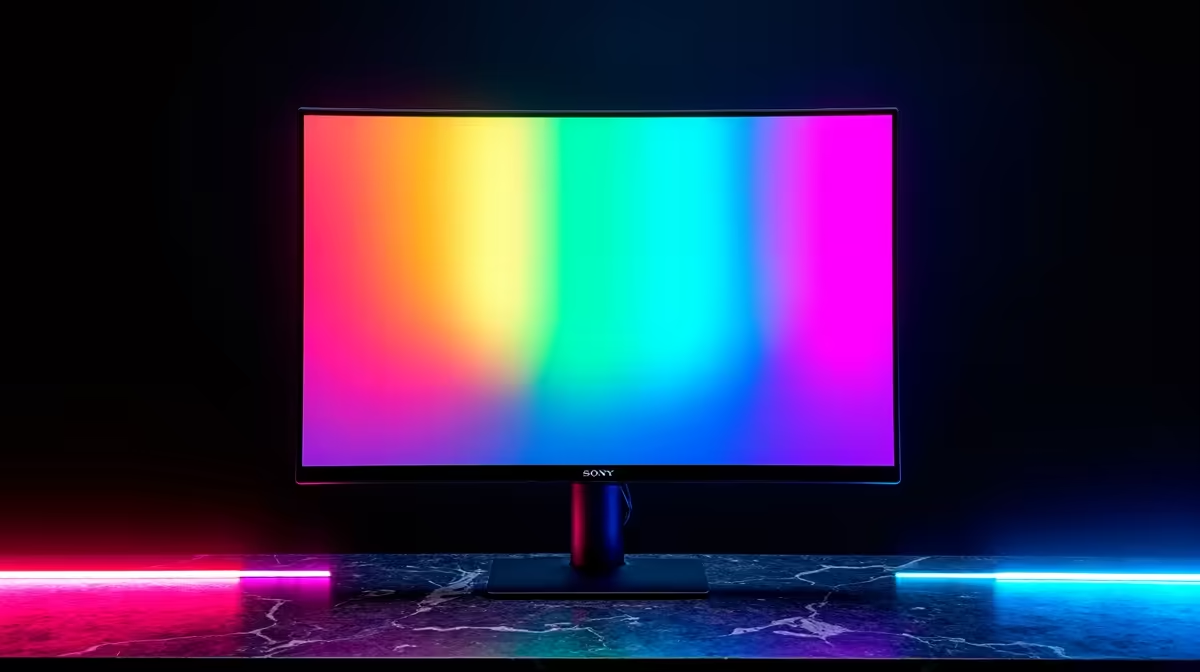
Wrong monitor colors are usually caused by an incorrect color profile, miscalibrated brightness or contrast, a faulty cable, or incorrect display settings. Most cases are fixed in under five minutes by resetting the monitor to factory defaults or reassigning the correct ICC color profile in Windows.
The fastest diagnostic step is to reset your monitor to factory settings using the OSD (On-Screen Display) menu. Access the menu via the buttons on the monitor bezel, navigate to a Reset or Factory Reset option, and confirm. This clears any accidental setting changes such as overdriven saturation, incorrect gamma, or color temperature shifts. Many users in SA pick up monitors second-hand where previous owners have made heavy OSD adjustments, so a factory reset is always the first step.
After resetting, check if the color issue persists. If colors are now accurate, the problem was an OSD setting. If the issue remains, continue to the next step.
Windows assigns a color profile to each connected display. An incorrect profile causes systematic color shifts, often making the entire display look too warm, too cool, or oversaturated. To check, open Settings, search for Color Management, and open the Color Management app. Select your monitor from the dropdown and check which ICC profile is assigned. The default sRGB profile (sRGB IEC61966-2.1) is correct for most monitors. If an unknown or mismatched profile is listed, remove it and set the sRGB default.
For professional displays or wide-gamut panels, the manufacturer's specific ICC profile from their website applies correctly.
A damaged or low-quality cable causes signal degradation that manifests as color banding, washed-out whites, or a green or magenta tint. Swap the cable (HDMI or DisplayPort) with a known-good replacement. Also try a different port on your GPU if one is available. Display issues that appear only on one port usually point to a failing GPU output rather than the monitor itself.
Why does my monitor look yellow or orange? Night Light mode in Windows shifts the display warm to reduce blue light. Check Quick Settings in Windows 11 and toggle Night Light off.
Can a GPU driver cause wrong monitor colors? Yes. GPU driver color settings (found in Nvidia Control Panel or AMD Software) can override monitor settings. Reset output color format to RGB and dynamic range to Full.
My second monitor has wrong colors but the primary is fine. What does that mean? Each monitor has its own color profile assignment. Check that the second monitor has the correct ICC profile applied in Color Management.
Also at Evetech: All Monitors | Graphics Card Deals
Ready to Find Your Perfect Match? Shop Monitors at Evetech
Monitor Color Wrong: Diagnostic Steps available at Evetech.co.za with local warranty and fast delivery.
Monitor Color Wrong: Diagnostic Steps - check Evetech for latest stock and SA pricing.
Depends on your use case. Monitor Color Wrong: Diagnosti offers good value at current Rand pricing.
Headset Stock Levels in Bloemfontein: January. Current stock data & price tracking for SA buyers. See what is available and where prices are heading.
Read more
iMac for Medical Practice: Patient Management. SA-focused analysis with local pricing data, real-world insights & actionable buying advice.
Read more
RTX 5060 Fortnite Ultra Settings at 1080p: FPS. Real-world benchmark data, FPS numbers & performance analysis. What SA gamers can actually expect.
Read more
Headset Stock Levels in Cape Town: August Report. Current stock data & price tracking for SA buyers. See what is available and where prices are heading.
Read more
Eskom Load Shedding During Video Call: Solutions. SA-focused analysis with local pricing data, real-world insights & actionable buying advice.
Read more
LoL Performance on Extreme Gaming PC. Real-world benchmark data, FPS numbers & performance analysis. What SA gamers can actually expect.
Read more
Is a Ultra Short Throw Projector Good for Gaming?. Diagnosis steps, proven fixes & when to seek professional help. SA-specific support info included.

Is a Short Throw Projector Good for Gaming? Input. Diagnosis steps, proven fixes & when to seek professional help. SA-specific support info included.

Top Mouse Settings for Competitive FPS: Sensitivity picks evaluated on performance, value & SA availability with current Rand pricing from Evetech.

Top Speakers for MacBook Desk Setup picks evaluated on performance, value & SA availability with current Rand pricing from Evetech.

Is a Ergonomic Chair Better Than a Standard Office Chair for Gaming Detailed answer with SA data, expert analysis & practical recommendations for local buyers.

Use Spotlight Search Like a Pro on macOS. Step-by-step instructions with SA-specific tips, common pitfalls to avoid & expert recommendations.

wireless keyboard Fan Noise Too Loud: Quiet. Everything you need to know with SA pricing, step-by-step instructions & expert recommendations.

Connection Timeout: Troubleshooting Guide #2. Diagnosis steps, proven fixes & when to seek professional help. SA-specific support info included.
Headset Stock Levels in Bloemfontein: January. Current stock data & price tracking for SA buyers. See what is available and where prices are heading.
iMac for Medical Practice: Patient Management. SA-focused analysis with local pricing data, real-world insights & actionable buying advice.
RTX 5060 Fortnite Ultra Settings at 1080p: FPS. Real-world benchmark data, FPS numbers & performance analysis. What SA gamers can actually expect.
Headset Stock Levels in Cape Town: August Report. Current stock data & price tracking for SA buyers. See what is available and where prices are heading.