


Headset Stock Levels in Bloemfontein: January 2026 Report
Headset Stock Levels in Bloemfontein: January. Current stock data & price tracking for SA buyers. See what is available and where prices are heading.
Read moreMotherboard Q-LED Lights Showing CPU Issue. Diagnosis steps, proven fixes & when to seek professional help. SA-specific support info included.
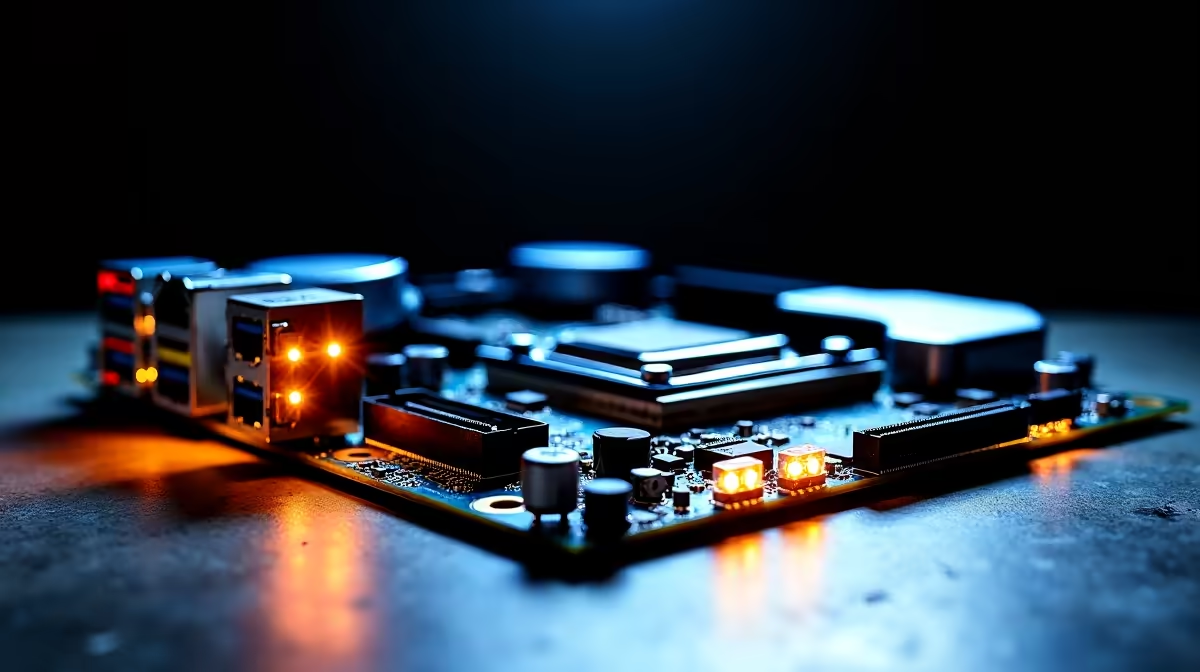
A CPU Q-LED (debug LED) on your motherboard lights up amber or red to indicate the system cannot complete POST due to a CPU-related issue. The most common causes are an unseated CPU, incompatible CPU/BIOS combination, or insufficient power delivery - all of which are fixable without replacing components in most cases.
Modern motherboards include Q-LED diagnostic lights to help identify POST failures without a separate debug display or speaker. When the CPU Q-LED stays lit after you power on, the board is telling you it cannot initialise the processor. Here is how to diagnose and fix it systematically.
The most common cause of a CPU Q-LED is an improperly seated processor. Power off completely, unplug from the wall, and discharge residual power by holding the power button for 5 seconds. Open the CPU socket, carefully lift the retention lever, and remove the CPU. Inspect the CPU contact pads (AMD) or the socket pins (Intel) with a flashlight - look for any bent or damaged pins. Even a single bent pin can prevent contact. If you find bent pins on an Intel socket, they can often be carefully straightened with a mechanical pencil (without the lead) or a thin pin - work slowly under magnification. Reseat the CPU, ensure it clicks into the socket correctly, and reinstall the retention bracket firmly.
Excessive cooler mounting pressure can distort the motherboard, causing poor CPU socket contact. Conversely, insufficient mounting pressure prevents proper thermal contact, and while the system might still POST, it can cause thermal shutdowns that look like CPU failures. Ensure your cooler mounting screws are tightened evenly in a cross pattern - finger-tight plus a quarter turn is usually correct. If you recently installed a heavy cooler, ensure the backplate is properly installed and not flexing the board.
New CPUs often require updated BIOS firmware to be recognised by the motherboard. This is especially relevant when pairing a newer CPU (e.g., Intel 14th Gen) with an older 600-series board, or an AMD Ryzen 7000 series CPU with a B550 board that has not been updated. If you have a compatible older CPU, install it temporarily to boot the board and update the BIOS - then swap to the new CPU. If you do not have a compatible CPU, check if your motherboard supports ''CPU-less BIOS update'' (ASUS BIOS FlashBack, MSI Flash BIOS Button, Gigabyte Q-Flash Plus) which allows updating via USB without a working CPU.
Q: Does a CPU Q-LED always mean the CPU is dead? A: No. In most cases, the CPU Q-LED indicates a compatibility or seating issue rather than a dead processor. Work through the diagnostic steps before assuming the CPU is faulty.
Q: Can a bad PSU cause a CPU Q-LED? A: Yes. Insufficient power delivery - from an underpowered PSU or a loose CPU power connector (the 8-pin or 4+4-pin EPS connector near the top of the board) - can prevent the CPU from initialising. Always check that the CPU power cable is firmly seated before troubleshooting further.
Q: My BIOS is updated but the CPU Q-LED still stays on - what next? A: Try clearing CMOS by removing the CMOS battery for 30 seconds or using the CLR_CMOS jumper on the board. If the issue persists after reseating the CPU, verifying power connections, and clearing CMOS, the CPU itself may need to be tested in another compatible board.
Ready to Find Your Perfect Match? Upgrade your motherboard or CPU at Evetech - components for every SA builder.
Motherboard Q-LED Lights Showing CPU Iss available at Evetech.co.za with local warranty and fast delivery.
Motherboard Q-LED Lights Showing CPU Iss - check Evetech for latest stock and SA pricing.
Depends on your use case. Motherboard Q-LED Lights Showi offers good value at current Rand pricing.
Headset Stock Levels in Bloemfontein: January. Current stock data & price tracking for SA buyers. See what is available and where prices are heading.
Read more
iMac for Medical Practice: Patient Management. SA-focused analysis with local pricing data, real-world insights & actionable buying advice.
Read more
RTX 5060 Fortnite Ultra Settings at 1080p: FPS. Real-world benchmark data, FPS numbers & performance analysis. What SA gamers can actually expect.
Read more
Headset Stock Levels in Cape Town: August Report. Current stock data & price tracking for SA buyers. See what is available and where prices are heading.
Read more
Eskom Load Shedding During Video Call: Solutions. SA-focused analysis with local pricing data, real-world insights & actionable buying advice.
Read more
LoL Performance on Extreme Gaming PC. Real-world benchmark data, FPS numbers & performance analysis. What SA gamers can actually expect.
Read more
Is a Ultra Short Throw Projector Good for Gaming?. Diagnosis steps, proven fixes & when to seek professional help. SA-specific support info included.

Is a Short Throw Projector Good for Gaming? Input. Diagnosis steps, proven fixes & when to seek professional help. SA-specific support info included.

Top Mouse Settings for Competitive FPS: Sensitivity picks evaluated on performance, value & SA availability with current Rand pricing from Evetech.

Top Speakers for MacBook Desk Setup picks evaluated on performance, value & SA availability with current Rand pricing from Evetech.

Is a Ergonomic Chair Better Than a Standard Office Chair for Gaming Detailed answer with SA data, expert analysis & practical recommendations for local buyers.

Use Spotlight Search Like a Pro on macOS. Step-by-step instructions with SA-specific tips, common pitfalls to avoid & expert recommendations.

wireless keyboard Fan Noise Too Loud: Quiet. Everything you need to know with SA pricing, step-by-step instructions & expert recommendations.

Connection Timeout: Troubleshooting Guide #2. Diagnosis steps, proven fixes & when to seek professional help. SA-specific support info included.
Headset Stock Levels in Bloemfontein: January. Current stock data & price tracking for SA buyers. See what is available and where prices are heading.
iMac for Medical Practice: Patient Management. SA-focused analysis with local pricing data, real-world insights & actionable buying advice.
RTX 5060 Fortnite Ultra Settings at 1080p: FPS. Real-world benchmark data, FPS numbers & performance analysis. What SA gamers can actually expect.
Headset Stock Levels in Cape Town: August Report. Current stock data & price tracking for SA buyers. See what is available and where prices are heading.