


Headset Stock Levels in Bloemfontein: January 2026 Report
Headset Stock Levels in Bloemfontein: January. Current stock data & price tracking for SA buyers. See what is available and where prices are heading.
Read morePerformance Bad After Driver Update. Real-world benchmark data, FPS numbers & performance analysis. What SA gamers can actually expect.
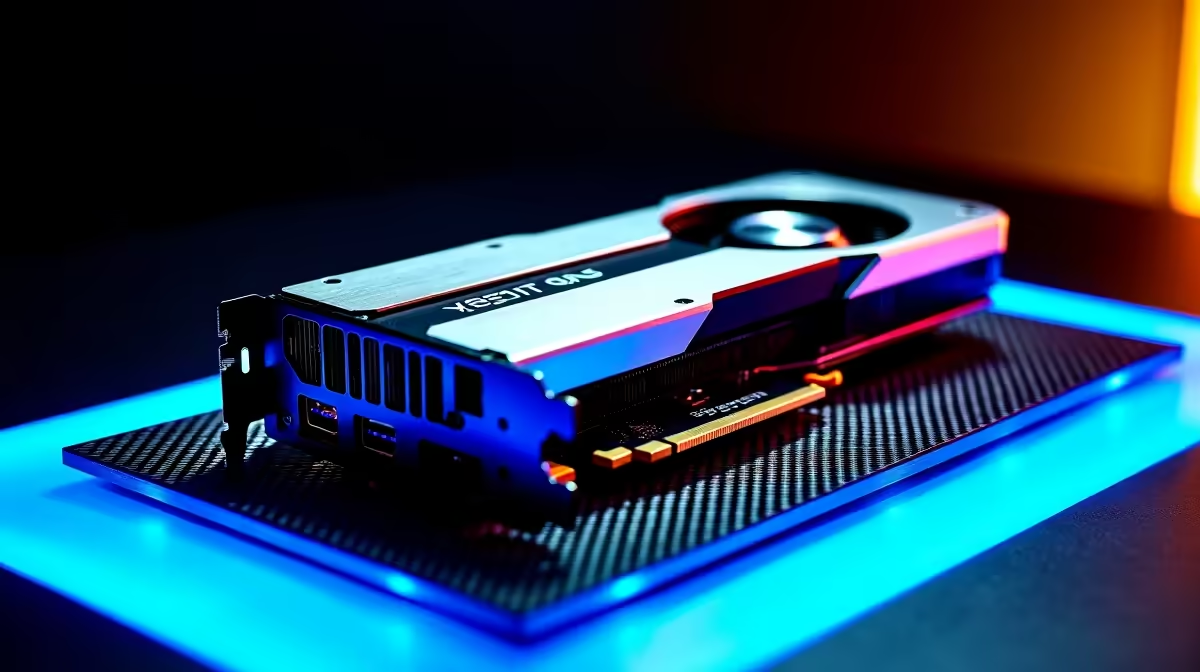
If your PC''s gaming or graphics performance dropped after a driver update, the most effective fix is usually to perform a clean uninstall of the new driver using Display Driver Uninstaller (DDU) in safe mode, then reinstall the previous stable driver version. This resolves the majority of post-update performance regressions.
Driver updates are supposed to improve performance and add support for new titles and features. When the opposite happens - and your frame rates drop, stuttering appears, or games that previously ran smoothly now chug - the cause is almost always a compatibility issue between the new driver and your specific hardware or software configuration. The fix is methodical rather than drastic.
Before uninstalling anything, confirm that the driver update is actually responsible. Rule out other recent changes: did Windows update at the same time? Did you install a new application? Did your storage fill up, causing Windows to page heavily? Open Task Manager and GPU-Z or HWiNFO64 while running the affected game to check whether the GPU is being fully utilised. A GPU sitting at 30–40% utilisation while frame rates are low often indicates a CPU bottleneck, paging issue, or background process conflict rather than a driver problem.
If the GPU is being fully utilised but performance is still lower than before the driver update, the driver is the likely culprit. Note your current driver version from Device Manager or the GPU control panel - you''ll need the previous version number to roll back.
The most reliable fix for a bad driver update is a clean installation of the previous driver version. Do not use Windows'' built-in ''Roll Back Driver'' option - it often leaves driver components in place that cause conflicts. Instead, download Display Driver Uninstaller (DDU), boot into Windows Safe Mode (which prevents the GPU driver from loading), run DDU to completely remove all GPU driver components, then restart into normal Windows and install the previous stable driver version.
For NVIDIA users, driver version history is available on NVIDIA''s developer download page where you can filter by product and find the specific previous version. AMD provides previous Adrenalin releases through their driver history page. Install the older version without the optional GeForce Experience or Radeon Software components if you want a minimal, clean installation.
If rolling back to the previous driver doesn''t restore performance, the problem may lie elsewhere. Check that your GPU''s power limit hasn''t been reset by the driver update - some updates reset overclocking or undervolting profiles. Verify that the driver hasn''t changed default settings like image scaling, power management mode (set this to Prefer Maximum Performance for gaming), or shader cache location.
Also check for Windows power plan changes. Driver updates occasionally reset Windows power plan settings to Balanced, which throttles CPU performance. Switching back to High Performance or the AMD/NVIDIA-specific high performance plan often restores expected frame rates immediately.
Q: How do I find the previous stable driver version for my GPU? A: For NVIDIA, check the driver version history on the NVIDIA website filtered by your GPU model. For AMD, Radeon Software lists previous driver versions under the optional ''Previous Drivers'' section. Note your current version first so you know what to replace.
Q: Is it safe to stay on an older driver indefinitely? A: Generally yes for stability and performance. Older drivers miss out on optimisations for newly released games and occasional security patches. If you''re not playing titles that benefit from newer driver optimisations, staying on a stable older version is a perfectly valid approach.
Q: Can Windows Update reinstall a bad GPU driver automatically? A: Yes. Windows Update sometimes pushes GPU driver updates without user initiation. To prevent this, use the ''Show or hide updates'' troubleshooter from Microsoft, or manage driver updates through your GPU vendor''s software to control when updates are applied.
Ready to Find Your Perfect Match? Shop graphics cards and PC components at Evetech.
Performance Bad After Driver Update available at Evetech.co.za with local warranty and fast delivery.
Performance Bad After Driver Update - check Evetech for latest stock and SA pricing.
Depends on your use case. Performance Bad After Driver U offers good value at current Rand pricing.
Headset Stock Levels in Bloemfontein: January. Current stock data & price tracking for SA buyers. See what is available and where prices are heading.
Read more
iMac for Medical Practice: Patient Management. SA-focused analysis with local pricing data, real-world insights & actionable buying advice.
Read more
RTX 5060 Fortnite Ultra Settings at 1080p: FPS. Real-world benchmark data, FPS numbers & performance analysis. What SA gamers can actually expect.
Read more
Headset Stock Levels in Cape Town: August Report. Current stock data & price tracking for SA buyers. See what is available and where prices are heading.
Read more
Eskom Load Shedding During Video Call: Solutions. SA-focused analysis with local pricing data, real-world insights & actionable buying advice.
Read more
LoL Performance on Extreme Gaming PC. Real-world benchmark data, FPS numbers & performance analysis. What SA gamers can actually expect.
Read more
Is a Ultra Short Throw Projector Good for Gaming?. Diagnosis steps, proven fixes & when to seek professional help. SA-specific support info included.

Is a Short Throw Projector Good for Gaming? Input. Diagnosis steps, proven fixes & when to seek professional help. SA-specific support info included.

Top Mouse Settings for Competitive FPS: Sensitivity picks evaluated on performance, value & SA availability with current Rand pricing from Evetech.

Top Speakers for MacBook Desk Setup picks evaluated on performance, value & SA availability with current Rand pricing from Evetech.

Is a Ergonomic Chair Better Than a Standard Office Chair for Gaming Detailed answer with SA data, expert analysis & practical recommendations for local buyers.

Use Spotlight Search Like a Pro on macOS. Step-by-step instructions with SA-specific tips, common pitfalls to avoid & expert recommendations.

wireless keyboard Fan Noise Too Loud: Quiet. Everything you need to know with SA pricing, step-by-step instructions & expert recommendations.

Connection Timeout: Troubleshooting Guide #2. Diagnosis steps, proven fixes & when to seek professional help. SA-specific support info included.
Headset Stock Levels in Bloemfontein: January. Current stock data & price tracking for SA buyers. See what is available and where prices are heading.
iMac for Medical Practice: Patient Management. SA-focused analysis with local pricing data, real-world insights & actionable buying advice.
RTX 5060 Fortnite Ultra Settings at 1080p: FPS. Real-world benchmark data, FPS numbers & performance analysis. What SA gamers can actually expect.
Headset Stock Levels in Cape Town: August Report. Current stock data & price tracking for SA buyers. See what is available and where prices are heading.