


Headset Stock Levels in Bloemfontein: January 2026 Report
Headset Stock Levels in Bloemfontein: January. Current stock data & price tracking for SA buyers. See what is available and where prices are heading.
Read moreRTX 4060 Ti Not Recognised After Windows Update. SA-focused analysis with local pricing data, real-world insights & actionable buying advice.
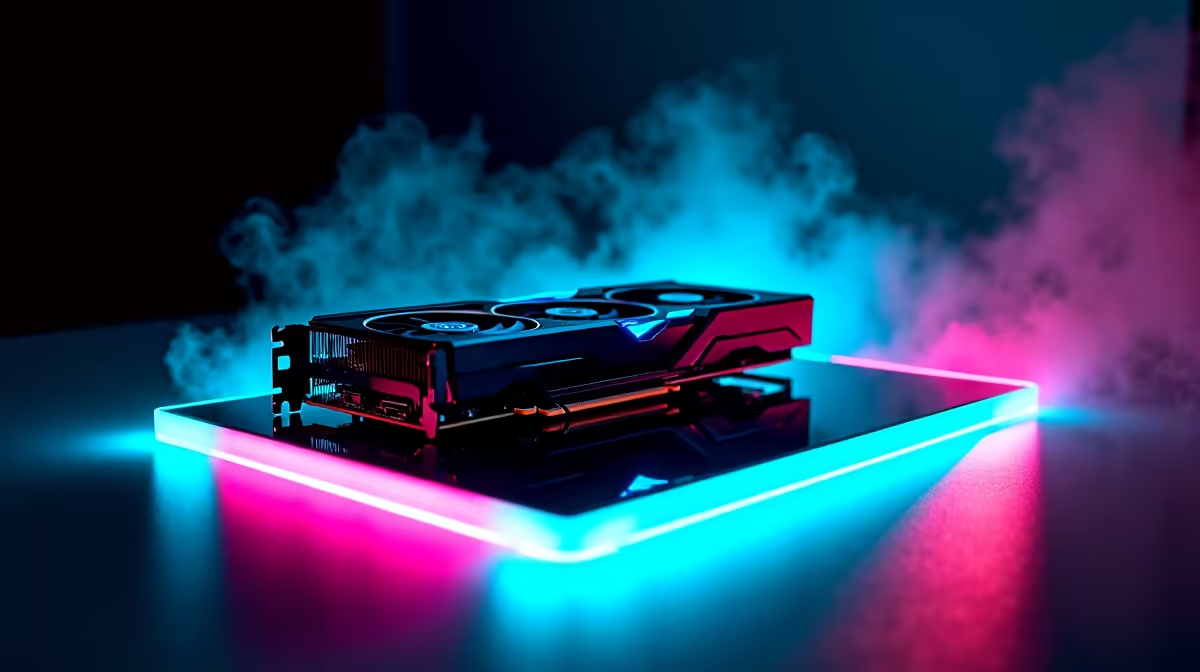
South African gamers know how frustrating it is when a fresh Windows update causes your shiny new RTX 4060 Ti to vanish from Device Manager. You’re ready to dive into the latest titles, but suddenly your system acts like the GPU doesn’t exist. Before you panic, there are several local fixes and steps to get that graphics card firing again, so your rig performs at peak. Let’s break down the root causes and practical solutions.
A Windows update can reset or overwrite essential drivers. This often leads to your PC ignoring the RTX 4060 Ti hardware — or worse, defaulting back to integrated graphics. Power settings or BIOS inconsistencies can also pop up after updates, especially on custom rigs. Knowing these common issues is the first step to fixing the problem quickly and without expensive downtime.
Windows updates sometimes replace your GPU drivers with generic ones. Head to NVIDIA’s official site or Evetech’s graphics cards page to download the latest drivers for your RTX 4060 Ti. Use Display Driver Uninstaller (DDU) in Safe Mode before reinstalling to clean out any corrupted files.
After big updates, BIOS settings might reset. Restart your PC, enter BIOS, and ensure PCIe slots are set to Auto or Gen3/Gen4 (matching your motherboard and card specs). Confirm your card is seated properly; a loose fit would prevent Windows recognising it.
For a fast driver reset, uninstall via Device Manager, restart, then install the latest NVIDIA drivers fresh from Evetech’s recommended supplier.
Head into Power Options and set your power plan to “High Performance”. Windows updates may tweak these settings to save energy, limiting GPU functionality. This can stop your RTX 4060 Ti from being detected or fully utilised.
At this point, you might consider hardware issues or compatibility conflicts. South African gamers looking for reliable performance can also explore complete systems tailored for RTX 4060 Ti in our best gaming PC deals — all tested and optimised for your setup to work straight away.
For laptop users experiencing similar hiccups, check out the latest models with NVIDIA GPUs on sale at Evetech’s laptop section designed to handle stable driver updates.
If you want pre-built desktops that come ready to go, browse our pre-built PC deals — no fuss, just power and reliability.
Always back up your system before major updates. Consider creating a Windows restore point so you can roll back if your RTX 4060 Ti disappears again. It helps to check Evetech’s specials regularly for discounted components and upgrades that can improve compatibility.
Keeping your drivers current and monitoring BIOS updates matching your motherboard brand keeps your rig ready for any future Windows changes without missing a beat. 🚀
Get Your RTX 4060 Ti Running Smoothly Again Don’t settle for frustration. Shop now at Evetech for the latest GPUs and expert support to keep your gaming rig performing at its best.
RTX 4060 Ti Not Recognised After Windows available at Evetech.co.za with local warranty and fast delivery.
RTX 4060 Ti Not Recognised After Windows - check Evetech for latest stock and SA pricing.
Depends on your use case. RTX 4060 Ti Not Recognised Aft offers good value at current Rand pricing.
Headset Stock Levels in Bloemfontein: January. Current stock data & price tracking for SA buyers. See what is available and where prices are heading.
Read more
iMac for Medical Practice: Patient Management. SA-focused analysis with local pricing data, real-world insights & actionable buying advice.
Read more
RTX 5060 Fortnite Ultra Settings at 1080p: FPS. Real-world benchmark data, FPS numbers & performance analysis. What SA gamers can actually expect.
Read more
Headset Stock Levels in Cape Town: August Report. Current stock data & price tracking for SA buyers. See what is available and where prices are heading.
Read more
Eskom Load Shedding During Video Call: Solutions. SA-focused analysis with local pricing data, real-world insights & actionable buying advice.
Read more
LoL Performance on Extreme Gaming PC. Real-world benchmark data, FPS numbers & performance analysis. What SA gamers can actually expect.
Read more
Is a Ultra Short Throw Projector Good for Gaming?. Diagnosis steps, proven fixes & when to seek professional help. SA-specific support info included.

Is a Short Throw Projector Good for Gaming? Input. Diagnosis steps, proven fixes & when to seek professional help. SA-specific support info included.

Top Mouse Settings for Competitive FPS: Sensitivity picks evaluated on performance, value & SA availability with current Rand pricing from Evetech.

Top Speakers for MacBook Desk Setup picks evaluated on performance, value & SA availability with current Rand pricing from Evetech.

Is a Ergonomic Chair Better Than a Standard Office Chair for Gaming Detailed answer with SA data, expert analysis & practical recommendations for local buyers.

Use Spotlight Search Like a Pro on macOS. Step-by-step instructions with SA-specific tips, common pitfalls to avoid & expert recommendations.

wireless keyboard Fan Noise Too Loud: Quiet. Everything you need to know with SA pricing, step-by-step instructions & expert recommendations.

Connection Timeout: Troubleshooting Guide #2. Diagnosis steps, proven fixes & when to seek professional help. SA-specific support info included.
Headset Stock Levels in Bloemfontein: January. Current stock data & price tracking for SA buyers. See what is available and where prices are heading.
iMac for Medical Practice: Patient Management. SA-focused analysis with local pricing data, real-world insights & actionable buying advice.
RTX 5060 Fortnite Ultra Settings at 1080p: FPS. Real-world benchmark data, FPS numbers & performance analysis. What SA gamers can actually expect.
Headset Stock Levels in Cape Town: August Report. Current stock data & price tracking for SA buyers. See what is available and where prices are heading.