


Headset Stock Levels in Bloemfontein: January 2026 Report
Headset Stock Levels in Bloemfontein: January. Current stock data & price tracking for SA buyers. See what is available and where prices are heading.
Read moreRTX 4080 Driver Rolling Back on Restart: Solution. SA-focused analysis with local pricing data, real-world insights & actionable buying advice.
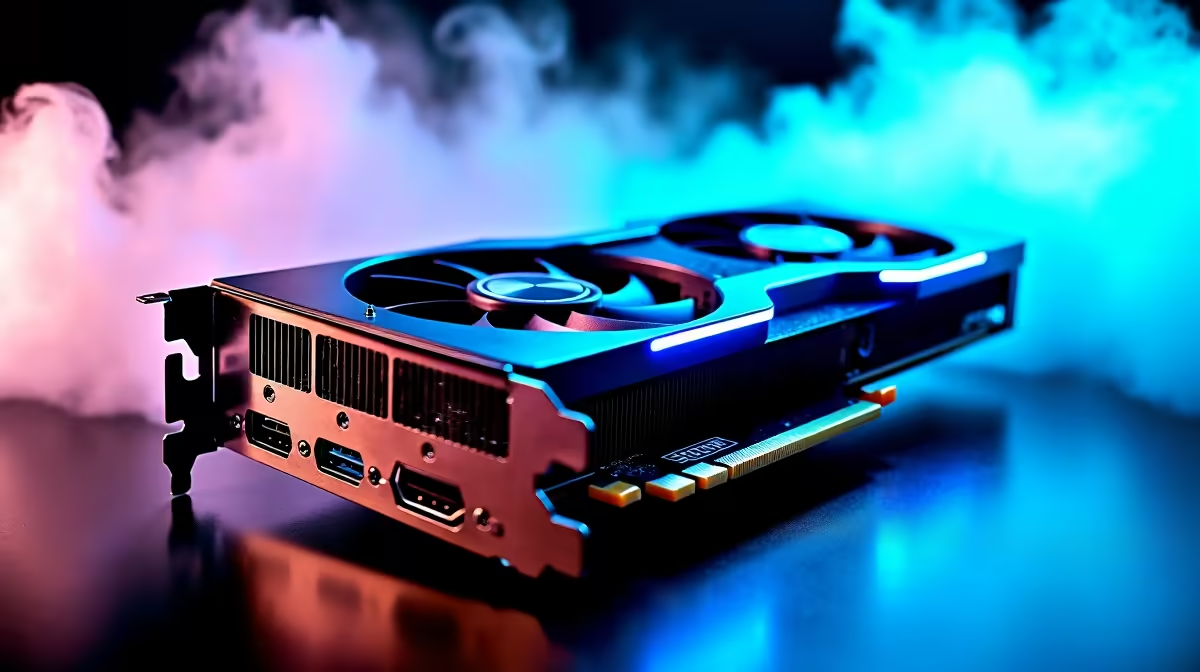
If your RTX 4080 driver keeps rolling back every time you restart your PC, you're not alone. South African gamers looking for the perfect RTX 4080 experience often hit this frustrating snag. This issue can cause performance dips or compatibility headaches, especially when you're aiming for smooth, lag-free gaming sessions. Luckily, there are some clear steps to help you fix the driver rollback problem and get your rig back on track.
When Windows detects that a newly installed graphics driver is unstable or incompatible, it may automatically revert to a previous version. This rollback happens silently during reboot, which can leave you confused if you haven't noticed any error messages. The RTX 4080, with its cutting-edge architecture, sometimes faces driver conflicts with Windows updates or other installed software.
One common cause is having outdated or conflicting software running in the background. For example, older GPU utilities or system tweaks can interfere with new Nvidia drivers. Always uninstall previous GPU drivers fully using Display Driver Uninstaller (DDU) before installing the latest RTX 4080 driver. This fresh start often stops rollbacks in their tracks.
Ensure your Windows 10 or 11 system is fully updated before installing or upgrading your RTX 4080 drivers. Windows updates often resolve compatibility bugs affecting graphics cards. After updating Windows, download the latest RTX 4080 driver directly from Nvidia's official site or use GeForce Experience to automate safe updates.
If your drivers keep rolling back, try installing them in Safe Mode. This environment avoids third-party software conflicts that might cause rollback errors.
Want to explore different RTX 4080 models and specs? Check out our comprehensive PC components range right here.
Before attempting reinstallation, run DDU in Safe Mode to wipe old drivers completely. Then install the latest NVIDIA driver without any other apps running.
After installing the correct driver version, open the Nvidia Control Panel and disable automatic driver updates by Windows. This trick stops Windows from overwriting your stable RTX 4080 driver with older versions. Also, keep an eye on system notifications after restarts to catch any failed driver installations early.
Pair your RTX 4080 with a powerful gaming PC for the best experience. Browse current top gaming PC deals in South Africa to find rigs that don't bottleneck this GPU’s performance.
Sometimes building a PC yourself can expose you to unexpected driver and software conflicts. If you want guaranteed compatibility and expert assembly, try a pre-built RTX 4080-powered system. These come optimised for maximising every frame and simplify driver management.
Explore our range of pre-built PC deals designed to give you smooth, worry-free gaming.
For gamers using laptops, manufacturer driver support matters too. Always download RTX 4080 drivers directly from your laptop brand’s official support pages or Nvidia. Avoid third-party driver sites that may cause rollback or incompatibility headaches.
Discover the latest notebooks for sale in South Africa with powerful RTX 4080 options.
Regularly checking for Nvidia driver updates and PC gear sales can boost your setup without breaking the bank. South African gamers can find great bargains when upgrading graphics cards or PCs.
Visit our specials page to catch the best prices on RTX 4080 GPUs and related hardware.
Upgrade Your Gaming Rig Today Don’t let driver issues hold you back. Shop now at Evetech for the best RTX 4080 GPUs and expert advice to keep your games running flawlessly.
RTX 4080 Driver Rolling Back on Restart: available at Evetech.co.za with local warranty and fast delivery.
RTX 4080 Driver Rolling Back on Restart: - check Evetech for latest stock and SA pricing.
Depends on your use case. RTX 4080 Driver Rolling Back o offers good value at current Rand pricing.
Headset Stock Levels in Bloemfontein: January. Current stock data & price tracking for SA buyers. See what is available and where prices are heading.
Read more
iMac for Medical Practice: Patient Management. SA-focused analysis with local pricing data, real-world insights & actionable buying advice.
Read more
RTX 5060 Fortnite Ultra Settings at 1080p: FPS. Real-world benchmark data, FPS numbers & performance analysis. What SA gamers can actually expect.
Read more
Headset Stock Levels in Cape Town: August Report. Current stock data & price tracking for SA buyers. See what is available and where prices are heading.
Read more
Eskom Load Shedding During Video Call: Solutions. SA-focused analysis with local pricing data, real-world insights & actionable buying advice.
Read more
LoL Performance on Extreme Gaming PC. Real-world benchmark data, FPS numbers & performance analysis. What SA gamers can actually expect.
Read more
Is a Ultra Short Throw Projector Good for Gaming?. Diagnosis steps, proven fixes & when to seek professional help. SA-specific support info included.

Is a Short Throw Projector Good for Gaming? Input. Diagnosis steps, proven fixes & when to seek professional help. SA-specific support info included.

Top Mouse Settings for Competitive FPS: Sensitivity picks evaluated on performance, value & SA availability with current Rand pricing from Evetech.

Top Speakers for MacBook Desk Setup picks evaluated on performance, value & SA availability with current Rand pricing from Evetech.

Is a Ergonomic Chair Better Than a Standard Office Chair for Gaming Detailed answer with SA data, expert analysis & practical recommendations for local buyers.

Use Spotlight Search Like a Pro on macOS. Step-by-step instructions with SA-specific tips, common pitfalls to avoid & expert recommendations.

wireless keyboard Fan Noise Too Loud: Quiet. Everything you need to know with SA pricing, step-by-step instructions & expert recommendations.

Connection Timeout: Troubleshooting Guide #2. Diagnosis steps, proven fixes & when to seek professional help. SA-specific support info included.
Headset Stock Levels in Bloemfontein: January. Current stock data & price tracking for SA buyers. See what is available and where prices are heading.
iMac for Medical Practice: Patient Management. SA-focused analysis with local pricing data, real-world insights & actionable buying advice.
RTX 5060 Fortnite Ultra Settings at 1080p: FPS. Real-world benchmark data, FPS numbers & performance analysis. What SA gamers can actually expect.
Headset Stock Levels in Cape Town: August Report. Current stock data & price tracking for SA buyers. See what is available and where prices are heading.