


Headset Stock Levels in Bloemfontein: January 2026 Report
Headset Stock Levels in Bloemfontein: January. Current stock data & price tracking for SA buyers. See what is available and where prices are heading.
Read moreThunderbolt Port Not Detecting Devices. SA-focused analysis with local pricing data, real-world insights & actionable buying advice.
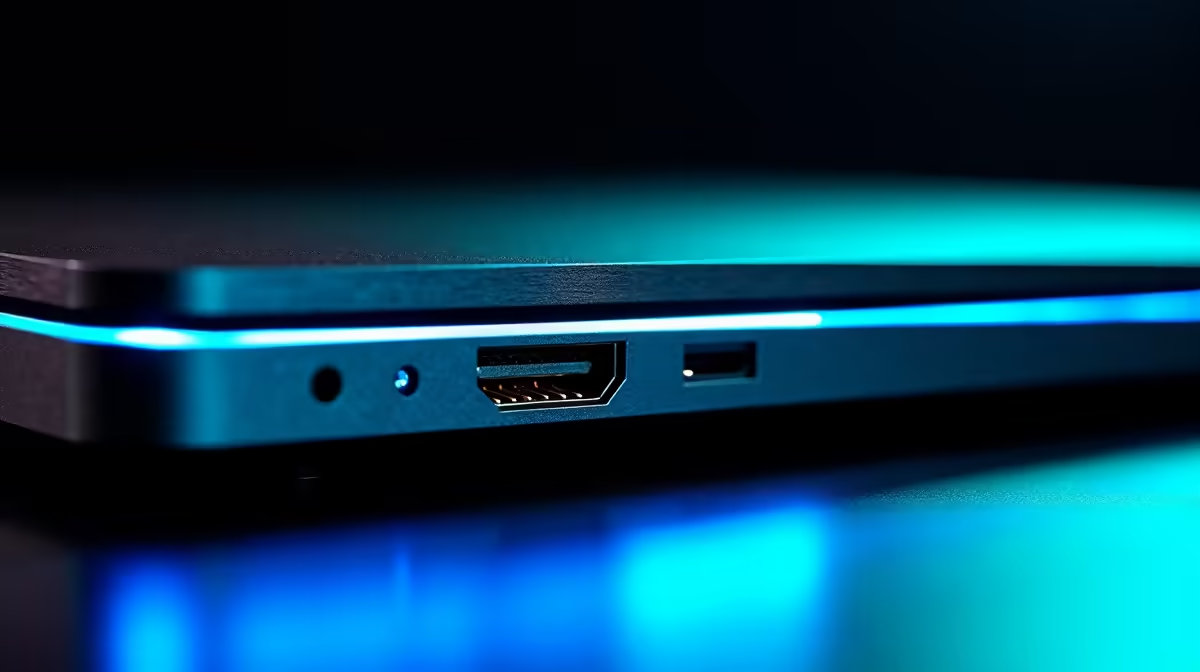
A Thunderbolt port not detecting devices is usually caused by a driver issue, a faulty cable, an incompatible device, or a BIOS setting disabling Thunderbolt connectivity. Working through a structured set of checks resolves most cases without any hardware replacement.
Thunderbolt 3 and 4 cables look identical to USB-C cables but have strict certification requirements. A standard USB-C cable will not carry Thunderbolt data even if it fits the port and charges the device. Check that the cable is explicitly Thunderbolt-rated, certified cables carry a lightning bolt icon. If using a dock or external GPU, confirm the device itself supports Thunderbolt rather than USB-C only, since many mid-range peripherals will not negotiate a Thunderbolt connection regardless of the port used.
Thunderbolt connectivity on Windows relies on the Intel Thunderbolt software and host controller driver. Open Device Manager and look for the Thunderbolt controller under System Devices. If it shows a warning or is missing, reinstalling the Intel Thunderbolt driver from the manufacturer's support page resolves most detection failures. On Windows 11, ensure the Thunderbolt software is current since outdated versions conflict with the OS-level device trust system. Also check the BIOS: many systems ship with Thunderbolt security at a level requiring manual device authorisation. Setting security to No Security or User prompt, and confirming Thunderbolt is enabled rather than disabled by a firmware update, resolves the majority of cases where a port stops detecting devices after a system update.
Thunderbolt implementations vary by manufacturer. Device compatibility, security policies, and host controller firmware differ between laptops even when both support Thunderbolt 4. The device may need a firmware update for specific host controllers, and BIOS security settings may need adjusting.
Yes. Thunderbolt ports are backwards compatible with USB-C devices. A USB-C hub provides USB data and charging from a Thunderbolt port without configuration. Thunderbolt-specific features like daisy-chaining or external GPU support require a Thunderbolt-certified dock rather than a standard USB-C hub.
Not typically. Thunderbolt detection problems are almost always driver, firmware, or cable related. A clean Intel Thunderbolt driver install alongside a BIOS security level check resolves the majority of detection failures without needing an OS reinstall.
Ready to Find Your Perfect Match? Upgrade your PC setup with compatible peripherals and accessories. Browse PC Deals at Evetech
Thunderbolt Port Not Detecting Devices available at Evetech.co.za with local warranty and fast delivery.
Thunderbolt Port Not Detecting Devices - check Evetech for latest stock and SA pricing.
Depends on your use case. Thunderbolt Port Not Detecting offers good value at current Rand pricing.
Headset Stock Levels in Bloemfontein: January. Current stock data & price tracking for SA buyers. See what is available and where prices are heading.
Read more
iMac for Medical Practice: Patient Management. SA-focused analysis with local pricing data, real-world insights & actionable buying advice.
Read more
RTX 5060 Fortnite Ultra Settings at 1080p: FPS. Real-world benchmark data, FPS numbers & performance analysis. What SA gamers can actually expect.
Read more
Headset Stock Levels in Cape Town: August Report. Current stock data & price tracking for SA buyers. See what is available and where prices are heading.
Read more
Eskom Load Shedding During Video Call: Solutions. SA-focused analysis with local pricing data, real-world insights & actionable buying advice.
Read more
LoL Performance on Extreme Gaming PC. Real-world benchmark data, FPS numbers & performance analysis. What SA gamers can actually expect.
Read more
Is a Ultra Short Throw Projector Good for Gaming?. Diagnosis steps, proven fixes & when to seek professional help. SA-specific support info included.

Is a Short Throw Projector Good for Gaming? Input. Diagnosis steps, proven fixes & when to seek professional help. SA-specific support info included.

Top Mouse Settings for Competitive FPS: Sensitivity picks evaluated on performance, value & SA availability with current Rand pricing from Evetech.

Top Speakers for MacBook Desk Setup picks evaluated on performance, value & SA availability with current Rand pricing from Evetech.

Is a Ergonomic Chair Better Than a Standard Office Chair for Gaming Detailed answer with SA data, expert analysis & practical recommendations for local buyers.

Use Spotlight Search Like a Pro on macOS. Step-by-step instructions with SA-specific tips, common pitfalls to avoid & expert recommendations.

wireless keyboard Fan Noise Too Loud: Quiet. Everything you need to know with SA pricing, step-by-step instructions & expert recommendations.

Connection Timeout: Troubleshooting Guide #2. Diagnosis steps, proven fixes & when to seek professional help. SA-specific support info included.
Headset Stock Levels in Bloemfontein: January. Current stock data & price tracking for SA buyers. See what is available and where prices are heading.
iMac for Medical Practice: Patient Management. SA-focused analysis with local pricing data, real-world insights & actionable buying advice.
RTX 5060 Fortnite Ultra Settings at 1080p: FPS. Real-world benchmark data, FPS numbers & performance analysis. What SA gamers can actually expect.
Headset Stock Levels in Cape Town: August Report. Current stock data & price tracking for SA buyers. See what is available and where prices are heading.