


Headset Stock Levels in Bloemfontein: January 2026 Report
Headset Stock Levels in Bloemfontein: January. Current stock data & price tracking for SA buyers. See what is available and where prices are heading.
Read moreUSB-C Docking Station Issues with Monitor. Diagnosis steps, proven fixes & when to seek professional help. SA-specific support info included.
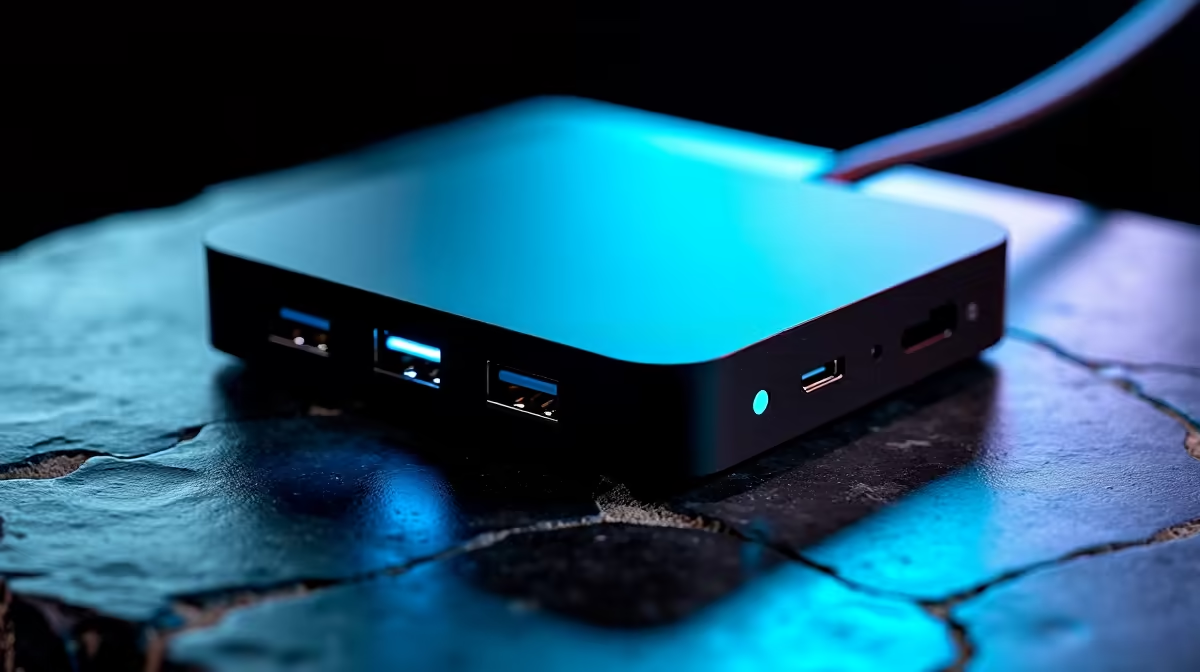
USB-C docking station monitor issues are almost always caused by bandwidth limitations, incompatible DisplayPort Alt Mode support, incorrect cable specifications, or driver conflicts. Identifying which layer of the connection chain is failing lets you resolve the problem without replacing working hardware.
USB-C docking stations promise a single-cable desk setup, but monitor connectivity is where they most commonly disappoint. Whether your display isn''t detected, is stuck at a lower resolution, or flickers intermittently, the fault usually lies in the cable, the dock''s USB-C controller, or the laptop''s USB-C port capabilities. Here''s how to work through it systematically.
Not all USB-C ports are equal. A USB-C port on your laptop may support USB 3.2 for data but lack DisplayPort Alt Mode - the protocol that carries video signals over USB-C. Some laptops have multiple USB-C ports where only one supports video output. Check your laptop''s specification sheet or manufacturer''s port documentation to confirm which ports carry DisplayPort Alt Mode or Thunderbolt video capability.
Docking stations aggregate multiple functions through a single USB-C connection: data, charging, audio, and video. When all of these compete for bandwidth simultaneously, video output can be the first to degrade. Thunderbolt 3 and Thunderbolt 4 docks have substantially more bandwidth headroom than USB 3.2 Gen 2 docks and handle 4K monitors at high refresh rates far more reliably.
The USB-C cable itself is a frequent culprit. Not all USB-C cables carry video signals - many are data-only cables physically indistinguishable from video-capable ones. If your monitor connects via USB-C through the dock, verify the cable is rated for DisplayPort Alt Mode or Thunderbolt, not just USB data transfer.
Start by connecting your monitor directly to your laptop''s USB-C port (bypassing the dock) if the port supports video output. If the monitor works correctly, the dock or its cable is the issue. If it still fails, the problem is with the laptop''s port, the cable to the monitor, or the monitor''s USB-C input.
If the monitor is detected but stuck at a lower resolution or refresh rate than expected, the bandwidth available through the connection chain is insufficient. A single USB-C Gen 2 dock connection driving a 4K 60Hz monitor while simultaneously transferring data and delivering power is at the limit of its bandwidth budget. Reducing connected USB peripherals or lowering the monitor resolution temporarily confirms whether bandwidth is the constraint.
Flickering or intermittent signal loss most commonly points to a marginal cable, a loose connection at the dock''s upstream port, or a DisplayPort link training failure. Swap the cable between laptop and dock first - this is the most common single fix for flickering in USB-C dock setups.
In Windows Display Settings, confirm the monitor is detected at its native resolution and set to the correct refresh rate. Sometimes Windows defaults to a conservative resolution or refresh rate when a display is connected through a dock. Manually set the correct values if they are available but not selected.
Update your laptop''s USB-C or Thunderbolt controller drivers from the manufacturer''s support page. Docking station firmware updates (available from the dock manufacturer''s site) can also resolve compatibility issues with specific monitor models introduced after the dock''s initial release.
If you''re running a dual-monitor setup through a single USB-C dock, confirm the dock explicitly supports dual-display output. Many mid-range docks can only drive one external monitor at full resolution, with the second running at reduced resolution or via DisplayLink compression, which adds a software rendering layer and can cause visual artefacts.
Q: Why does my monitor work directly from my laptop but not through the USB-C dock? A: The dock''s upstream USB-C connection may not support DisplayPort Alt Mode, or it may lack the bandwidth for your monitor''s resolution and refresh rate when combined with other connected peripherals. Try reducing other connected devices and confirming the dock supports video output in its specifications.
Q: Does cable quality really matter for USB-C docking station monitor connections? A: Yes, significantly. Short, high-quality cables rated for Thunderbolt or USB4 carry more reliable signal integrity than generic USB-C cables. For runs longer than one metre, cable quality matters even more as signal integrity degrades at greater lengths.
Q: Will a Thunderbolt 4 dock fix USB-C monitor issues? A: A Thunderbolt 4 dock provides significantly more bandwidth than USB 3.2 docks and handles 4K monitors reliably when your laptop has a Thunderbolt 4 port. If your laptop only has USB 3.2 USB-C, a Thunderbolt dock will still be limited by the laptop''s port capability.
Ready to Find Your Perfect Match? Shop monitors and accessories at Evetech.
USB-C Docking Station Issues with Monito available at Evetech.co.za with local warranty and fast delivery.
USB-C Docking Station Issues with Monito - check Evetech for latest stock and SA pricing.
Depends on your use case. USB-C Docking Station Issues w offers good value at current Rand pricing.
Headset Stock Levels in Bloemfontein: January. Current stock data & price tracking for SA buyers. See what is available and where prices are heading.
Read more
iMac for Medical Practice: Patient Management. SA-focused analysis with local pricing data, real-world insights & actionable buying advice.
Read more
RTX 5060 Fortnite Ultra Settings at 1080p: FPS. Real-world benchmark data, FPS numbers & performance analysis. What SA gamers can actually expect.
Read more
Headset Stock Levels in Cape Town: August Report. Current stock data & price tracking for SA buyers. See what is available and where prices are heading.
Read more
Eskom Load Shedding During Video Call: Solutions. SA-focused analysis with local pricing data, real-world insights & actionable buying advice.
Read more
LoL Performance on Extreme Gaming PC. Real-world benchmark data, FPS numbers & performance analysis. What SA gamers can actually expect.
Read more
Is a Ultra Short Throw Projector Good for Gaming?. Diagnosis steps, proven fixes & when to seek professional help. SA-specific support info included.

Is a Short Throw Projector Good for Gaming? Input. Diagnosis steps, proven fixes & when to seek professional help. SA-specific support info included.

Top Mouse Settings for Competitive FPS: Sensitivity picks evaluated on performance, value & SA availability with current Rand pricing from Evetech.

Top Speakers for MacBook Desk Setup picks evaluated on performance, value & SA availability with current Rand pricing from Evetech.

Is a Ergonomic Chair Better Than a Standard Office Chair for Gaming Detailed answer with SA data, expert analysis & practical recommendations for local buyers.

Use Spotlight Search Like a Pro on macOS. Step-by-step instructions with SA-specific tips, common pitfalls to avoid & expert recommendations.

wireless keyboard Fan Noise Too Loud: Quiet. Everything you need to know with SA pricing, step-by-step instructions & expert recommendations.

Connection Timeout: Troubleshooting Guide #2. Diagnosis steps, proven fixes & when to seek professional help. SA-specific support info included.
Headset Stock Levels in Bloemfontein: January. Current stock data & price tracking for SA buyers. See what is available and where prices are heading.
iMac for Medical Practice: Patient Management. SA-focused analysis with local pricing data, real-world insights & actionable buying advice.
RTX 5060 Fortnite Ultra Settings at 1080p: FPS. Real-world benchmark data, FPS numbers & performance analysis. What SA gamers can actually expect.
Headset Stock Levels in Cape Town: August Report. Current stock data & price tracking for SA buyers. See what is available and where prices are heading.