


Headset Stock Levels in Bloemfontein: January 2026 Report
Headset Stock Levels in Bloemfontein: January. Current stock data & price tracking for SA buyers. See what is available and where prices are heading.
Read moreWarzone Freezing During Gameplay: Solutions. SA-focused analysis with local pricing data, real-world insights & actionable buying advice.
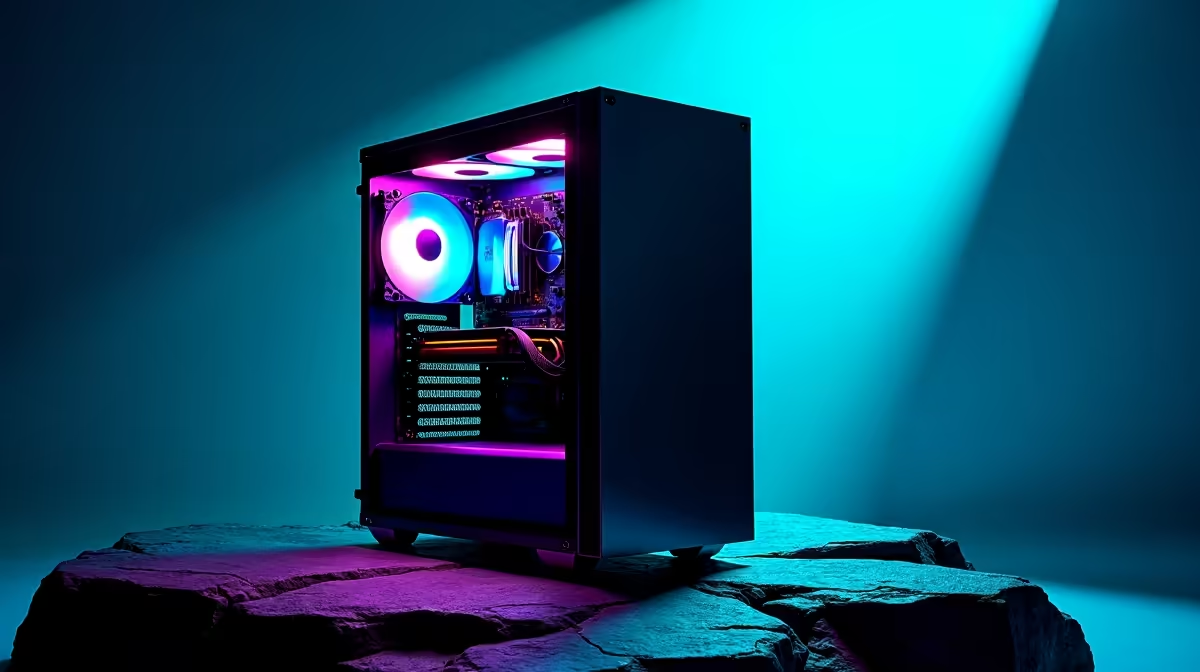
Warzone freezing mid-game is one of the most frustrating issues in the title, and it has several possible causes ranging from hardware thermals to driver conflicts and shader compilation. Most cases are fixable without replacing any components.
Why does Warzone keep freezing during gameplay? The most common causes are GPU or CPU overheating, outdated or corrupted graphics drivers, insufficient RAM, shader pre-compilation not completing, and corrupted game files. Systematically checking each of these will resolve the majority of freeze issues.
Work through these fixes in order. Most players find a resolution within the first three steps.
1. Monitor temperatures first Download HWiNFO64 or MSI Afterburner and watch your GPU and CPU temperatures while playing. If your GPU exceeds 90°C or your CPU hits thermal throttling temperatures (typically 95°C+), overheating is causing the freezes. Clean dust from your case and coolers, and ensure your case airflow is not blocked.
2. Update or rollback your GPU driver A bad driver update is a frequent cause of sudden freezing. Go to Device Manager, uninstall your current GPU driver using DDU (Display Driver Uninstaller) in Safe Mode, then install either the latest driver from NVIDIA or AMD’s website, or roll back to the previous stable version if the issue started after a recent driver update.
3. Complete shader pre-compilation Warzone requires shader pre-compilation before gameplay is fully stable. If you skipped this step or it was interrupted, the game will stutter and freeze while building shaders on the fly. Go to Settings > Graphics > Shader Pre-loading and let the process complete fully before launching a match.
4. Verify game file integrity Open the Battle.net launcher, click on Call of Duty, select Options, and choose Scan and Repair. Corrupted files are a common cause of mid-game freezes after updates.
5. Check your RAM configuration Warzone benefits significantly from dual-channel RAM. If you have two sticks, ensure they are installed in the correct slots (typically slots 2 and 4, not 1 and 2). Also check that your XMP or EXPO profile is enabled in BIOS so your RAM runs at its rated speed.
Some graphics settings increase the risk of stutters and freezes on systems that are borderline for VRAM or CPU capacity:
If in-game fixes do not help, check these system settings:
Why does Warzone freeze only in certain maps or areas? This is usually a VRAM issue - certain areas of the map have higher texture density. Lowering texture resolution will reduce or eliminate area-specific freezes.
My PC passes all hardware checks but Warzone still freezes. What next? Perform a clean reinstall of Warzone and its associated launcher. Some corruption exists at a file level that Scan and Repair does not catch. A full reinstall resolves this in many cases.
Does a faster SSD fix Warzone freezing? If freezing is tied to open-world streaming, moving from a hard drive to an NVMe SSD can significantly reduce or eliminate texture-related stutters. It is not a universal fix but is one of the most impactful upgrades for older systems.
Evetech stocks Graphics Card Deals and Evetech Best Sellers — shop online with fast delivery across South Africa.
Ready to Find Your Perfect Match? Shop at Evetech
Warzone Freezing During Gameplay: Soluti available at Evetech.co.za with local warranty and fast delivery.
Warzone Freezing During Gameplay: Soluti - check Evetech for latest stock and SA pricing.
Depends on your use case. Warzone Freezing During Gamepl offers good value at current Rand pricing.
Headset Stock Levels in Bloemfontein: January. Current stock data & price tracking for SA buyers. See what is available and where prices are heading.
Read more
iMac for Medical Practice: Patient Management. SA-focused analysis with local pricing data, real-world insights & actionable buying advice.
Read more
RTX 5060 Fortnite Ultra Settings at 1080p: FPS. Real-world benchmark data, FPS numbers & performance analysis. What SA gamers can actually expect.
Read more
Headset Stock Levels in Cape Town: August Report. Current stock data & price tracking for SA buyers. See what is available and where prices are heading.
Read more
Eskom Load Shedding During Video Call: Solutions. SA-focused analysis with local pricing data, real-world insights & actionable buying advice.
Read more
LoL Performance on Extreme Gaming PC. Real-world benchmark data, FPS numbers & performance analysis. What SA gamers can actually expect.
Read more
Is a Ultra Short Throw Projector Good for Gaming?. Diagnosis steps, proven fixes & when to seek professional help. SA-specific support info included.

Is a Short Throw Projector Good for Gaming? Input. Diagnosis steps, proven fixes & when to seek professional help. SA-specific support info included.

Top Mouse Settings for Competitive FPS: Sensitivity picks evaluated on performance, value & SA availability with current Rand pricing from Evetech.

Top Speakers for MacBook Desk Setup picks evaluated on performance, value & SA availability with current Rand pricing from Evetech.

Is a Ergonomic Chair Better Than a Standard Office Chair for Gaming Detailed answer with SA data, expert analysis & practical recommendations for local buyers.

Use Spotlight Search Like a Pro on macOS. Step-by-step instructions with SA-specific tips, common pitfalls to avoid & expert recommendations.

wireless keyboard Fan Noise Too Loud: Quiet. Everything you need to know with SA pricing, step-by-step instructions & expert recommendations.

Connection Timeout: Troubleshooting Guide #2. Diagnosis steps, proven fixes & when to seek professional help. SA-specific support info included.
Headset Stock Levels in Bloemfontein: January. Current stock data & price tracking for SA buyers. See what is available and where prices are heading.
iMac for Medical Practice: Patient Management. SA-focused analysis with local pricing data, real-world insights & actionable buying advice.
RTX 5060 Fortnite Ultra Settings at 1080p: FPS. Real-world benchmark data, FPS numbers & performance analysis. What SA gamers can actually expect.
Headset Stock Levels in Cape Town: August Report. Current stock data & price tracking for SA buyers. See what is available and where prices are heading.