

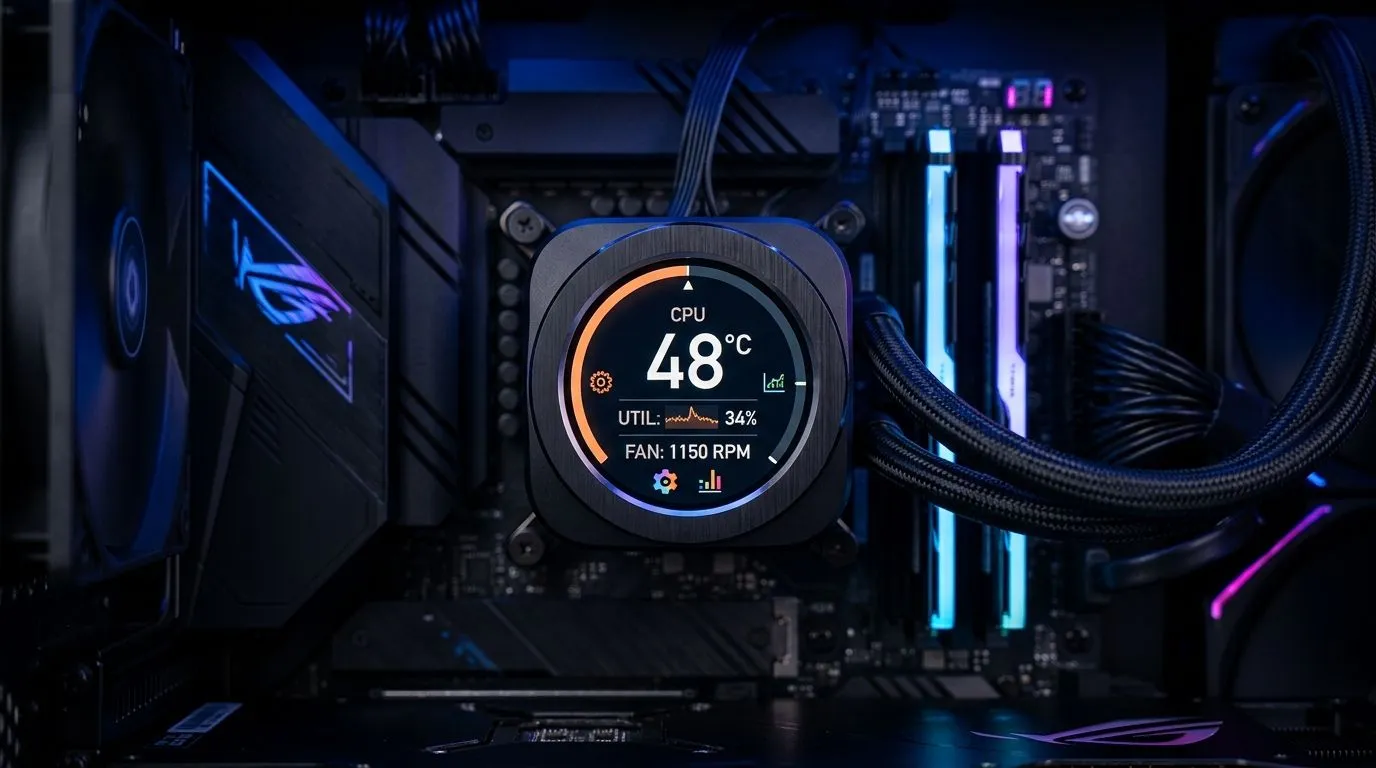
2.8 LCD CPU Cooler Display: the bit of tech you’ll actually notice on your PC 🕹️
If you’ve ever watched your temperatures creep up during a ranked session, you know the feeling… then the fan noise starts. Now imagine having a small screen on your CPU cooler that tells you what’s going on in real time. That’s what a 2.8 LCD CPU Cooler Display does. It’s part cooling tool, part tiny dashboard, and it can make your build feel more “alive” without adding real gaming performance.
In this Deep Dives guide, we’ll break down how a 2.8-inch LCD cooler display works, what it typically shows, and how to choose one that won’t become a cable-management nightmare. 🔧
How a 2.8 LCD CPU Cooler Display works 🔍
At the simplest level, the cooler has four main pieces:
- The CPU contact and heatsink (does the actual cooling)
- Fans (move heat into the case airflow)
- The LCD panel (shows images, temps, or system stats)
- The controller and power/data connection (lets the screen read system info)
Most LCD coolers use the cooler’s included connections plus software on your PC to pull data such as CPU temperature and sometimes fan speed. The screen then refreshes to show that data. In other words, the display doesn’t “measure” heat by magic. It reads your PC’s sensor data (via the cooler ecosystem/software), then renders it.
If you’re shopping, it helps to browse the broader set of options first. Start with this Evetech list of CPU coolers, then filter from there:
For pure airflow cooling (common in gaming rigs in SA), you’ll often be looking at air coolers with 120mm fans. If that’s your route, these are worth checking:
And if you want a more focused airflow setup, go straight to 120mm fan air coolers:
Prefer specific brands? DeepCool has a strong presence in the LCD-cooled space, so it’s sensible to browse by brand first:
You can also compare alternatives like EINAREX, especially if you’re watching value:
What the display usually shows (and why it matters) ✨
A 2.8 LCD CPU Cooler Display commonly shows one or more of these:
- CPU temperature: helpful for spotting whether your cooling is keeping up during game loads.
- Fan speed: useful when you’re trying to balance quiet mode versus performance.
- System stats: some models can display RAM usage, clock speed, or other metrics via their software.
- Custom images/animations: because yes… RGB isn’t the only way to personalise your rig.
Micro-story time: I’ve seen builds where the GPU was the only thing getting monitored. The player was sure the PC was stable. Then temps spiked on the CPU during heavier scenes, and stutters followed. A live screen makes it easier to catch the real bottleneck, fast… especially when you’re troubleshooting after changing case fans or thermal paste.
Temperatures: what “good” looks like
Cooling targets depend on CPU model, case airflow, and ambient temperature. A screen is best used for trend over exact numbers. If temperature is rising quickly during longer matches, that’s your cue to check airflow and fan curves, not just panic.
Build smarter with the display (not just pretty pixels) 🔧
On your first install, run a 10–15 minute stress test or a demanding game and watch the LCD’s CPU temperature trend. If it keeps climbing, revisit airflow (front intake, rear exhaust) and verify the fan profile. If it stabilises, you’re in a good spot and can focus on tuning noise versus performance. Take note of the “steady” value, not the peak.
Choosing the right 2.8 LCD CPU cooler display in South Africa 🚀
When buying, focus on the parts that actually prevent thermal throttling:
- CPU socket compatibility: non-negotiable.
- Cooler height and case clearance: check your case spec and your RAM clearance too.
- Fan size and airflow: 120mm models are popular for smooth, efficient airflow.
- Software support: you want the display to be easy to configure and not constantly glitch.
- Airflow inside your case: even the best cooler struggles with poor intake/exhaust.
Want value without guessing? Start with the Evetech CPU cooler range, filter by air cooler or fan size, then narrow to brands that match your budget and build goals. The display is the fun part… but compatibility and airflow are what keep your frames consistent.
Ready to Find Your Perfect Match? The Mac vs Windows debate is complex, but for maximum power, choice, and value in South Africa, Windows is hard to beat. Explore our massive range of laptop specials and find the perfect machine to conquer your world.











