

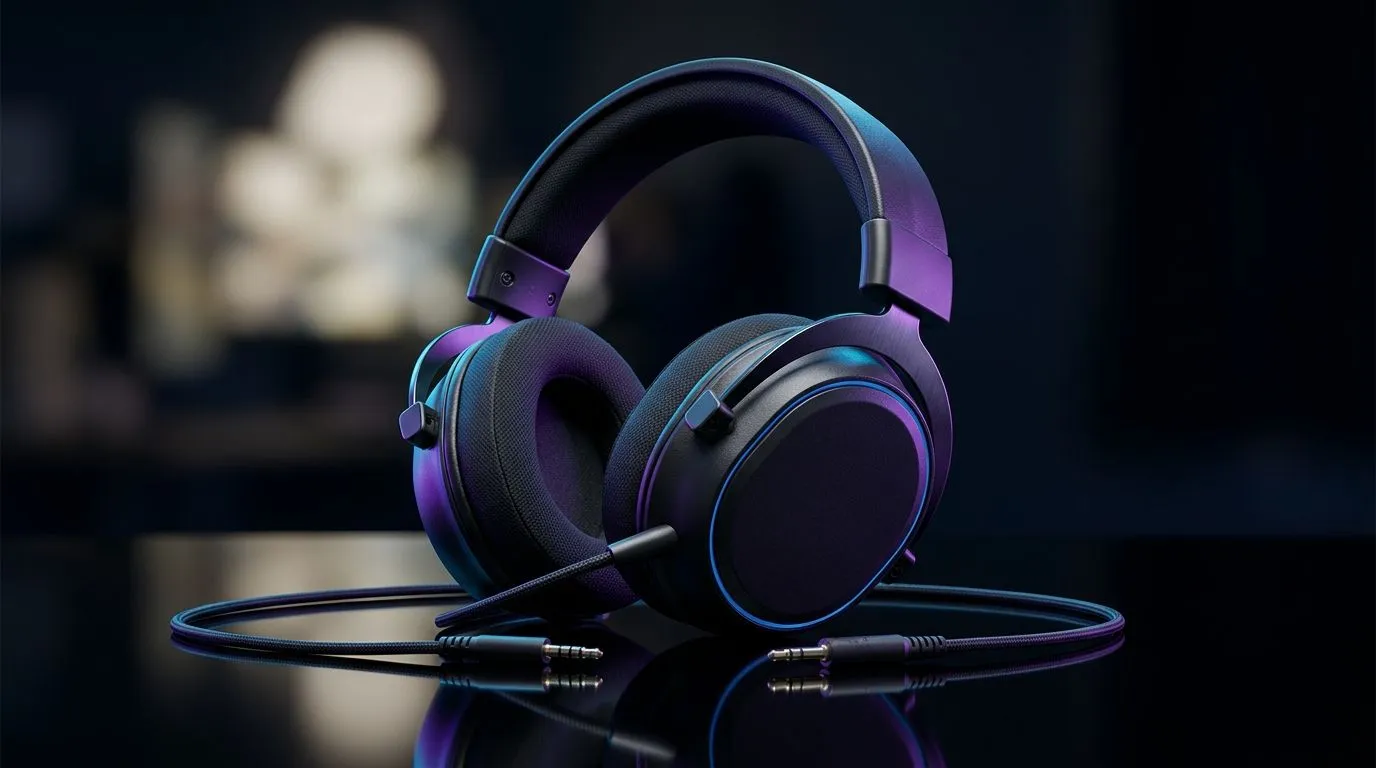
3.5mm Multiplatform Gaming Headset Setup Guide for PS, Xbox, PC, Switch and Mobile: Get Sound Right Fast 🎧
In SA, you don’t always get the luxury of “one device, one headset.” PS at night, Xbox with friends, PC for ranked… then Switch on the couch. The good news? A properly configured 3.5mm multiplatform gaming headset can sound clean across all of them. 🔧 In this guide, I’ll walk you through the exact plug-and-play setup, plus the two settings that fix most “why is my mic not working?” moments.
3.5mm Multiplatform Gaming Headset Setup Guide for PS, Xbox, PC, Switch and Mobile: The Core Check 🔌
Before you even touch a menu, do this quick sanity check:
- Confirm it’s one 3.5mm connector per headset (audio only) or headset combo (TRRS: audio + mic).
- Look for a headset adapter if your controller/phone uses a different port type. Many phones still use 3.5mm audio… but some newer ones don’t, so verify your device’s jack.
If you’re shopping, Evetech groups a lot of popular options here:
3.5mm Multiplatform Gaming Headset Setup Guide for PS: Audio + Mic Without Hassle
PlayStation (PS4 / PS5)
- Plug the 3.5mm headset into the controller headphone jack.
- Item
If you want a model that’s designed for clean wireless gaming audio (and you’re okay with wireless instead of 3.5mm), Evetech has solid picks like:
Common PS issue
No mic? Usually it’s one of two things:
- You plugged in a headphone-only jack (TRS) headset into a combo controller (TRRS).
- The PS mic level is low. Raise it in the mic settings.
3.5mm Multiplatform Gaming Headset Setup Guide for Xbox: Balance Game and Chat
Xbox One / Series X|S
- Plug into the controller 3.5mm port.
- Item
If you’re comparing audio gear for your setup, browse Evetech’s headphone range here:
3.5mm Multiplatform Gaming Headset Setup Guide for PC: Windows Sound Routing ⚡
On PC, it’s mostly about choosing the right device in Windows:
- Right-click speaker icon → Sound settings
- Under Input, select your headset mic.
- Under Output, select your headset audio.
Setup Pro Tip 🔧
Windows, open Sound settings and click Device properties for your headset. If the mic sounds “far”, increase the mic level a little and check Listen to this device only for testing. Then disable it to avoid echo during games.
3.5mm Multiplatform Gaming Headset Setup Guide for Switch and Mobile: Tiny Checks That Matter ✨
Nintendo Switch
- Plug into the Switch dock/controller jack (depends on your model setup).
- In System Settings, confirm the audio output is correct.
Mobile (Android / iPhone)
- Use the right adapter if your phone lacks a 3.5mm jack.
- After plugging in, check the phone’s Bluetooth/audio settings: make sure it’s using the wired headset, not an old Bluetooth connection.
3.5mm Multiplatform Gaming Headset Setup Guide for PS, Xbox, PC, Switch and Mobile: Quick Troubleshooting Checklist 🚀
Use this when sound or mic fails suddenly:
- Mic only not working? Likely TRS vs TRRS mismatch.
- One ear quiet? Check the cable angle near the plug. 3.5mm jacks are sensitive.
- Everything works on one device but not another? Re-check input/output in that device’s audio settings.
Ready to avoid the guesswork? Matching the right headset to your devices saves time, cables, and frustration.
Ready to Find Your Perfect Match? If you want a headset that just works across your PS, Xbox, PC, Switch and mobile, start by narrowing your options with Evetech’s expert range. Explore our massive selection of gaming audio gear and find your perfect match today: Headphone & headset deals on Evetech.











