

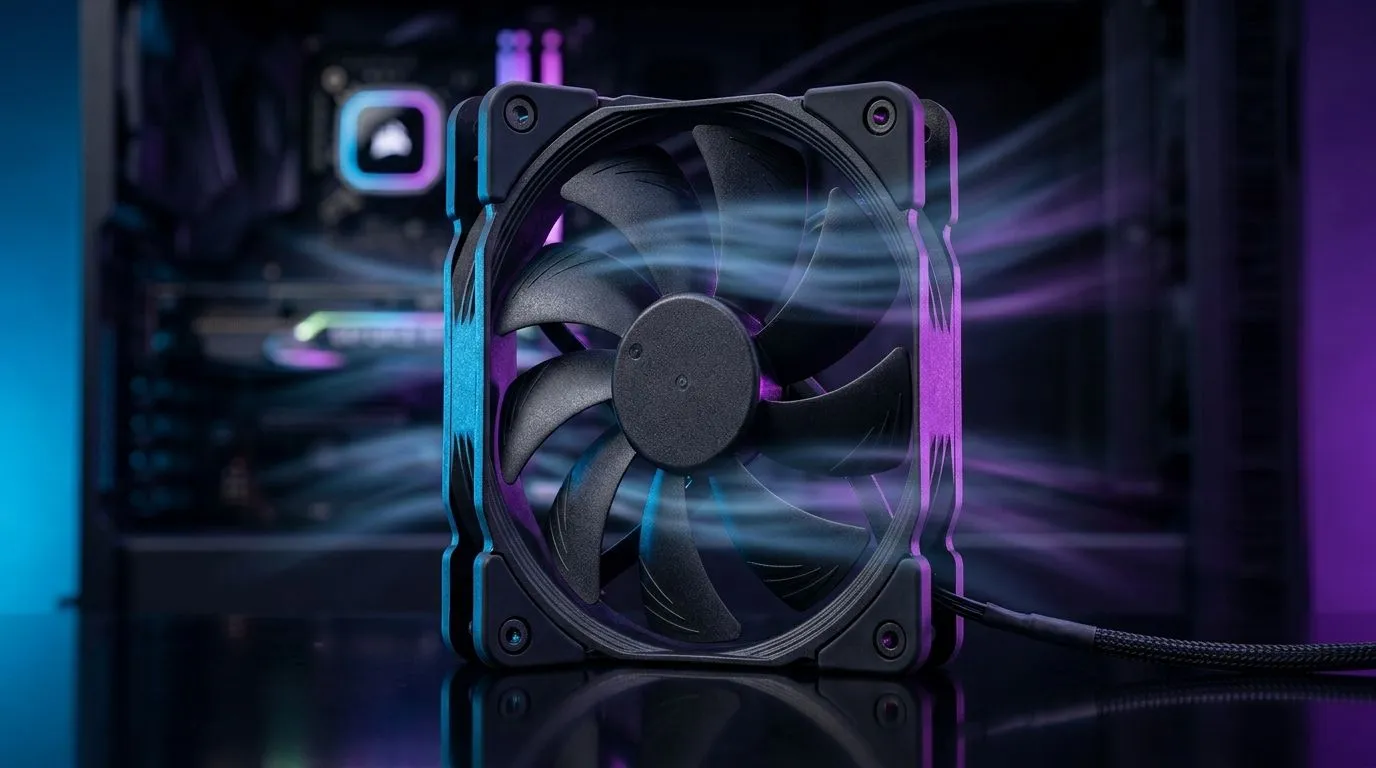
74.8CFM Airflow Enough to Prevent CPU Thermal Throttling?
You’ve spent hours tuning your build… then your frames dip. Heat is often the silent culprit. If you’re shopping for a new cooler and you’re staring at airflow numbers like 74.8CFM, the question matters: will that airflow actually stop CPU thermal throttling?
In real life, airflow is only part of the story. Case airflow, fan RPM behaviour, heatsink design, and your CPU’s power draw all play a role. Let’s break it down like a proper Deep Dive. 🔧✨
What “74.8CFM” Really Tells You (and What It Doesn’t)
CFM stands for cubic feet per minute. It’s a measure of how much air a fan can move under certain test conditions. But manufacturers don’t always test in identical setups.
So, instead of asking “is 74.8CFM enough?”, ask:
- What CPU are you cooling? (Intel i7 vs Ryzen 7 changes the target)
- What boost behaviour do you expect? Higher sustained boosts demand better cooling
- How hot is your case inside? Poor intake means your cooler recirculates warmer air
If your CPU starts thermal throttling, you’ll usually see it during longer gaming sessions, streaming, or compiling. ⚡
The Cooling Checklist That Predicts Throttling Better Than CFM
Here’s the approach we use when recommending parts to SA gamers who want stability, not guessing:
1) Match cooler type to your case and target temps
Air coolers work great in mainstream builds, but case clearance and fan mounting matter. If your CPU runs high clocks, you’ll want strong heat transfer and good airflow paths.
2) Build for airflow, not just a bigger fan number
A cooler with high CFM can underperform if:
- your front intake fans are weak
- the rear exhaust is blocked
- your PSU shroud traps heat
- your fan curve ramps too slowly
3) Look at fan size and configuration
A 120mm fan can be efficient and quieter, but the whole system matters: heatsink fin density, mounting pressure, and fan control all affect results. 🚀
Air Cooler Options on Evetech (Start Here)
If you’re considering an air setup, it helps to compare coolers by configuration and intended use. Browse the options below and filter for what fits your build:
- Explore the full air cooler selection: CPU coolers (Air Coolers)
- Specifically looking for air cooling models? Try: Air Coolers on Evetech
- Want a more specific fit? Check 120mm fan air coolers: 120mm Air Coolers
- Interested in Deepcool? Start here: Deepcool Air Coolers
- Or browse EINAREX options: EINAREX Air Coolers
A Quick Reality Check: How to Tell if You’re Actually Safe
Before you buy, do this simple “thermal truth” test plan:
- Note your CPU model and cooling history.
- Check your case fans: intake amount vs exhaust amount.
- After installing, run a 10 to 15 minute stress test (or a demanding game session).
- Watch temperatures and clock stability.
If you’re throttling, you’ll often see clocks drop while temps hover near the CPU’s thermal limit.
Productivity Pro Tip 🔧
Place your PC on a desk with good clearance and confirm your front intake fans are not blocked by cables or the desk itself. Better intake means your cooler doesn’t fight warm air, which can help keep boosts steadier during long SA summer gaming sessions.
So, Is 74.8CFM Enough?
For many mid-range CPUs in a well-ventilated case, airflow in that ballpark can be sufficient to avoid heavy throttling. But if your CPU is power-hungry, your case airflow is weak, or your fan curve barely ramps, throttling can still happen… even with strong CFM on paper.
The smart move is to choose a cooler based on your CPU demand plus your case airflow, then verify with a short stress test. That’s how you buy once, confidently. ✨
Ready to Find Your Perfect Match? The Mac vs Windows debate is complex, but for maximum power, choice, and value in South Africa, Windows is hard to beat. Explore our massive range of laptop specials and find the perfect machine to conquer your world.











