

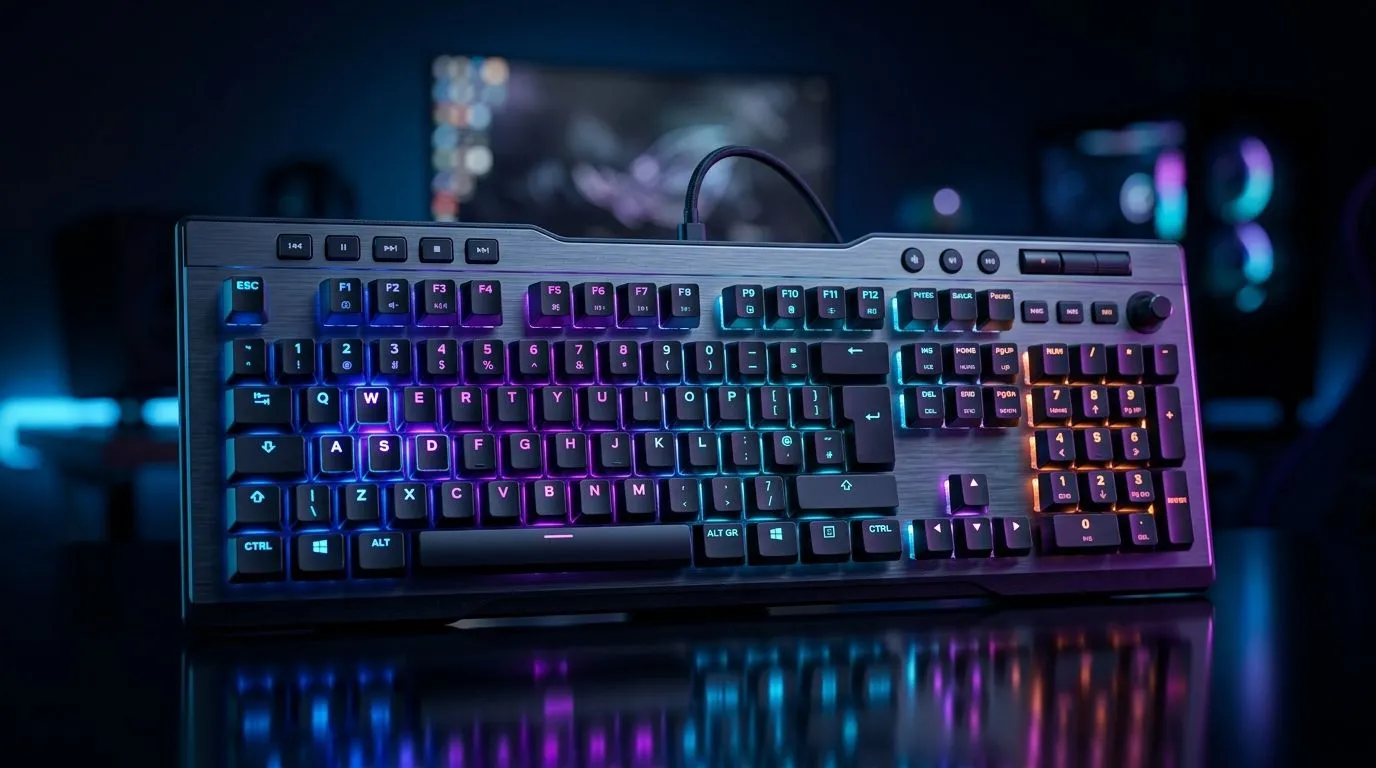
AIMO RGB Lighting: Hardware Profiles and Customization Guide
South African gamers want their setup to look sharp… and behave predictably. If your RGB is changing on its own, or won’t sync across games, you’re not alone. AIMO on keyboard brands uses smart lighting behaviour tied to hardware and software. The result can be amazing… or confusing. Let’s set it up properly with this AIMO RGB Lighting: Hardware Profiles and Customization Guide so your desk stays on theme, from lobby to raid. ⚡
Understanding AIMO’s “Hardware Profile” behaviour (without the headache)
AIMO lighting typically works through onboard and software control. In many systems, your keyboard can store a “profile” so colours and effects remain consistent even after rebooting or switching PCs. The key is matching what the keyboard thinks is connected with what your PC is sending.
Here’s what usually goes wrong:
- Wrong connectivity mode (wireless vs wired). Some setups show different defaults.
- Multiple software profiles saved on different devices.
- Game overlays or “focus modes” that pause background apps.
Start simple. Plug in via your preferred method, confirm the keyboard is detected, then apply your intended effect once. After that, adjust any per-game options.
Wired vs wireless: why profiles can feel different
Wired gives you stable data at all times. Wireless introduces pairing and power behaviours that can influence startup lighting and profile timing. If you game on the go, you may want a “safe” default profile for battery-friendly colours, then switch to vivid effects once plugged in. 🔧
AIMO RGB Lighting: Hardware Profiles and Customization Guide for your keyboard
Let’s build a clean workflow you can repeat every time you buy a new board or switch PCs.
RGB Setup Pro Tip ⚡
On Windows, install your keyboard’s official control software (if available) and set it to run at startup. Then open it once per new device connection (USB port or wireless pairing), apply your chosen AIMO effect, and save the hardware profile to the keyboard. This prevents “random” resets after reboots.
Step-by-step: make a stable “base” profile
- Pick your base colours (one accent, one neutral). Keep it consistent.
- Choose one AIMO mode you actually like while playing.
- Save to hardware (so it survives restarts).
- Test in three moments: desktop idle, in a match, and after closing the game.
This prevents the common “I loved it at the desktop…” problem.
Step-by-step: customise per activity
Think in “scenes”, not just colours:
- Gaming scene: slightly brighter, high contrast, minimal flicker.
- Productivity scene: softer, readable key highlights.
- Night scene: dim accents to protect your eyes.
Avoid stacking too many effects at once. Too much motion reduces legibility. ✨
Where to buy a keyboard you’ll actually configure
If you’re shopping, start with a keyboard that matches your connectivity style. Here are solid Evetech options to pair with AIMO-style customisation:
- Explore keyboard deals that suit your budget, then tune the lighting your way: best gaming keyboard deals
- Want to shop for a keyboard first, then customise later? Start here: buy the cheapest gaming keyboard in South Africa
- Need a keyboard-and-mouse combo to complete the setup: buy keyboard mouse combo
If your priority is reliability for long sessions:
- Consider the wired-focused listing: buy the cheapest gaming keyboard (wired)
And if you’re chasing a cleaner desk and portability:
- Check the wireless option too: buy the cheapest gaming keyboard (wireless)
Troubleshooting: AIMO won’t save, won’t sync, or looks wrong
Try these fixes before you blame the keyboard:
- Save the profile again after confirming the connection type (wired vs wireless).
- Close RGB software from other devices or peripherals. Some apps overwrite effects.
- Update drivers and the keyboard software if the vendor supports it.
- Use one Windows user account for testing. Switching accounts can load different startup settings.
Most issues are configuration, not failure. Once you lock in a stable hardware profile, your lighting should stop “wandering” mid-session. 🚀
Ready to Find Your Perfect Match? The Mac vs Windows debate is complex, but for maximum power, choice, and value in South Africa, Windows is hard to beat. Explore our massive range of laptop specials and find the perfect machine to conquer your world.











