


PCIe 5.0 vs PCIe 4.0 for Strategy and Sim Games in SA
PCIe 5.0 and PCIe 4.0 differ most in lane support, compatibility, and upgrade value for strategy and sim games. SA buyers should match the choice to their actual hardware and games.
Read moreApex Legends Max Settings on RTX 5080. Tested & verified settings for best FPS and visual quality on SA hardware budgets.
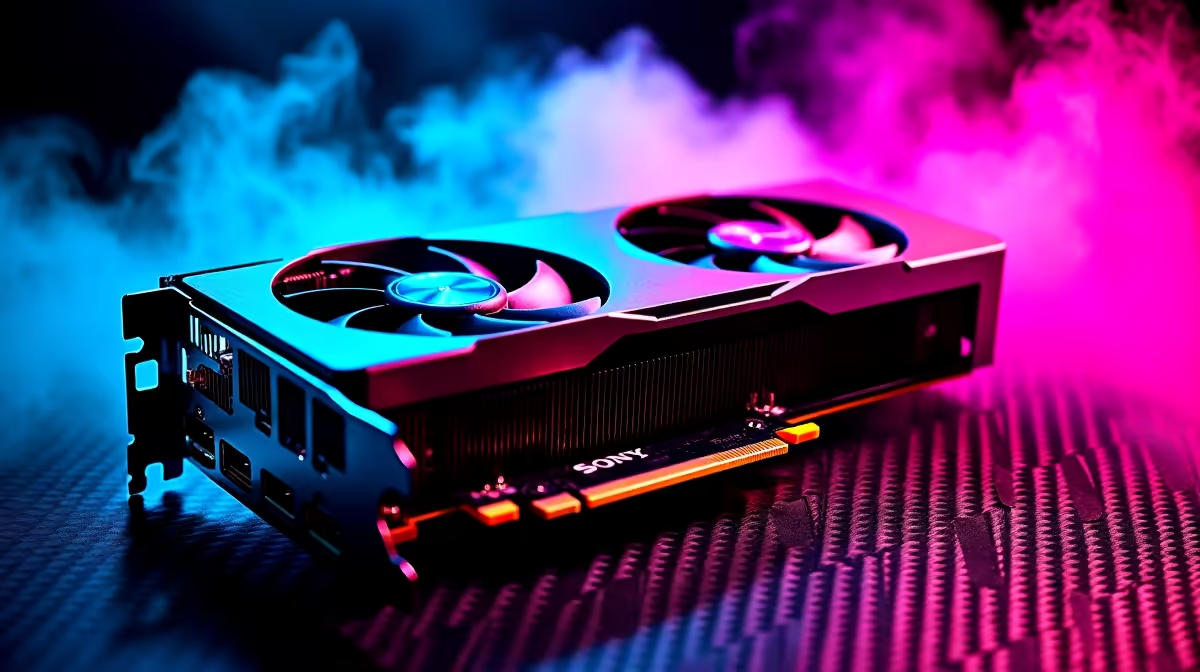
An RTX 5080 runs Apex Legends maxed at 1440p above 240fps and at 4K above 165fps once you tune the engine settings correctly. The trick is to push fidelity high but cap the framerate to your monitor's refresh and disable engine-level smoothing that adds input lag.
Apex Legends runs on a modified Source engine that scales beautifully with raw rasterisation power. The RTX 5080's 16GB GDDR7 frame buffer and bumped tensor cores leave so much headroom at 1440p that you can run every visual setting at maximum and still pin a 240Hz monitor. At 4K you get the same fidelity with frame rates north of 165fps, which sits in the sweet spot for OLED 4K gaming panels increasingly common in SA.
Display Mode: Fullscreen. Always, no exceptions. Borderless adds latency. Resolution: native 1440p or 4K. Don't render below native then upscale, you lose enemy clarity. V-Sync: Disabled. Use NVIDIA Reflex or in-game framerate cap instead. Adaptive Resolution FPS Target: 0. Disable, you have the GPU headroom. Anti-Aliasing: TSAA. The engine's built-in TSAA is well tuned, FXAA looks smudgy. Texture Streaming Budget: Insane (8GB). Your 5080 has the VRAM, use it. Texture Filtering: Anisotropic 16X. Tiny perf cost, big visual win on long sightlines. Ambient Occlusion Quality: High. Helps spot crouched enemies. Sun Shadow Coverage / Detail / Range: All High. Spot Shadow Detail: High. Volumetric Lighting: Enabled. Dynamic Spot Shadows: Enabled. Model Detail / Effects Detail: High. Impact Marks: High. Ragdolls: High.
Cap your FPS in-game to 3 frames below your monitor's refresh rate. On a 240Hz panel, set max FPS to 237. This keeps the GPU from saturating and triggering Reflex queue bloat. Enable NVIDIA Reflex Low Latency to "Enabled + Boost" in the NVIDIA Control Panel for Apex specifically. The Boost mode keeps the GPU at higher clocks during low-load moments (like menus and looting), which prevents micro-stutters when fights kick off.
Running borderless windowed because alt-tabbing feels easier (it adds 5 to 10ms latency). Leaving V-Sync on through the NVIDIA panel while disabling it in-game (the panel wins). Setting the texture budget too low because old guides said 4GB max. Using HDMI 2.0 cables on a 240Hz monitor that needs DisplayPort 1.4 or HDMI 2.1. And the SA-specific one: not setting matchmaking server to Joburg or Cape Town manually, which costs you 80 to 120ms of round-trip ping. Loadshedding-proof your sessions with a UPS that holds the rig and the router for at least 15 minutes.
You need a 1440p 240Hz or 4K 165Hz+ monitor to actually see the benefit. Pair it with DisplayPort 1.4 or HDMI 2.1 cabling, NVIDIA Reflex enabled, an in-game FPS cap 3 below refresh, and matchmaking set to Joburg or Cape Town for South African servers.
Top mistakes: leaving V-Sync on, running borderless instead of fullscreen, capping FPS too high or not at all, ignoring matchmaking region settings, and using HDMI 2.0 cables that throttle the panel below its rated refresh. Also, don't forget to update the NVIDIA driver to the latest game-ready release.
Beyond the GPU, you need a 850W+ 80+ Gold PSU, a 240Hz or 4K high-refresh monitor, and DisplayPort 1.4 or HDMI 2.1 cables (not the old 2.0 stuff). A UPS rated for 600VA+ keeps your match alive through stage 4 loadshedding. All of this is in stock at Evetech with same-week SA delivery.
Ready to Find Your Perfect Match? Pair your max settings with locally stocked next-gen GPUs. Shop graphics cards
Apex Legends Max Settings on RTX 5080: C available at Evetech.co.za with local warranty and fast delivery.
Apex Legends Max Settings on RTX 5080: C - check Evetech for latest stock and SA pricing.
Depends on your use case. Apex Legends Max Settings on R offers good value at current Rand pricing.
PCIe 5.0 and PCIe 4.0 differ most in lane support, compatibility, and upgrade value for strategy and sim games. SA buyers should match the choice to their actual hardware and games.
Read more
AM5 vs AM4 for video editing in 4K Difference explained is mostly about compatibility, budget, upgrade path, and setup fit. SA buyers should check device support and real needs before expecting a clear win from either option.
Read more
OLED vs QD-OLED for strategy and sim games buyers - what changes is mostly about compatibility, budget, upgrade path, and setup fit. SA buyers should check device support and real needs before expecting a clear win from either option.
Read more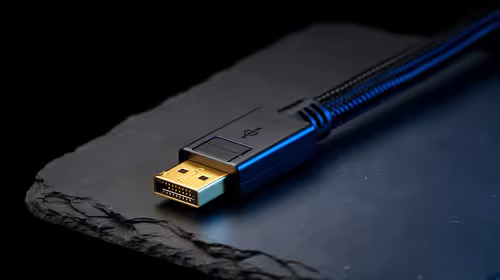
DisplayPort 2.1 and 1.4 differences matter when SA PC builders match GPUs, monitors, and refresh targets. Use this difference between displayport 2 1 and displayport 1 4 explained pc builders guide to avoid mismatched parts.
Read more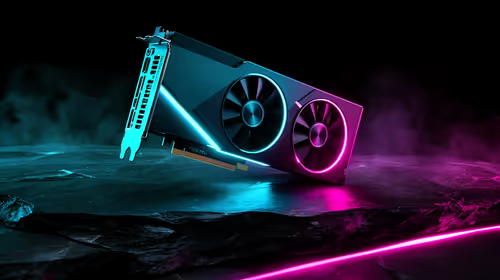
Ray tracing vs Path tracing depends on Strategy and sim games needs, platform limits, and budget fit. Compare compatibility, latency, upgrade path, and real setup constraints before choosing for an SA build.
Read more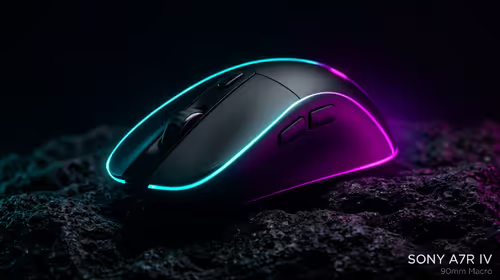
wireless mouse guide for Gqeberha gamers should be shortlisted around the job it must do. South African buyers should compare sensor, shape, weight, and wireless latency, warranty path, and upgrade room before treating any pick as best.
Read more
From 1 October 2026, WhatsApp Business Platform service replies in South Africa are expected to cost about $0.0076, or 12 cents, per delivered message.
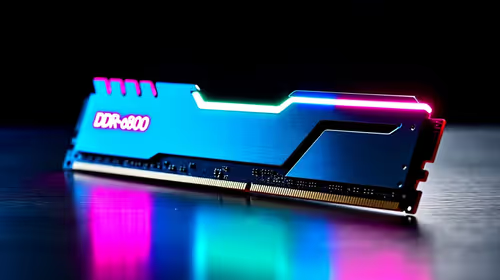
DDR5-8000 RAM Kits pros and cons depend on the build, budget, and workload. Weigh gaming needs, platform fit, power, cooling, warranty support, and South African pricing context before shortlisting it.

Wi-Fi 6E vs Wi-Fi 6 depends on AAA single-player gaming needs, platform limits, and budget fit. Compare compatibility, latency, upgrade path, and real setup constraints before choosing for an SA build.

Ryzen 9 9950X3D dead pixel checks should isolate the panel first. Run colour fills, inspect the monitor menu, test another cable or input, and capture proof before linking it to the SA CPU upgrade.

YouTube will count public views from the first frame across video formats from 24 August, while earnings and eligibility remain tied to engaged viewing.

Canonical expects Ubuntu on WSL users to outnumber native Ubuntu desktop users before the end of 2026. The software is open source and runs inside supported Windows PCs.

Telkom's daily bundles pair WhatsApp access with 10 all-network voice minutes. The R15 option includes 300MB, while the R17 option uses a fair-use threshold.

A 10,000-hour test found similar image retention across older and newer OLED TVs, while newer panels were brighter and more efficient. Local OLED monitors started at R9,999.

Windows 11 update KB5121003 is linked to crashes in several multiplayer games on versions 24H2 and 25H2. Check the build, report the fault and avoid risky file or update changes unless the problem is confirmed on your PC.

Comsol's standalone 5G network covers about one million Gauteng homes and starts commercial ISP service in September. Early packages range from R275 to R875 a month, but coverage and fair-use rules still decide the real value.

Sennheiser's Momentum True Wireless 5 adds user-replaceable batteries, 12-hour playback and a $299.95 launch price. There is no confirmed South African date, so compare longevity with live earbuds from R199 to R2,999.

AVerMedia's GC531 and GC535 are professional HDMI capture devices for continuous streaming, with RGB24 capture up to 2K30 and 4K30. South African creators should compare them with live 4K capture cards from R2,099.