

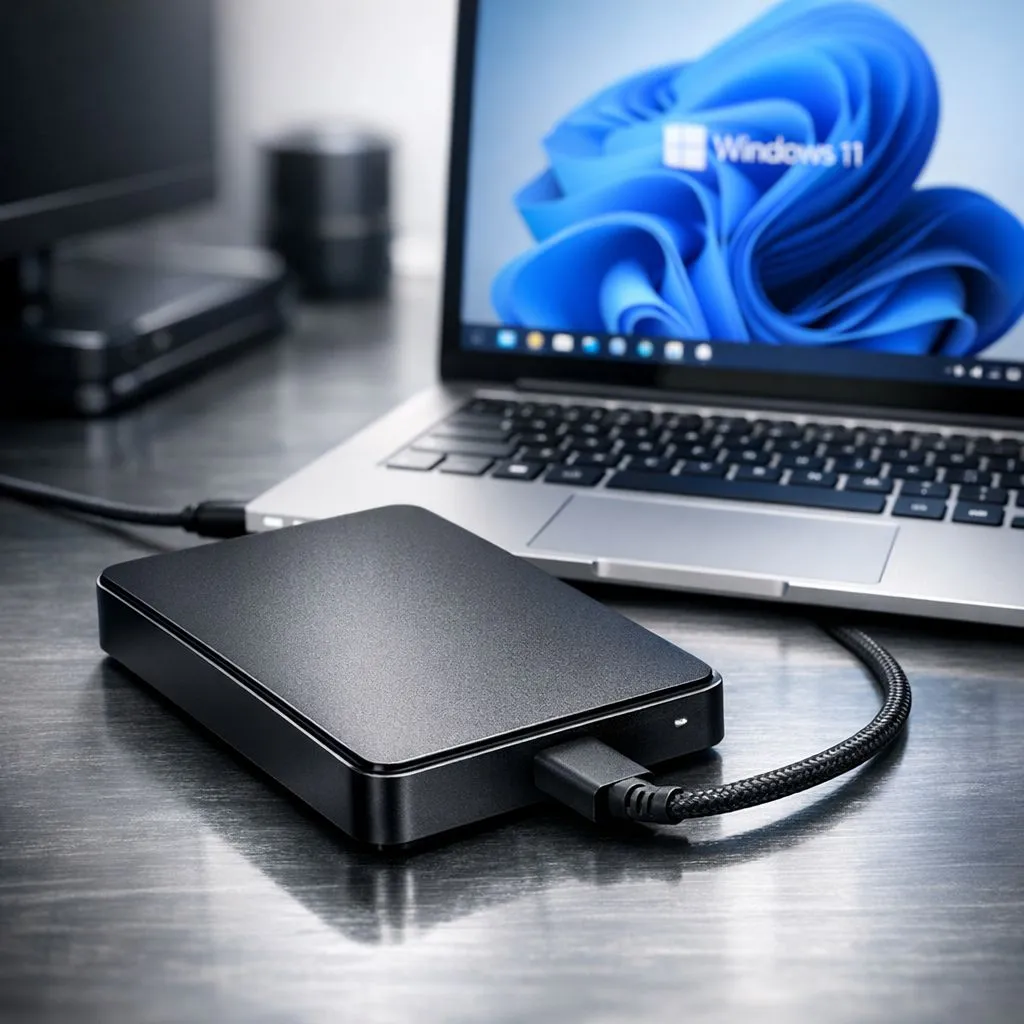
Imagine losing your entire Steam library or your work portfolio because of a sudden power surge. In South Africa, we know the risks of load shedding all too well. Setting up automated backups Windows 11: External Drive Setup is the most effective way to protect your digital life. It is simple to configure and ensures your files stay safe even if your main drive fails... providing you with total peace of mind. 🔧
Why Automated Backups Windows 11: External Drive Setup is Essential
Data loss is not a matter of if, but when. Whether it is a hardware failure or a virus, having a secondary copy of your files is non-negotiable. While cloud storage is useful, it can be slow with local internet speeds. Investing in a reliable external SSD ensures that your backups are handled locally at lightning speeds. For a few hundred ZAR, you can protect years of memories and work.
Selecting the Best Hardware for Your Setup
Not all drives are created equal. While you might be browsing internal solid state drives for a PC upgrade, backups require portability and resilience. Specifically, portable external SSDs are the gold standard because they lack moving parts, making them much more durable than old-school mechanical drives.
When choosing a brand, ADATA drives offer a fantastic balance of performance and price for the local market. If you prefer long-standing industry reputations, Western Digital storage solutions provide excellent software integration for extra security. ⚡
Backup Schedule Tip ⚡
Always set your backup frequency to 'Every hour' if you are working on critical projects. Windows 11 handles this in the background, so it won't slow down your gaming performance, but it will save you from losing hours of hard work if the power drops out suddenly.
How to Configure Windows 11 File History
Setting up your automated backups Windows 11: External Drive Setup is straightforward. Connect your drive and head to the Settings menu. Navigate to System, then Storage, and look for "Advanced storage settings". From there, select "Backup options". You can then add your external drive and toggle "Automatically back up my files" to on.
Windows will now keep track of changes in your folders... ensuring that if you accidentally delete a file, you can roll back the clock to a previous version. This is particularly useful for gamers who mod their titles, as one wrong file change can break an entire installation. 🚀
Maximising Performance with Modern Interfaces
If you are a power user who deals with massive video files or 4K assets, speed is everything. While standard USB drives work fine, the latest Gen 5 NVMe technology has pushed the boundaries of what is possible. Using a high-speed interface for your backups means you will never notice the system working in the background. It keeps your workflow smooth and your gaming sessions uninterrupted. ✨
Ready to Find Your Perfect Match? The Mac vs Windows debate is complex, but for maximum power, choice, and value in South Africa, Windows is hard to beat. Explore our massive range of laptop specials and find the perfect machine to conquer your world.











