

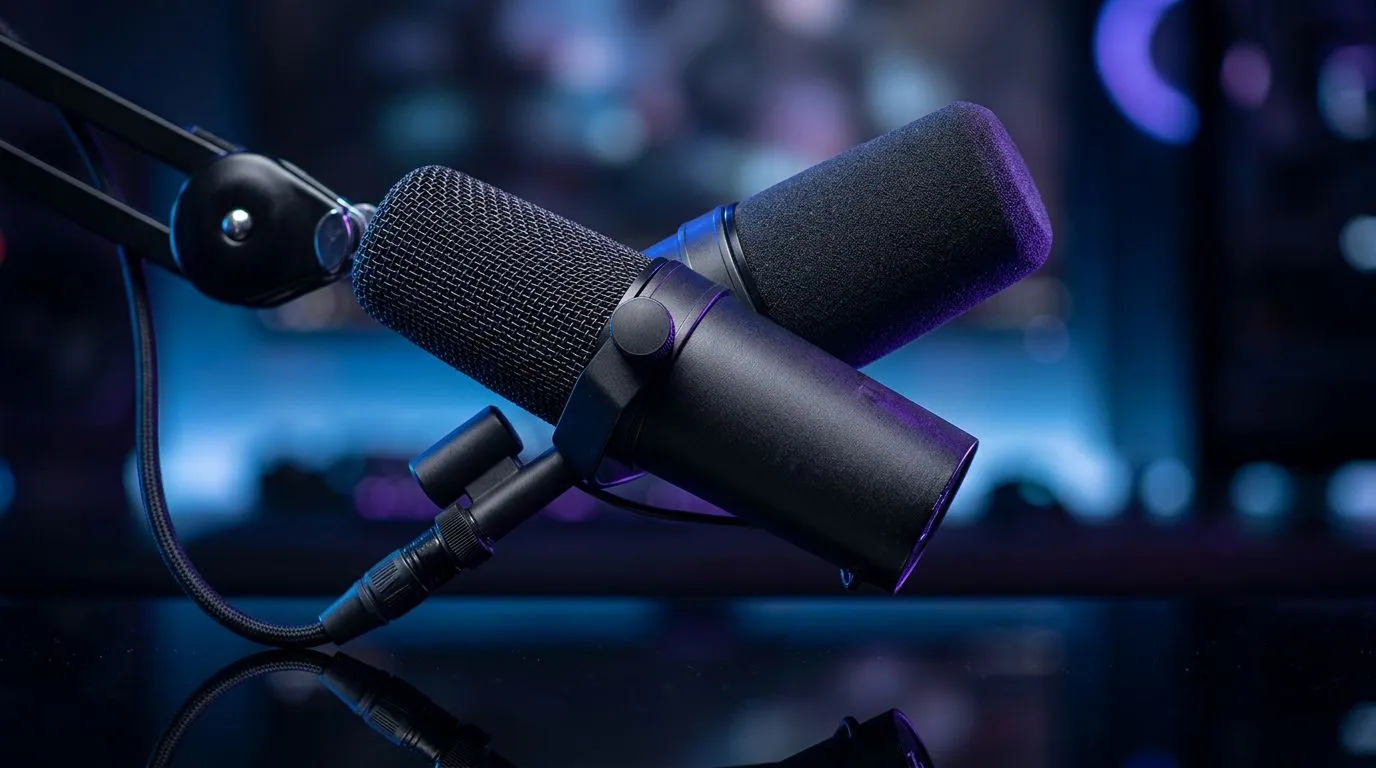
Best Discord Audio Settings for Noise-Cancelling Microphones: Start Here
South African gamers, tired of background chatter disrupting raids or squads? Whether you’re in Pretoria, Cape Town or Joburg, small Discord tweaks make noise-cancelling mics sound cleaner and your team more focused. This quick guide shows practical settings, placement tips and workflow tweaks you can actually test in a single session — no jargon, just results. 🎧✨
Why adjust Discord for noise-cancelling mics
Noise-cancelling microphones reduce ambient sound but they still need the right app settings. In Discord, a good balance between noise suppression and natural voice clarity prevents over-processing. Start by choosing your mic in User Settings > Voice & Video, then test with the server’s Voice Test or a friend. For hardware and streaming extras, check Evetech’s streaming essentials range for compatible mounts and interfaces: https://www.evetech.co.za/PC-Components/buy-streaming-essentials-369.aspx
Core Discord settings to try now
- Input Device: select your noise-cancelling microphone explicitly.
- Input Mode: consider Push to Talk for noisy homes; otherwise Auto Sensitivity can work if you fine-tune the slider.
- Noise Suppression: enable Discord’s built-in Noise Suppression (or Krisp) but avoid the highest suppression if your voice sounds hollow.
- Echo Cancellation & Automatic Gain Control: keep them on unless your mic or interface already handles gain well. Want neatly matched lighting and peripherals while streaming? Browse Cololight accessories that sync with your setup: https://www.evetech.co.za/PC-Components/buy-streaming-essentials-369.aspx?brands=Cololight
Mic placement, drivers and PC tweaks 🔧
Position matters: place the mic 10–20 cm from your mouth and slightly off-axis to cut plosives. Update your audio interface drivers and Windows sound settings for lowest latency. Consider using a USB interface or dedicated soundcard if you still get interference. If you’re streaming with a cam, pairing the mic settings with a clean video feed helps viewer perception — check webcams on Evetech for solid options: https://www.evetech.co.za/PC-Components/buy-webcams-145.aspx
Productivity Pro Tip ⚡
On Windows, use the PowerToys FancyZones utility to create custom snap layouts for your windows. It's a lifesaver for managing Discord, OBS and your game without alt-tabbing.
Advanced voice chain and OBS tips
If you stream, add a gentle high-pass filter and a slight compressor in OBS to remove low rumble and smooth levels. Don’t overdo noise gates; set thresholds so normal breaths aren’t chopped. If your mic is a branded model, see CORSAIR streaming gear for tailored accessories and mics that integrate well with studio apps: https://www.evetech.co.za/PC-Components/buy-streaming-essentials-369.aspx?brands=CORSAIR
Quick checklist before you go live
- Mic selected and tested.
- Noise Suppression enabled but checked for artefacts.
- Input sensitivity tuned or Push to Talk set.
- OBS chain lightly compresses and gates.
- Have a friend confirm clarity in a real call.
Ready to Find Your Perfect Match? The Mac vs Windows debate is complex, but for maximum power, choice, and value in South Africa, Windows is hard to beat. Explore our massive range of laptop specials and find the perfect machine to conquer your world.











