

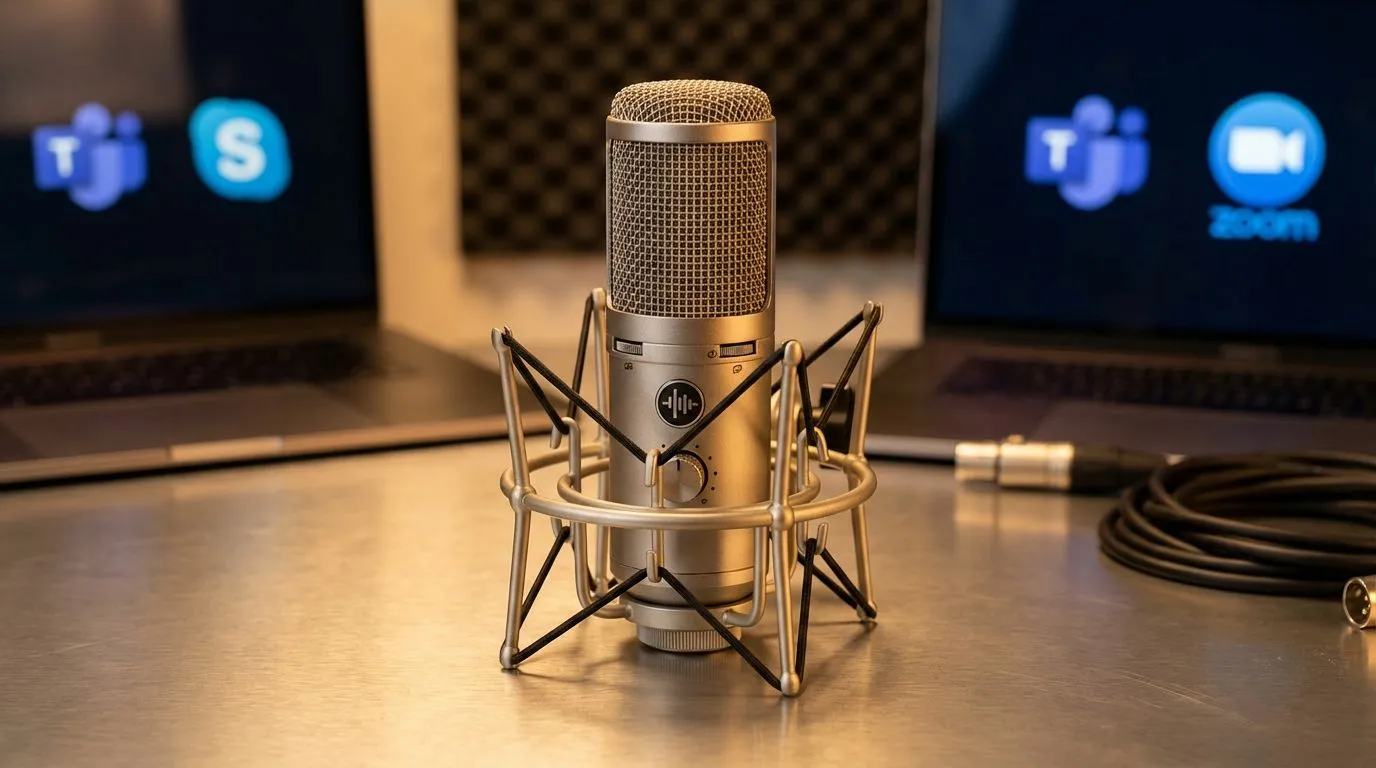
Optimising Software for the Best Mic Settings for Zoom and Teams for Clearer Calls
We have all been there. You are halfway through a crucial pitch from your home office in Sandton or a team sync in Cape Town, and someone utters those dreaded words: "You sound like you are underwater." Poor audio is more than a nuisance... it is a productivity killer. Finding the best mic settings for Zoom and Teams for clearer calls ensures you sound professional, regardless of the background noise. 🔧
Fine-Tuning Zoom and Microsoft Teams Audio
Most users rely on default settings, but these are rarely ideal for South African environments where fans or street noise might be present. In Zoom, navigate to Audio Settings and set "Background Noise Suppression" to 'Auto' or 'Medium'. For Microsoft Teams, the 'High' noise suppression setting is excellent at filtering out everything from barking dogs to the hum of a generator.
If you are looking for hardware that handles these transitions effortlessly, the Razer Barracuda X Chroma Wireless Headset is a top-tier choice. Its detachable cardioid mic is designed to pick up your voice while ignoring ambient chatter... making it perfect for hybrid work. ⚡
Pro Audio Tip ⚡
Always use the 'Test Mic' feature before a meeting starts. Zoom and Teams both offer a recording loopback tool. It takes ten seconds but prevents ten minutes of "Can you hear me now?" frustration. This is the quickest way to verify your input levels are hitting the green zone without peaking into the red.
Adjusting Windows Sound Levels for Maximum Clarity
Your operating system often hides the most important controls. Go to your Sound Control Panel and ensure your microphone's sample rate is set to 48,000Hz (DVD Quality). This prevents the "tinny" sound often associated with low-bitrate inputs. If your voice sounds too quiet, avoid boosting the gain too high... this introduces static. Instead, move the physical mic closer to your mouth.
For those who want more control, the Razer headphones and headsets ecosystem provides dedicated software like Razer Synapse. This allows you to tweak EQ settings specifically for vocal clarity, ensuring you always cut through the mix in busy meetings. 🚀
Why Hardware Matters for Professional Audio
Even the best software settings cannot fix a poor-quality sensor. Investing in a dedicated headset rather than using your laptop’s built-in pinhole mic is the single biggest upgrade you can make. High-quality drivers and noise-cancelling microphones ensure your voice remains consistent, even when your internet connection fluctuates.
Exploring the various headphones and headsets available at Evetech will show you that professional audio does not have to cost a fortune. Whether you prefer wired reliability or wireless freedom, the right gear makes maintaining the best mic settings for Zoom and Teams for clearer calls much easier to manage. ✨
Ready to Find Your Perfect Match? Clear communication is the backbone of every successful project. Whether you are gaming with the squad or leading a corporate briefing, don't let bad audio hold you back. Explore our massive range of headset specials and find the perfect gear to make your voice heard across South Africa.











