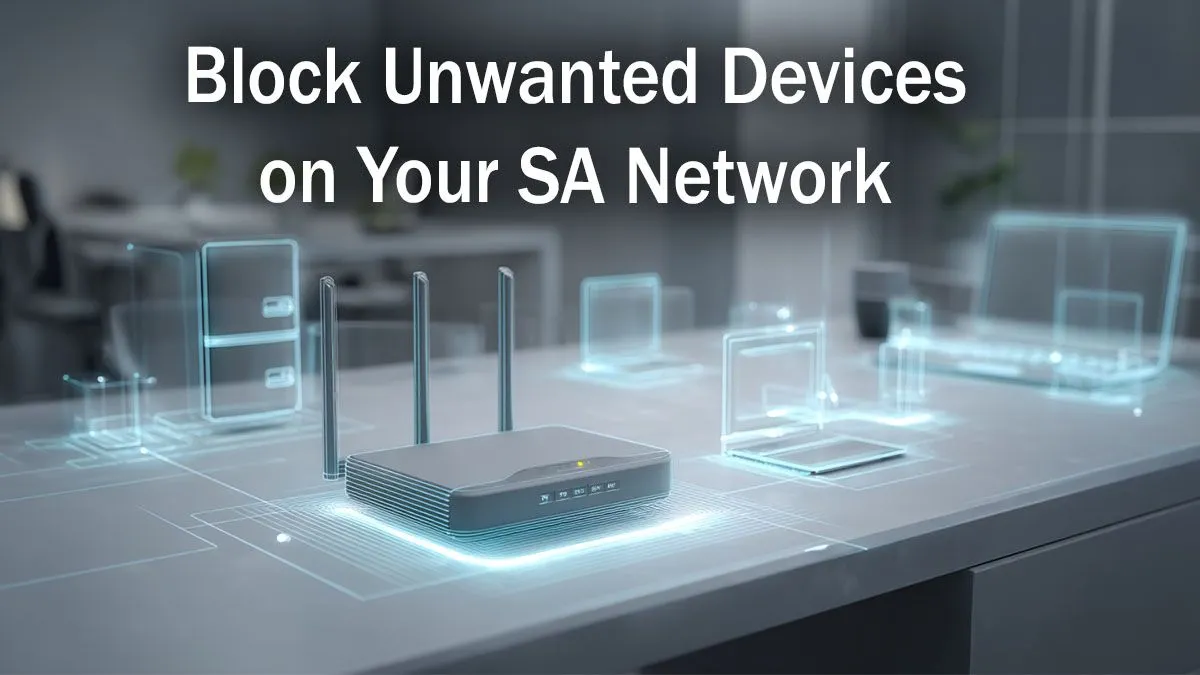
Is your uncapped fibre feeling suspiciously... capped? You're in a clutch moment in Valorant, and suddenly, your ping spikes to the moon. It's a uniquely South African frustration. Often, the culprit isn't your ISP, but uninvited guests on your network—that neighbour who "borrowed" your password once, or old devices hogging precious bandwidth. Learning how to block devices from your WiFi in South Africa is your first step to reclaiming your connection's full power. 🚀
Why You Should Block Devices from Your WiFi
Taking control of your home network isn't just about speed; it's also about security and peace of mind. Here’s why you should regularly check who's connected:
- Boost Your Speed: Every device on your network consumes a slice of your bandwidth. By removing unauthorised users, you free up more speed for what matters—like smooth 4K streaming and lag-free gaming.
- Strengthen Your Security: An unknown device could be a potential security risk, giving someone a backdoor into your personal files or other connected devices. Kicking them off is essential digital hygiene. 🔒
- Manage Your Household: For parents, it's a simple way to enforce digital curfews. If it's time for homework or bed, you can temporarily block a console or tablet right from your router's settings.
A Step-by-Step Guide to Blocking WiFi Devices
Ready to become the master of your domain? The process to block a device from your WiFi network is surprisingly straightforward. You just need to access your router's control panel.
Step 1: Find Your Router's IP Address
Your router's IP address is the gateway to its settings. It's usually a number like 192.168.1.1 or 10.0.0.2.
- On Windows: Open Command Prompt (search for
cmd in the Start Menu), type ipconfig, and press Enter. Look for the "Default Gateway" address. - On Mac: Go to System Settings > Network, select your WiFi connection, click "Details...", and find the "Router" address.
Step 2: Log In to Your Router
Open a web browser and type the Default Gateway address into the URL bar. You'll see a login page. The username and password are often printed on a sticker on the router itself (commonly admin/admin or admin/password).
Can't Find Your Login Details? 🕵️
the default credentials don't work, someone might have changed them. You can perform a factory reset on your router by holding down the small, recessed reset button for about 10-15 seconds. This will restore the original login details, but be warned: it will also erase your WiFi name and password, so you'll have to set it up again.
Step 3: Locate the Connected Devices List
Once you're logged in, look for a section named "Connected Devices," "Device List," or "DHCP Clients." This page shows every device currently using your WiFi. You'll see device names and their unique "MAC Address"—a string of letters and numbers that acts like a digital fingerprint.
Step 4: Block the Intruder with MAC Filtering
Identify the device you want to block by matching its name or checking the MAC address (you can find your own device's MAC address in its network settings to rule it out).
Now, find a setting called "MAC Filtering," "Access Control," or "Network Filter." Here, you can create a "Blocklist" or "Denylist." Simply add the unwanted device's MAC address to this list and save your changes. The router will now refuse any connection attempt from that specific device. If your router's interface is ancient and confusing, it might be time to look at modern wireless routers that make this process much simpler.
Beyond Blocking: Optimising Your Home Network 📶
Blocking devices is a great reactive measure, but proactive security is even better. After you've cleaned house, take these steps to fortify your network.
A strong, new password is your best defence. But for even better performance and coverage, consider upgrading your hardware. If you have WiFi dead zones in your house where the signal just won't reach, a set of powerful wireless range extenders can solve the problem instantly.
For desktop gamers, a weak internal WiFi card can be a major bottleneck. Upgrading to a dedicated wireless adapter can drastically improve connection stability and speed. Taking a holistic view of your setup is key; a strong network is a system where every part works together. You can browse Evetech's entire wireless networking category to find the perfect components for a truly optimised home connection.
Ready to Conquer Lag for Good?
Blocking unwanted devices is a great start, but true online dominance comes from rock-solid hardware. From powerful routers to signal-boosting extenders, the right gear makes all the difference. Stop blaming your ISP and take control. Check out our latest tech deals and build a network that never lets you down.