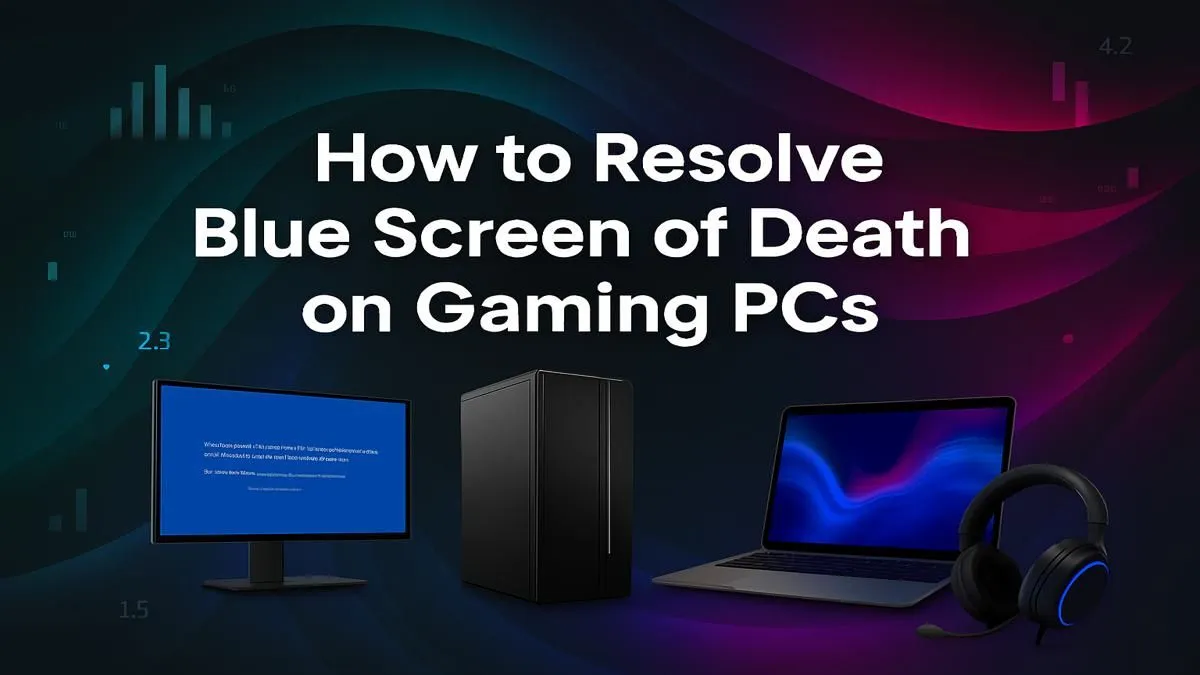
You’re in the final circle. It’s a 1v1. You hear footsteps, line up the perfect headshot, and click… but instead of a victory screen, your world turns a chilling shade of blue. The infamous Blue Screen of Death (BSOD) has struck again, robbing you of glory. Don’t stress, though. This guide offers a real Blue Screen of Death fix.
What Causes the Dreaded Blue Screen of Death?
That dreaded blue screen isn't just Windows having a bad day. It's a critical stop error, a safety mechanism to prevent serious damage to your system when it encounters a problem it can't handle. Think of it as your PC's emergency brake. For gamers, the intense demands we place on our hardware can often expose underlying weaknesses.
Common culprits for a BSOD include:
- Overheating: Your CPU or GPU gets too hot under pressure.
- Unstable Overclocks: Pushing your hardware too far without proper stability testing.
- Driver Conflicts: Especially new graphics card drivers that don’t play nicely with a specific game or Windows update.
- Faulty RAM: A single corrupted memory module can cause chaos.
- Corrupted System Files: Essential Windows files get damaged.
- Failing Hardware: An ageing power supply or a dying SSD can trigger system-wide instability, often showing up when playing graphically intense games like Cyberpunk 2077.
Your Step-by-Step BSOD Fix Guide 🔧
Before you feel the urge to rage-quit and throw your tower out the window, let’s try a systematic approach. Here’s a practical guide to diagnosing and resolving BSODs.
1. Note the Stop Code
When the BSOD appears, don't just immediately restart. Look for a line of text in all caps, often with underscores, like IRQL_NOT_LESS_OR_EQUAL or SYSTEM_SERVICE_EXCEPTION. A quick Google search of this exact code is your best first step and often points you directly to the cause.
2. Check Your Temps
Overheating is a massive issue, especially during our hot summers. A BSOD mid-match in a high-stakes game like Call of Duty: Warzone 2.0 often points to thermal throttling. Install a free tool like HWMonitor or MSI Afterburner to check your CPU and GPU temperatures while gaming. If they’re creeping above 90°C, it’s time to clean your fans and maybe re-apply thermal paste.
3. Update (or Roll Back) Your Drivers
Drivers are the middlemen between your hardware and your OS. A faulty graphics driver is a top cause of gaming-related BSODs.
- Update: Go directly to the NVIDIA or AMD website and download the latest driver for your GPU.
- Roll Back: If the crashes started right after an update, use Device Manager to roll back to the previous, stable version. This is a common issue even in well-optimised titles like Fortnite.
Quick Fix: Windows Memory Diagnostic ⚡
Suspect your RAM? You don't need fancy software. Just type "Windows Memory Diagnostic" into the Start Menu and run it. It will prompt you to restart your PC and will perform a thorough check of your RAM modules for errors before Windows even loads. It’s a simple, built-in tool that can save you hours of guesswork.
4. Test Your System Files and Memory
If drivers aren't the problem, your Windows installation or RAM could be.
- System File Checker (SFC): Open Command Prompt as an administrator and type
sfc /scannow. This command finds and repairs corrupted Windows system files. - Memory Test: As mentioned in the tip above, run the Windows Memory Diagnostic. A single error here means one of your RAM sticks is likely faulty. A stable memory configuration is vital for massive open-world games like GTA V that are constantly loading assets.
Advanced Troubleshooting for Persistent BSODs
Still getting that blue screen? Let's dig deeper. These steps are a bit more involved, but they can often solve the most stubborn problems. A stable rig is non-negotiable for competitive shooters where a crash means letting your team down, whether you're playing Counter-Strike 2 or trying to coordinate an ultimate in Overwatch 2.
First, check for any BIOS/UEFI updates on your motherboard manufacturer's website—but be careful and follow the instructions precisely. Next, physically check your hardware. Ensure your RAM, GPU, and all power cables are seated securely. Sometimes a loose connection is all it takes to cause a crash, especially in a demanding title like Microsoft Flight Simulator. A BSOD can also be triggered by faulty peripherals, so try unplugging everything except your mouse and keyboard.
When a BSOD Fix Isn't Enough… When is it Time to Upgrade? ✨
You've tried everything. You've updated drivers, tested your RAM, and your temperatures are fine, but you're still crashing out of your PUBG matches. Sometimes, a persistent BSOD on an older machine is a sign that a core component like the motherboard or power supply is on its last legs.
Chasing a blue screen of death fix can become a frustrating, time-consuming cycle. Instead of buying individual parts and hoping for the best, investing in a new, professionally built PC ensures every component is tested, stable, and ready for modern gaming. It's the ultimate fix for peace of mind. Even a modded Minecraft session can be surprisingly demanding, and a solid foundation is key.
Ready for a BSOD-Free Future?
Stop troubleshooting and start gaming. A stable, powerful PC is the ultimate fix for BSODs. Explore our massive range of gaming PCs and find the perfect, professionally-built machine to conquer your favourite games without interruption.