

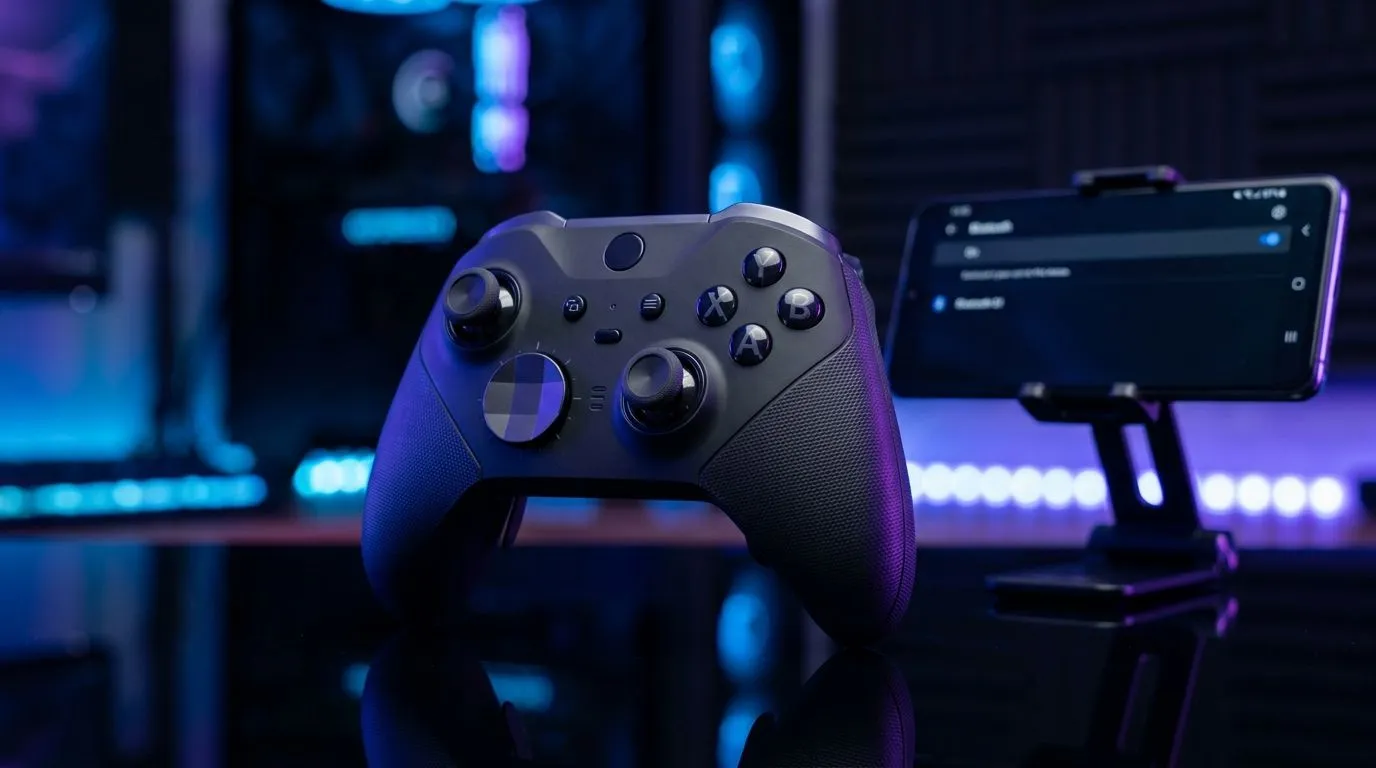
Mastering Bluetooth Wireless Gaming Controller Setup for Android ⚡
South African gamers, ready to ditch thumb cramps and screen taps? Setting up a Bluetooth wireless gaming controller for Android can elevate your mobile gaming to a new level. Whether you're diving into fast-paced MOBAs or exploring vast RPG worlds, a reliable controller improves precision and comfort. This guide walks you through easy steps to connect your controller and start crushing your favourite games in no time.
Why Choose a Bluetooth Wireless Gaming Controller for Android?
Bluetooth controllers free you from tangled wires and awkward grips. Unlike touchscreen controls, they offer tactile feedback and responsive triggers — vital for competitive gaming. Plus, with Android’s improved Bluetooth support, pairing is smoother than ever. If you’re aiming for consistent performance across titles, investing in a quality controller is smart. Consider the Razer Wolverine V3 Tournament Edition for high responsiveness and comfort, now available at attractive prices in South Africa.
Step-by-Step Bluetooth Wireless Controller Setup on Android 🔧
Getting your Bluetooth controller connected is straightforward:
- Turn on your gaming controller and enable Bluetooth pairing mode (check your controller manual if unsure).
- On your Android device, open Settings > Connected devices > Pair new device.
- From the list of available devices, tap your controller’s name when it appears.
- Follow any on-screen prompts (sometimes a code entry).
- Once connected, test the controller in apps that support external devices or in Android’s gaming modes.
Pro tip—keep your Android updated. Newer versions offer better Bluetooth stability and lower input lag. For extra options, explore quality gaming controllers available at Evetech with compatibility clearly listed.
Optimise Your Gaming Experience
If your controller occasionally disconnects, try forgetting the device and pairing again. Also, closing background apps can reduce Bluetooth interference.
Troubleshooting Common Bluetooth Connection Issues
Sometimes your controller won’t pair immediately or loses signal mid-game. Here’s what to try:
- Restart both devices. A quick reboot clears temporary glitches.
- Check battery levels. Low power can cause dropped connections.
- Remove other Bluetooth devices nearby. Interference from multiple connections can disrupt pairing.
- Re-pair the controller. Often resolves unknown connection errors.
If you want to explore top-tier options, the range of Razer gaming controllers available at Evetech ensures quality and seamless Android compatibility.
Enhancing Your Android Mobile Gaming Setup 🚀
Once you’re paired, tweak your gameplay settings for peak performance. Many games let you remap buttons or adjust sensitivity specifically for controllers. Customise these controls for comfort and speed. Also, consider investing in a gaming headset to maintain full immersion and clear communication.
By choosing the right Bluetooth wireless gaming controller for Android, you’re unlocking new gameplay dimensions. Are you ready to dominate your favourite titles with ease?
Gear Up for Victory with a Bluetooth Wireless Controller Elevate your gaming with one of the best Bluetooth controllers on the South African market. Shop now at Evetech and experience mobile gaming without limits.











