

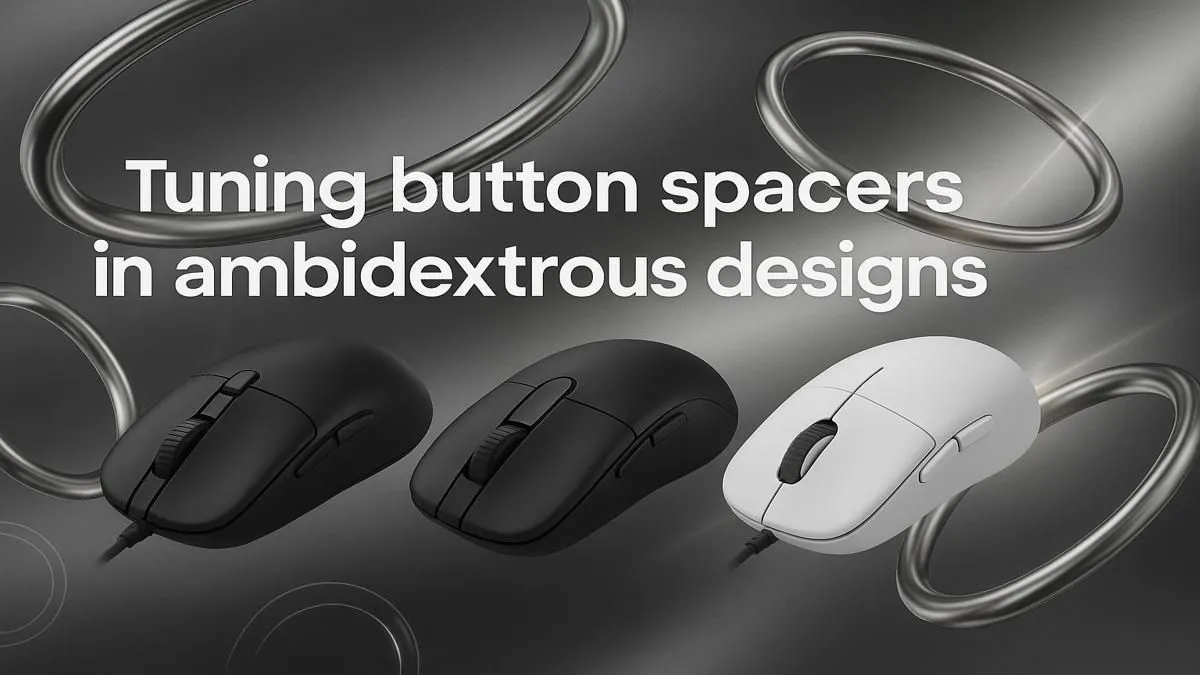
Left-handed gamer in a right-handed world? Ja, we see you. You’ve finally found a sweet ambidextrous mouse, but you keep accidentally hitting the side buttons meant for righties. It’s frustrating. This is where our button spacer tuning guide for your ambidextrous setup comes in. In a few simple steps, you can customise your mouse for flawless, comfortable control, no matter which hand you use. Let's get it sorted. ✨
Why Your Ambidextrous Setup Needs Fine-Tuning
Ambidextrous mice are fantastic, offering a symmetrical shape that caters to both left- and right-handed players. But here’s the catch: they often come with side buttons on both sides. While great for versatility, it means your ring or pinky finger is constantly resting on buttons you don't use, leading to costly misclicks in the heat of a match. That's not ideal when you're clutching a 1v3 in Valorant.
This is where a proper ambidextrous setup with button spacers becomes essential. These small (usually plastic) inserts physically block the unused buttons, creating a smooth, comfortable surface for your grip. It’s a simple fix that transforms a good mouse into your perfect mouse. Many premium gaming mice now include these in the box, acknowledging that true customisation is key.
A Practical Guide to Button Spacer Tuning 🔧
Ready to optimise your mouse? Most ambidextrous models with swappable buttons, like some from the Logitech G Pro or Razer Viper series, make this process a breeze. Here’s a general approach.
Step 1: Identify Your Active Side
First, decide which side buttons you'll be using. If you're left-handed, you'll likely want the buttons on the right side of the mouse active (for your thumb) and the ones on the left side disabled. Right-handed users will do the opposite.
Step 2: Install the Spacers or Blank Covers
Your mouse probably came with a small bag containing two button covers and two flat "spacer" panels.
- Remove the Unused Buttons: These are almost always held on magnetically. Gently pull the button covers off from the side you want to disable. They should pop right off.
- Install the Spacers: Take the flat, non-button panels and place them where you just removed the buttons. They should click into place magnetically, sitting flush with the mouse's body.
And that's it! You've successfully tuned your mouse for a dedicated left- or right-handed configuration. No more accidental grenade throws.
Go Wireless or Stay Wired?
a modern [wireless mouse](https: www.evetech.co.za buy-wireless-mouse x 1597.aspx) offers incredible freedom, many pro players still swear by a wired connection for that guaranteed, zero-latency response. If every millisecond counts, exploring the latest [wired mouse options](https: www.evetech.co.za buy-wired-mouse x 1596.aspx) could give you a competitive edge.
Beyond Spacers: Perfecting Your Ambidextrous Experience
A complete button spacer tuning guide wouldn't be complete without mentioning software. Once your physical setup is sorted, dive into your mouse’s software (like Razer Synapse or Logitech G HUB). Here, you can re-map any remaining buttons or completely disable them to ensure they never fire by accident.
Combining physical spacers with software tweaks gives you total control. You can also enhance your grip and comfort further with specialised mouse accessories like grip tape. This level of deep customisation is what separates a good setup from a great one, giving you a real competitive advantage. 🚀
Find Your Perfect Ambidextrous Mouse Ready to stop compromising and find a mouse that fits you perfectly? Explore our massive range and check out the best gaming mouse deals in South Africa for performance that feels tailor-made.











