

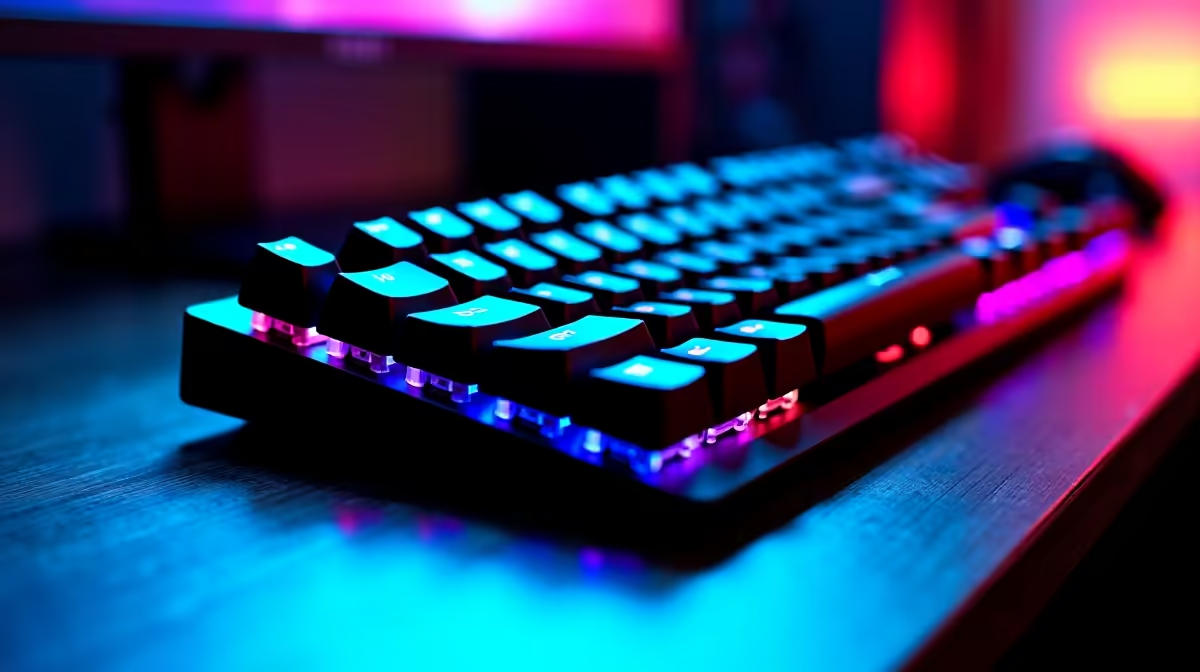
A full-size keyboard is the most feature-complete layout available - 104 keys on a standard ANSI layout, including the full numpad, function row, and navigation cluster. Setting one up correctly on a South African Windows PC involves more than just plugging it in, especially if you're configuring it for both gaming and productivity use.
Quick Answer
Setting up a full-size keyboard involves connecting via USB or wireless receiver, confirming Windows recognises it, setting the correct keyboard layout (English South Africa or US International), and configuring any software for gaming macros or per-key lighting. The entire process takes under five minutes for most keyboards.
🔌 Connecting and Configuring Your Keyboard in Windows
Plug your keyboard into a USB port - preferably directly into the motherboard's rear USB ports rather than a front-panel hub for the most stable connection. Windows will detect it automatically and install a basic HID driver within seconds. For wireless keyboards, plug in the USB receiver and pair following the manufacturer's instructions (usually holding a pairing button). Next, confirm your keyboard layout is correct: go to Settings > Time & Language > Language & Region > English (South Africa) and ensure your preferred layout is set. Many SA users run US International layout, which handles special characters cleanly. A quality mechanical keyboard from Evetech will connect and configure in moments.
⚙️ Installing Manufacturer Software and Configuring Profiles
Most gaming-grade full-size keyboards include dedicated software - Corsair iCUE, Razer Synapse, SteelSeries GG, and similar. Download the software from the manufacturer's official site. Through the software you can: assign macros to any key, set per-key RGB lighting, create game-specific profiles that activate automatically when a game launches, and configure media key behaviour. If you don't use any gaming features, skip the software entirely - Windows' native HID driver handles everything a productivity user needs without additional software overhead. Set Windows' repeat delay (Settings > Ease of Access > Keyboard) to match your typing preference.
🎮 Optimising a Full-Size Layout for Gaming
Full-size keyboards have one ergonomic consideration for gamers: the numpad shifts your right hand further from the keyboard's centre, which pushes the mouse further right on your desk. If desk space is tight, ensure your gaming mouse still has full range of motion with the keyboard positioned naturally. Set function key behaviour in your BIOS or software - gaming keyboards often swap F-key and media functions. For competitive gaming, disable Windows key in your keyboard software to prevent accidental presses mid-game. Test all keys with a key tester website to confirm none are stuck or unresponsive out of the box.
FAQ
Q: Do I need to install drivers for a full-size keyboard? A: Not for basic use - Windows installs HID drivers automatically. Manufacturer software is only needed for macros, custom lighting, or per-profile settings.
Q: Why is my keyboard typing the wrong characters? A: Your Windows keyboard layout doesn't match your physical keyboard. Go to Settings > Language and confirm the correct layout (usually English US or English South Africa) is set as default.
Q: Can I use a full-size keyboard wirelessly for gaming? A: Yes, modern 2.4GHz wireless keyboards (not Bluetooth) have input lag indistinguishable from wired in most gaming scenarios. Bluetooth adds slightly more latency and is better suited for office use.
Evetech stocks Graphics Card Deals and Evetech Best Sellers — shop online with fast delivery across South Africa.
Ready to Find Your Perfect Match? Shop full gaming setups including keyboards, mice, and peripherals at Evetech.











