

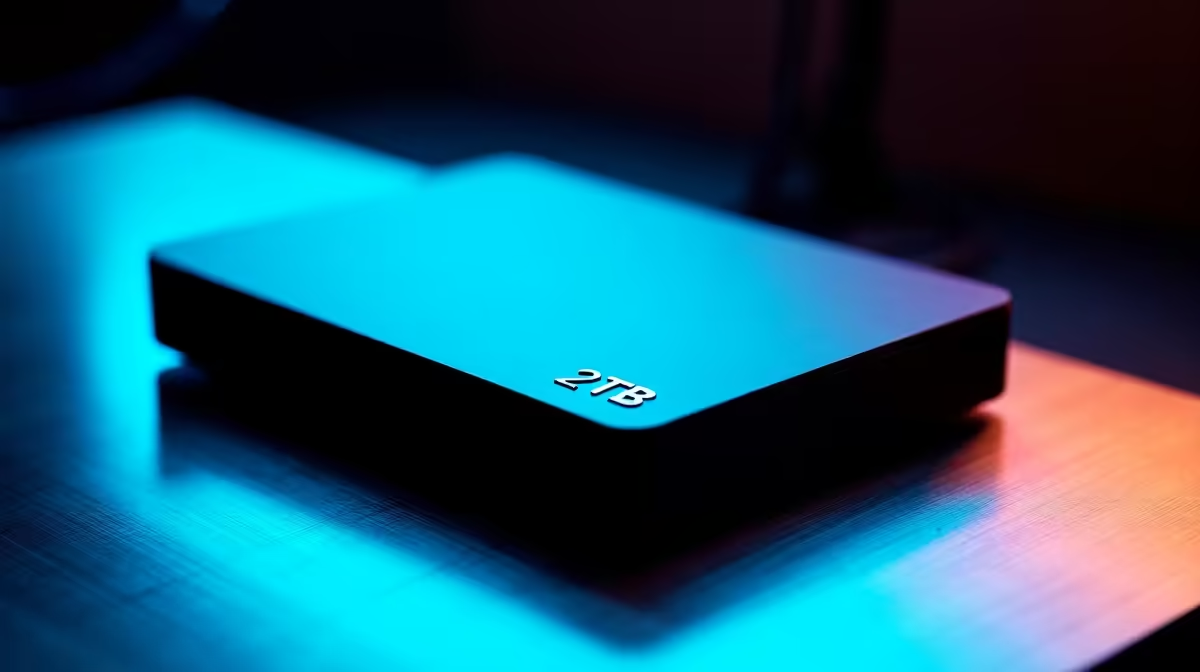
A 2TB portable HDD is one of the most practical storage upgrades you can make - it works with virtually any device, requires no power adapter, and gives you a large capacity backup and transfer drive in a pocket-sized package. Setting one up correctly takes less than five minutes.
Quick Answer
How to set up a portable 2TB HDD: Connect via USB, let the driver install automatically, and the drive appears in File Explorer (Windows) or Finder (Mac). For a fresh drive, initialise it in Disk Management (Windows) or Disk Utility (Mac) and format to exFAT for cross-platform compatibility.
🔧 Initial Setup: Windows
Connect your portable HDD to a USB port. Windows 10 and 11 automatically install drivers - wait 20–30 seconds. In most cases the drive opens automatically in File Explorer. If it does not appear, right-click Start, open Disk Management, and look for the new disk listed at the bottom. If it shows as Unallocated, right-click and select New Simple Volume, follow the wizard, and format as NTFS (Windows-only) or exFAT (cross-platform). Assign a drive letter and click Finish.
For a 2TB drive, the initialisation dialog may ask whether to use MBR or GPT partitioning. Choose GPT - it supports drives above 2TB and is compatible with all modern Windows and Mac systems.
📊 Choosing the Right File System
| File System | Best For | Limitation |
|---|---|---|
| NTFS | Windows-only use | Mac can read but not write natively |
| exFAT | Mixed Windows/Mac/Android | No journaling, less resilient to corruption |
| APFS | Mac-only | Windows cannot read without third-party tools |
| ext4 | Linux | Windows/Mac require third-party tools |
For most South African users who share files between a Windows gaming PC, a laptop, and Android phones, exFAT is the recommended format. It handles large files (above 4GB - important for game backups and video files) and works natively on Windows, macOS, and Android.
💡 Tips for Getting the Most From Your 2TB Drive
Use USB 3.0 ports only. Portable HDDs support USB 3.0 speeds (up to 120 MB/s read). Plugging into a USB 2.0 port (often found on older laptops and front-panel headers) caps transfer speeds at 25–35 MB/s - four times slower. USB 3.0 ports are typically blue inside.
Always eject safely. Never unplug your HDD while files are transferring or while Windows is writing to it. Use the Safely Remove Hardware icon in the system tray. Abrupt disconnection is the number one cause of HDD corruption.
Partition for organisation. Consider splitting your 2TB drive into two partitions - one for backups, one for media or game storage. This keeps data organised and limits the impact if one partition develops issues.
Back up the backup. A portable HDD is not a permanent backup solution - it is a single point of failure. Keep critical files in at least two places: your HDD plus cloud storage or another drive.
❓ Frequently Asked Questions
Why is my 2TB HDD showing less than 2TB in Windows? Drive manufacturers measure in decimal (1TB = 1,000GB), while Windows reports in binary (1TiB = 1,024GB). A 2TB drive shows approximately 1.81TB in Windows - this is normal and not a defect.
Can I use a portable HDD with my PlayStation or Xbox? Yes, most modern consoles support USB HDDs for media storage. For extended game storage on consoles, format the drive in the console's storage settings. Note that console-formatted drives are not readable on PC without reformatting.
How long do portable HDDs last? A well-maintained portable HDD lasts 3–5 years under regular use. Avoid drops, extreme heat, and leaving the drive plugged in permanently. For long-term archival, store in a cool, dry place and check data integrity annually.
Upgrade with All SSDs or Graphics Card Deals — all available at Evetech with fast SA delivery.
Ready to Find Your Perfect Match? Shop at Evetech











