

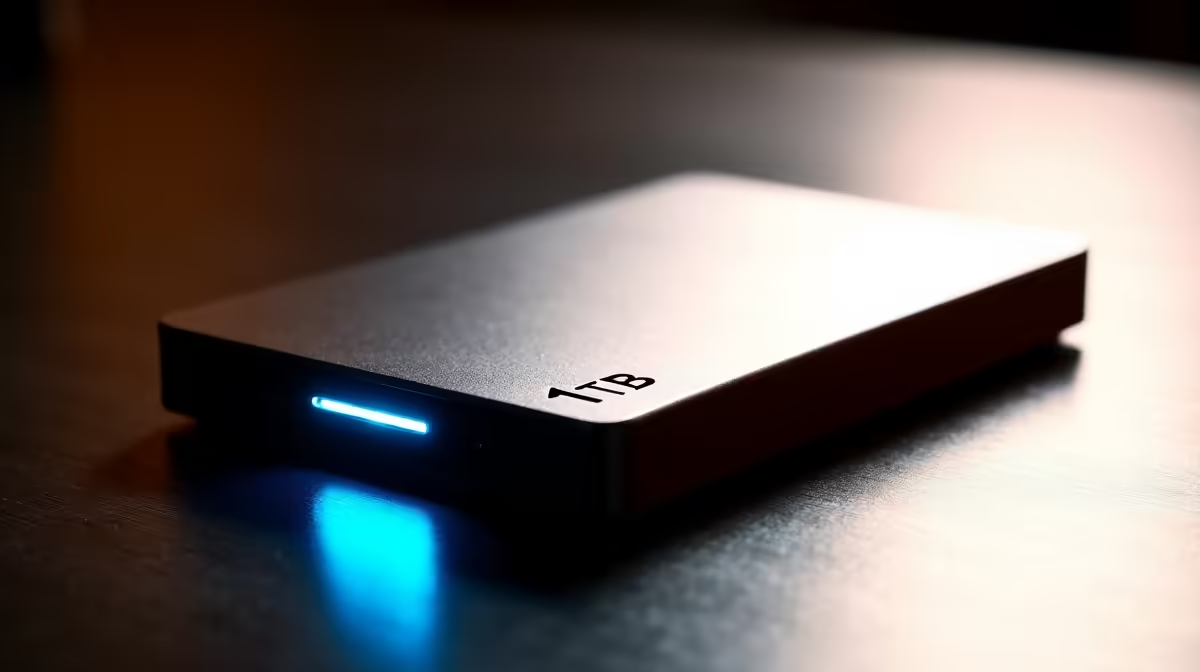
Quick Answer
Setting up a portable 1TB SSD takes just a few minutes - connect it via USB, format it to your preferred file system, and it is ready for use across Windows PCs, laptops, or gaming consoles.
Connecting and Recognizing Your Portable SSD
Most portable 1TB SSDs connect via USB-C or USB-A, with many modern drives including both cable types in the box. On a Windows machine, plug the drive in and wait for Windows to detect it - you should hear the connection chime and see the drive appear in File Explorer within seconds. If nothing appears, open Disk Management by right-clicking the Start button and selecting it from the menu.
In Disk Management, look for your new drive listed at the bottom as unallocated space or as a disk without a drive letter. If it shows as unallocated, right-click and choose "New Simple Volume" to initialize and format the drive. You will be guided through assigning a drive letter and choosing a file system.
If the drive was previously used on a Mac and formatted as HFS+, Windows may not recognize it by default. In that case, you will need to reformat the drive to exFAT or NTFS, which will erase all existing data on it.
Choosing the Right File System for Your SSD
The file system choice depends on how you plan to use the drive. NTFS is the best option if you exclusively use Windows machines - it supports files larger than 4GB, offers better security features, and is natively read-write compatible with all modern Windows versions. exFAT is the better choice if you need to move files between Windows and macOS systems or use the drive with gaming consoles like the PlayStation 5.
For SA gamers who use their portable SSD as extended storage for a PS5, Sony currently only supports specific drive models and requires USB SuperSpeed connectivity. Verify your drive's USB specification before purchasing if console use is the primary goal. For PC use, virtually any USB 3.2 Gen 2 drive will saturate real-world transfer speeds well beyond what most workflows require.
Naming your drive clearly in Windows (right-click the drive in File Explorer, select Rename) helps when switching between multiple drives, which is common if you use the SSD across a gaming laptop and a desktop at home.
Managing and Maintaining Your Portable SSD
Portable SSDs have no moving parts, making them far more robust than traditional hard drives - but they are not indestructible. Avoid pulling the USB cable out while files are transferring. Always use the "Safely Remove Hardware" option in the system tray, or eject the drive from File Explorer, before disconnecting. This prevents data corruption and protects the drive's file system.
Periodically checking the drive's health is good practice. Free tools like CrystalDiskInfo on Windows can read SMART data from most SSDs over USB and report on drive health. If you are using the SSD for game storage, organizing games into clearly labeled folders keeps things tidy as your library grows.
For SA users who travel frequently - between campuses, LAN venues, or work sites - invest in a small protective pouch for the drive. While SSDs handle drops better than HDDs, the USB port on both the drive and your laptop takes mechanical stress from repeated plug-and-pull cycles over time.
Frequently Asked Questions
Q: Do I need to format a new portable 1TB SSD before using it?
A: Most drives come pre-formatted as exFAT or NTFS and are ready to use immediately. Check if the drive appears in File Explorer when connected - if it does, you can use it straight away without reformatting.
Q: Can I use a portable SSD to store and run games from Steam?
A: Yes. In Steam, go to Settings > Storage, add your SSD as a new library location, and install or move games directly to it. Game load times may be slightly slower than an internal NVMe drive but significantly faster than a traditional hard drive.
Q: Is a portable SSD safe to carry in a bag every day?
A: Yes. Portable SSDs are solid-state with no moving parts, making them resistant to shock and vibration. Use a soft protective pouch to prevent scratches on the casing and connector port.
Also at Evetech: All SSDs | Graphics Card Deals
Ready to Find Your Perfect Match? Shop at Evetech











