

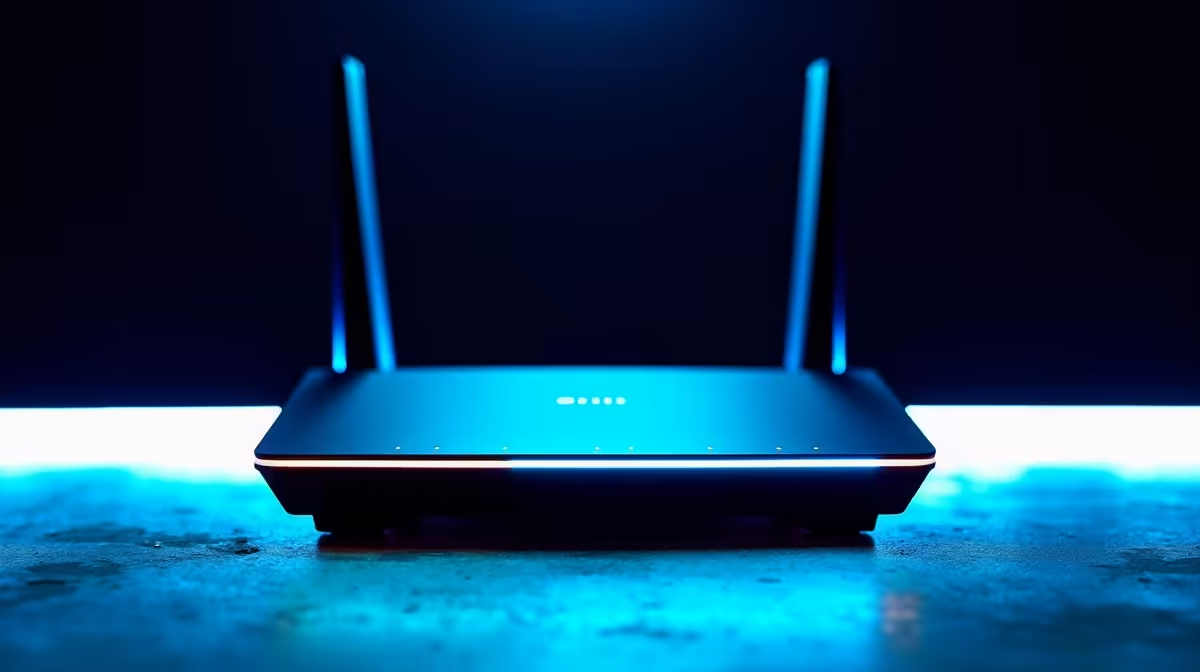
WiFi 6E extends the WiFi 6 standard into the 6 GHz band, adding a wide-open spectrum lane that avoids the congestion of the 2.4 GHz and 5 GHz bands used by every other device in your building. Setting it up correctly from the start makes a significant difference in real-world performance, especially in South African apartment buildings and townhouse complexes where dozens of competing networks crowd the older bands.
Quick Answer
How do you set up a WiFi 6E router? Connect the router to your fibre ONT or ADSL modem via the WAN port, access the admin panel (usually 192.168.1.1 or via a companion app), configure your ISP's connection type (typically DHCP for fibre providers like Vumatel or OpenServe), create separate SSIDs for 2.4 GHz, 5 GHz, and 6 GHz bands, and enable WPA3 security on the 6 GHz band.
🔧 Step-by-Step Setup Process
Step 1: Physical connection Connect your WiFi 6E router's WAN (internet) port to the LAN port of your fibre ONT using a Cat5e or Cat6 ethernet cable. Do not connect WAN to WAN. Power on the router and wait 60–90 seconds for it to fully boot.
Step 2: Access the admin panel
Open a browser on a device connected to the router (via cable or the default network printed on the router label) and navigate to the router's admin IP - typically 192.168.1.1 or 192.168.0.1. Alternatively, use the manufacturer's companion app (common on ASUS, TP-Link, and Netgear 6E routers).
Step 3: Configure your ISP connection South African fibre ISPs including Vumatel, Openserve, Frogfoot, and Metrofibre typically use DHCP for residential connections - select Automatic IP / DHCP as your WAN connection type. If you are on an older DSL line with Afrihost or Axxess, select PPPoE and enter your ISP-provided username and password.
Step 4: Configure the 6 GHz band This is the key step unique to WiFi 6E. Create a separate SSID for the 6 GHz band (e.g., "HomeNetwork_6GHz"). Set channel width to 160 MHz for maximum throughput. Enable WPA3 security - WPA3 is mandatory for the 6 GHz band per the WiFi 6E specification. Set a strong, unique password.
Step 5: Configure 2.4 GHz and 5 GHz bands Keep these active for older devices that do not support WiFi 6E. Set the 2.4 GHz channel to 1, 6, or 11 (non-overlapping). Use 80 MHz channel width on 5 GHz for a balance of range and speed. Enable WPA2/WPA3 mixed mode on these bands for compatibility.
📊 Band Comparison for SA Home Setups
| Band | Range | Speed | Best For |
|---|---|---|---|
| 2.4 GHz | Longest | Slowest | Smart home devices, distant rooms |
| 5 GHz | Medium | Fast | Laptops, streaming, video calls |
| 6 GHz | Shortest | Fastest | Gaming PCs, NAS transfers, VR |
The 6 GHz band has shorter wall penetration than 5 GHz. Place your WiFi 6E router centrally or in the same room as your primary gaming or work setup for maximum 6 GHz benefit. In a single-story home under 200 square metres, one router covers well. For larger homes or multi-story setups, pair a 6E router with a 6E mesh node.
💡 Optimisation Tips for SA Networks
Enable OFDMA and MU-MIMO: These WiFi 6/6E features are often disabled by default. Find them in your router's wireless advanced settings and enable both - they significantly improve performance when multiple devices are connected simultaneously.
QoS for gaming: If you play online games, enable Quality of Service (QoS) in your router settings and prioritise gaming traffic or your gaming PC's MAC address. This prevents a large download on another device from spiking your ping during a match.
DNS servers: Change your DNS from your ISP's default to Cloudflare (1.1.1.1) or Google (8.8.8.8). This reduces DNS lookup latency, which is particularly noticeable when connecting to international game servers from South Africa.
Firmware updates: After initial setup, check for and install any available router firmware updates. WiFi 6E is a relatively new standard and early firmware versions often have stability improvements in subsequent releases.
❓ Frequently Asked Questions
Do I need a WiFi 6E device to benefit from a WiFi 6E router? Only to use the 6 GHz band. Your existing WiFi 5 and WiFi 6 devices connect to the 2.4 GHz and 5 GHz bands as normal and benefit from the router's improved processing power and OFDMA support. The 6 GHz band is exclusively for devices that support WiFi 6E.
Will my Vumatel fibre connection support WiFi 6E speeds? Your fibre speed cap is set by your ISP plan, not your router. WiFi 6E enables faster wireless speeds between devices on your local network (NAS, PC to laptop file transfers) and ensures your fibre speed is not throttled by wireless bottlenecks. On a 100 Mbps Vumatel line, a WiFi 6E router ensures you receive close to the full 100 Mbps wirelessly rather than the 40–60 Mbps typical on older routers in congested apartment buildings.
Can I use WiFi 6E with load shedding backup? Yes. A small UPS (uninterruptible power supply) can keep a WiFi 6E router running during a power outage. Most home WiFi 6E routers draw 15–25W, meaning a 600VA UPS provides 2–4 hours of runtime - enough to maintain connectivity during most outages.
Evetech stocks Networking & Routers and Graphics Card Deals — shop online with fast delivery across South Africa.
Ready to Find Your Perfect Match? Shop at Evetech











