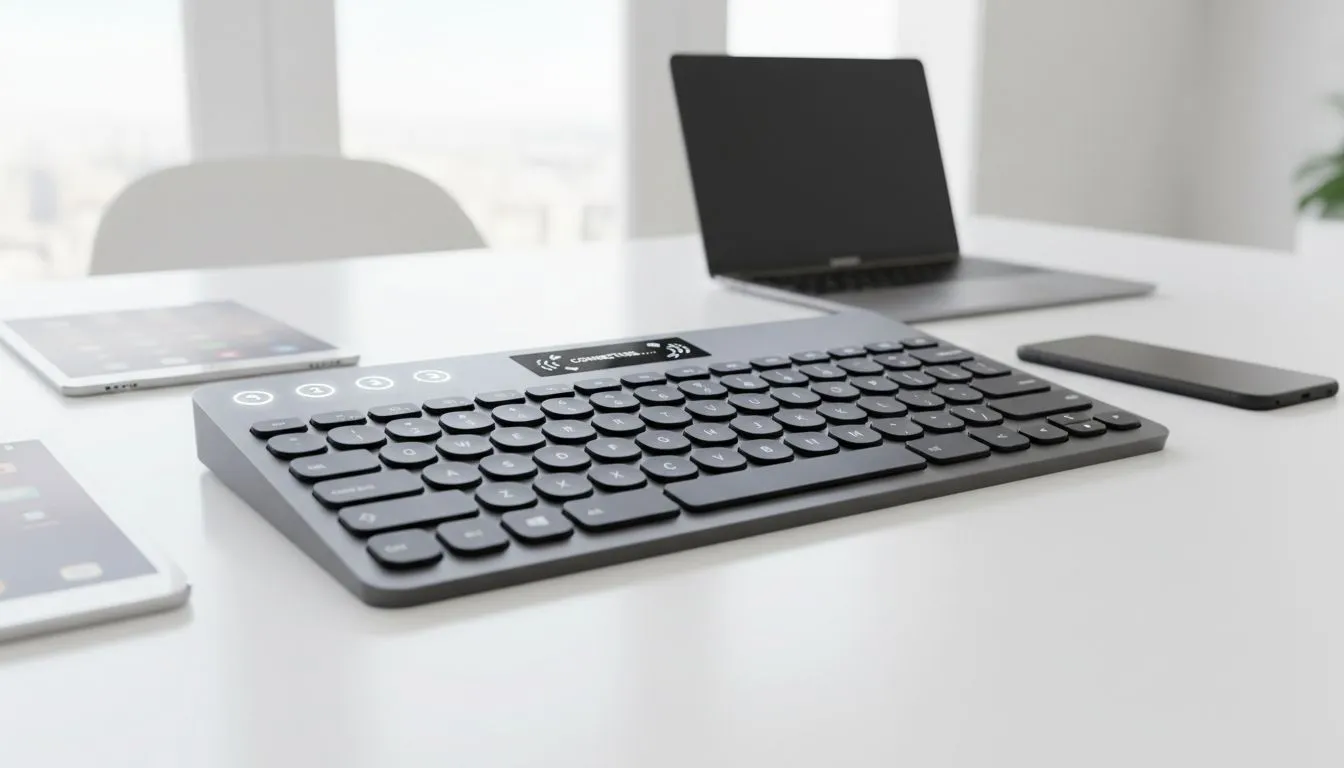
Tired of cluttering your desk with three different keyboards just to reply to a WhatsApp on your phone while gaming? In South Africa... where desk space is often at a premium... learning how to connect Bluetooth keyboard to multiple devices is a massive win. It streamlines your workflow and keeps your setup looking clean. Let’s dive into how you can swap between your rig, tablet, and laptop effortlessly. ⚡
Why Multi-Device Pairing is a Productivity Win
Most modern peripherals are designed to handle more than one connection at a time. Whether you are a student switching between an iPad and a laptop, or a professional managing two workstations, the ability to toggle with a single button press is invaluable. High-quality wireless keyboards often feature dedicated "easy-switch" keys that allow for seamless transitions without the lag of traditional re-pairing.
How to Connect Bluetooth Keyboard to Multiple Devices: Step-by-Step
The process is generally straightforward, but it requires a bit of sequence management to ensure your devices don't fight over the signal.
- Enable Pairing Mode: On your keyboard, look for the Bluetooth buttons (often labelled 1, 2, and 3). Hold the first button until the light flashes.
- Search on Device A: Open your Bluetooth settings on your primary PC and select the keyboard.
- Switch Channels: Press the second Bluetooth button on your keyboard.
- Search on Device B: Repeat the pairing process on your tablet or secondary laptop.
- Test the Toggle: Simply tap the 1 or 2 buttons to see how quickly the cursor responds on each screen.
If you are looking to upgrade your current setup, browsing the latest best gaming keyboard deals can help you find a model that supports up to three simultaneous connections.
The Fn Key Secret ⚡
Most multi-device keyboards use the Function (Fn) key combined with numbers to switch channels. If your device isn't connecting, hold these keys down for three seconds to enter pairing mode... the LED usually flashes faster when it's ready to find your PC. This is the most common reason for pairing failures in South African households with multiple active signals.
Wired vs Wireless: Finding the Right Balance
While the convenience of Bluetooth is unmatched for office work, some local competitive gamers still prefer the reliability of a physical connection. You can find excellent wired keyboards that offer zero-latency performance for those clutch moments in Apex Legends or CS2. However, for a versatile home office, a wireless multi-device setup usually wins for ergonomics and cable management. ✨
Budget-Friendly Multi-Device Solutions
You don't need to spend thousands of ZAR to get a high-performing setup. Many users find that a keyboard mouse combo provides the best value, often including a mouse that can also switch between devices. This ensures your entire periphery ecosystem is synced and ready to go.
If you are on a strict budget, searching for the cheapest gaming keyboard in South Africa will reveal several entry-level options that still include robust Bluetooth 5.0 support. These models are perfect for students or remote workers who need to optimise their workflow without breaking the bank. 🚀
Troubleshooting Common Connection Issues
If your keyboard refuses to switch, ensure that other nearby devices aren't "hogging" the connection. Bluetooth signals can occasionally get crowded... especially if you have wireless headsets and controllers active at the same time. Simply turning the Bluetooth off and back on for the specific device you want to use often clears the handshake error.
Ready to Upgrade Your Setup? Managing multiple devices shouldn't be a headache. Whether you need a high-performance mechanical deck or a budget-friendly wireless solution, we have the stock to get you connected. Explore our massive range of keyboard specials and find the perfect match for your South African battle station.