

MacBook Pro 16-Inch M5 Max: Complete Specs, Features and SA Pricing Guide
MacBook Pro 16-Inch M5 Max: Complete Specs,. Everything you need to know with SA pricing, step-by-step instructions & expert recommendations.
Read moreConnect Laptop to 4K TV with USB-C — Checklist: 1) Verify USB-C Alt Mode 2) Pick the right cable or adapter 3) Set 4K@60Hz display settings ✅📺
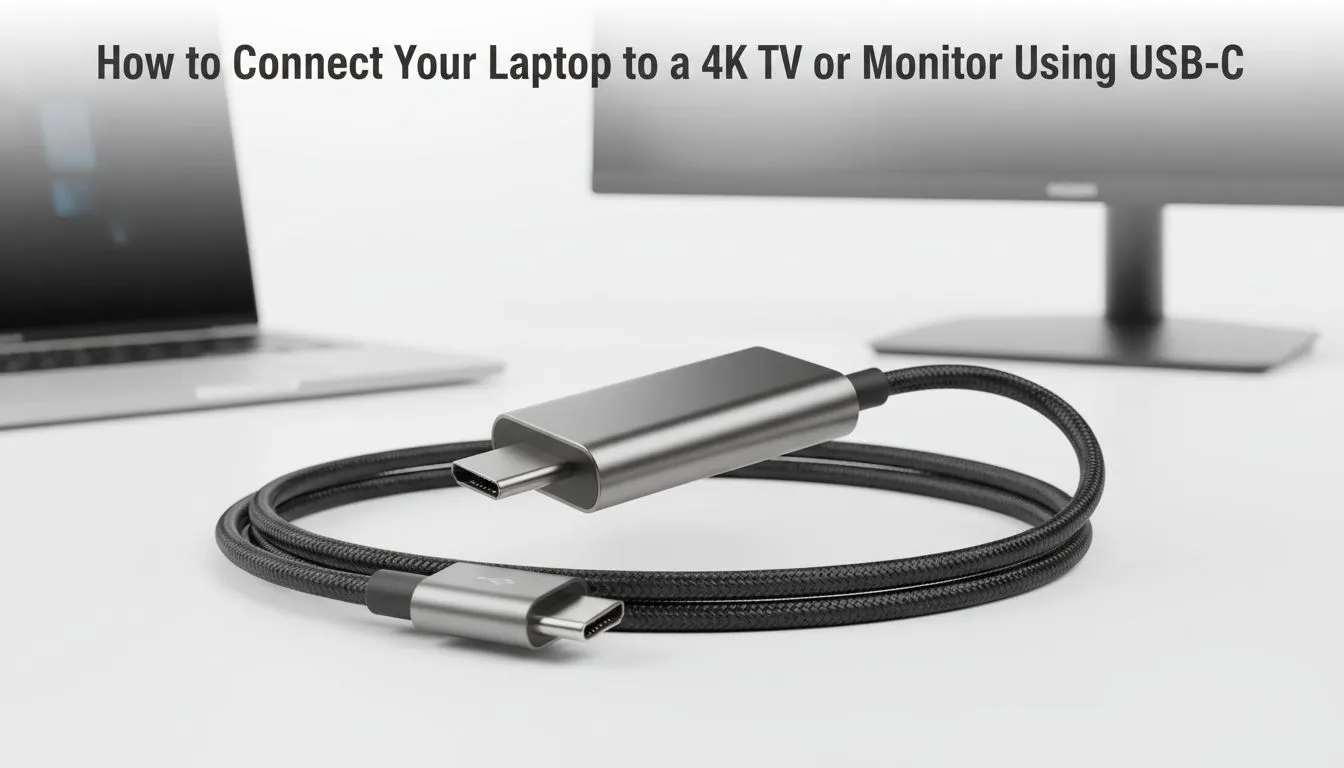
Ever tried showing a cinematic trailer to mates on a 13-inch laptop screen? It just doesn't hit the same. If you want to connect laptop to 4K TV with USB-C, you are in the right place. Whether you are streaming 4K movies or pushing spreadsheets on a massive canvas, the process is simpler than you think... if you have the right gear. ⚡
Before you buy a cable, check your laptop port specs. Not every USB-C port carries a video signal. You need a port that supports DisplayPort Alt Mode. Look for a small lightning bolt or a tiny screen icon next to the port. This feature allows your device to output high-quality video directly to your television. If your port is data-only, a simple cable won't work.
To get the best result, you need a high-quality bridge. You could use a direct USB-C to HDMI cable... but a hub is often better. A dedicated range of docking stations provides more versatility for your setup. This allows you to connect your mouse and keyboard while outputting video. ✨
For many South Africans, value is the priority. You can find reliable docking stations under R1000 that get the job done. These are perfect for basic home office needs or watching Netflix in 4K. If you need more features like Power Delivery, look at docking stations under R2000 instead. These units often support faster data transfer and better build quality.
Quality varies between manufacturers. Some cheap adapters might flicker or lose signal. We often recommend Promate docking stations for their consistent performance. They handle the heat well and maintain a stable 4K signal. This is vital when you are halfway through a movie or a presentation. 🔧
Many users connect their gear only to find the mouse feels "heavy". This usually happens because the connection is limited to 30Hz. For a smooth experience, you want 60Hz. Ensure your TV port is HDMI 2.0 or higher. You should also check your Windows display settings to ensure the refresh rate is set correctly. 🚀
When connecting to a 4K TV, always check if your HDMI cable is "High Speed" or "Premium High Speed". Older cables often cap your refresh rate at 30Hz. This makes motion look choppy. Switching to a certified cable ensures your 4K experience stays buttery smooth at 60Hz.
Ready to Find Your Perfect Match? Connecting your laptop to a big screen is just the start of a great setup. For maximum power, choice, and value in South Africa, our hardware selection is hard to beat. Explore our massive range of laptop specials and find the perfect machine to conquer your world.
Yes, if your laptop's USB-C supports DisplayPort Alt Mode or Thunderbolt. Use a USB-C to HDMI/DisplayPort adapter or cable for 4K output.
Yes. Use a certified high-speed USB-C cable or an HDMI 2.0/2.1 adapter that supports 4K@60Hz to avoid bandwidth limits.
Alt Mode carries native DisplayPort over USB-C; Thunderbolt adds higher bandwidth and more reliable multi‑display 4K@60Hz support.
Yes. Pick a docking station with DisplayPort or HDMI 2.0/2.1 output and explicit 4K@60Hz support for best results.
30Hz usually means your cable or adapter is limited or the laptop is using HDMI 1.4. Switch to a 4K@60Hz-capable cable/adapter.
Open display settings, set resolution to 3840x2160, select 60Hz refresh, and update GPU drivers for stable 4K output.
Most are plug-and-play if your laptop supports Alt Mode; older models or certain docks may need drivers or firmware updates.
MacBook Pro 16-Inch M5 Max: Complete Specs,. Everything you need to know with SA pricing, step-by-step instructions & expert recommendations.
Read more
Travelling With a MacBook: Travellers. Everything you need to know with SA pricing, step-by-step instructions & expert recommendations.
Read more
Back-to-School Parent Guide: Laptops. Everything you need to know with SA pricing, step-by-step instructions & expert recommendations.
Read more
MacBook Air 13-Inch M5: Complete Specs, Features. Everything you need to know with SA pricing, step-by-step instructions & expert recommendations.
Read more
MacBook Neo Unboxing and First Setup Guide for. Clear setup instructions with SA-specific considerations, troubleshooting tips & recommended components.
Read more
MacBook Pro 16-Inch M5 Pro: Complete Specs,. Everything you need to know with SA pricing, step-by-step instructions & expert recommendations.
Read more
CS2 Low FPS: Monitor Bottleneck. Real-world benchmark data, FPS numbers & performance analysis. What SA gamers can actually expect.
Is AOC a Good Monitor Brand for Gaming in South Africa Detailed answer with SA data, expert analysis & practical recommendations for local buyers.
What Gaming Monitor Can You Get for R20,000. Full parts list, Rand pricing & expected performance. Build confidently with SA-available components.
What Gamers Actually Bought: November Report. Real purchase data from SA retailers revealing what local buyers are actually choosing and why.
Can the RX 7700 XT Handle 1440p 144Hz Gaming. Performance testing verdict with real data & practical recommendations for SA buyers.

Top Laptop with Core i7 + RX 7700S: Picks picks evaluated on performance, value & SA availability with current Rand pricing from Evetech.
RX 7700 XT Black Myth Wukong 2 FPS: Performance. Real-world benchmark data, FPS numbers & performance analysis. What SA gamers can actually expect.
RTX 6080 Gran Turismo 7 PC Performance: FPS Test. Real-world benchmark data, FPS numbers & performance analysis. What SA gamers can actually expect.

Eliminate background noise in gaming voice chat using cardioid microphones to focus on your voice and reject room sounds. Get cleaner comms fast with smart placement and settings—🎮🎧
Wondering how much to spend on a high-end gaming headset in South Africa? We break down budget vs performance, what you actually get, and smart upgrade steps 🎧⚡

Wondering about THX Spatial Audio vs 7.1 surround for positional awareness? We compare imaging, depth, and cueing so you can pick the best option for gaming. 🎧👣
50mm bio-cellulose drivers vs standard drivers: does material affect audio precision? Compare clarity, bass control, and imaging so you can choose the right headphones. 🎧🔍