

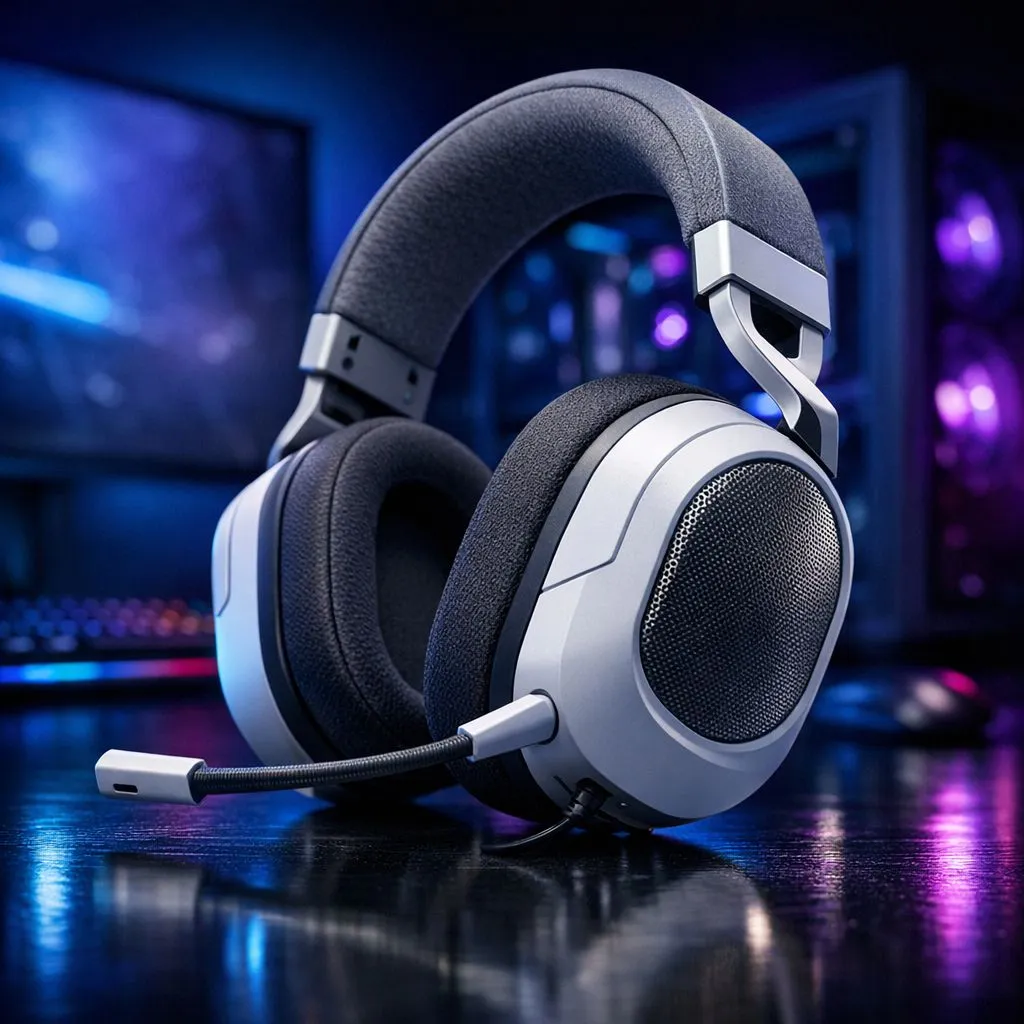
Corsair HS65 + Dolby 7.1 — Quick start for PC and Mac
If you picked up the Corsair HS65 and you want Dolby 7.1 spatial sound on PC or Mac, this short guide gets you from unboxing to in‑game positional audio in under 15 minutes. South African gamers: expect crisp footstep placement and a comfortable fit for marathon sessions — we’ll keep it practical and local. 🎧✨
Corsair HS65 Dolby 7.1 setup essentials for Windows
First, plug the HS65 into your PC via USB (or USB adapter for the analogue jack). For Windows 10/11, install Corsair iCUE to enable Dolby Atmos-like processing for the HS65 and to update firmware. If you want a quick alternative while testing, compare other wireless and wired headsets on Evetech to match features and price. For a different wireless option, see this Razer Barracuda X Chroma listing for a comparable lightweight choice. https://www.evetech.co.za/razer-barracuda-x-chroma-wireless-headset-phantom-white/best-deal/24367
Windows step-by-step
- Download Corsair iCUE from the official Corsair site, then run firmware updates.
- In Windows Sound settings, set the HS65 as Default Communication Device.
- Enable Windows Spatial Sound > Dolby Atmos for Headphones if available, or use the iCUE virtual surround options.
- Calibrate in a quiet room — adjusting EQ and sidetone often fixes muffled mids.
Corsair HS65 Dolby 7.1 on macOS — what changes
macOS does not natively support Dolby Atmos for headsets the same way Windows does, so the experience differs. Use the HS65 in analogue/USB mode and rely on in‑game audio mixing or third‑party spatialiser apps when needed. If you’re exploring headset options optimised for Mac workflows, browse Evetech’s Razer headphones category for alternatives and compatibility notes. https://www.evetech.co.za/PC-Components/razer-headphones-headsets-105
macOS step-by-step
- Connect the HS65 via USB‑C or dongle and check Sound Preferences.
- Use application-level audio settings (e.g., in Valorant or CS2) to prioritise stereo mix or simulated surround.
- Try third‑party spatialiser apps cautiously; check for latency before committing.
Quick Pro Tip ⚡
Windows, keep iCUE updated and create two profiles: one for competitive titles with tight bass and enhanced treble, and one for single‑player with wider soundstage and reverb. Switching profiles in seconds helps you avoid re-tuning during matches.
Troubleshooting and tuning for better positional audio
If you hear audio dropouts or the surround feels off, check the following:
- Firmware: update via iCUE on Windows or check Corsair support pages.
- USB bandwidth: try a rear I/O port or a powered hub.
- In‑game audio: use stereo for lowest latency, virtual surround for wider cues. For general headset shopping, compare specs in Evetech’s headphone and headset category to see user reviews and warranty details before you buy. https://www.evetech.co.za/components/headphone-headsets-100 🚀
Final thoughts and local buying tips
Dolby 7.1 on the Corsair HS65 can dramatically improve directionality on PC; on Mac, expect compromises but still solid comfort and mic quality. If you’re in South Africa and deciding between models, consider local stock, warranty and service — Evetech lists local availability and deals that help you compare quickly.
Ready to Find Your Perfect Match? The Mac vs Windows debate is complex, but for maximum power, choice, and value in South Africa, Windows is hard to beat. Explore our massive range of laptop specials and find the perfect machine to conquer your world.











