

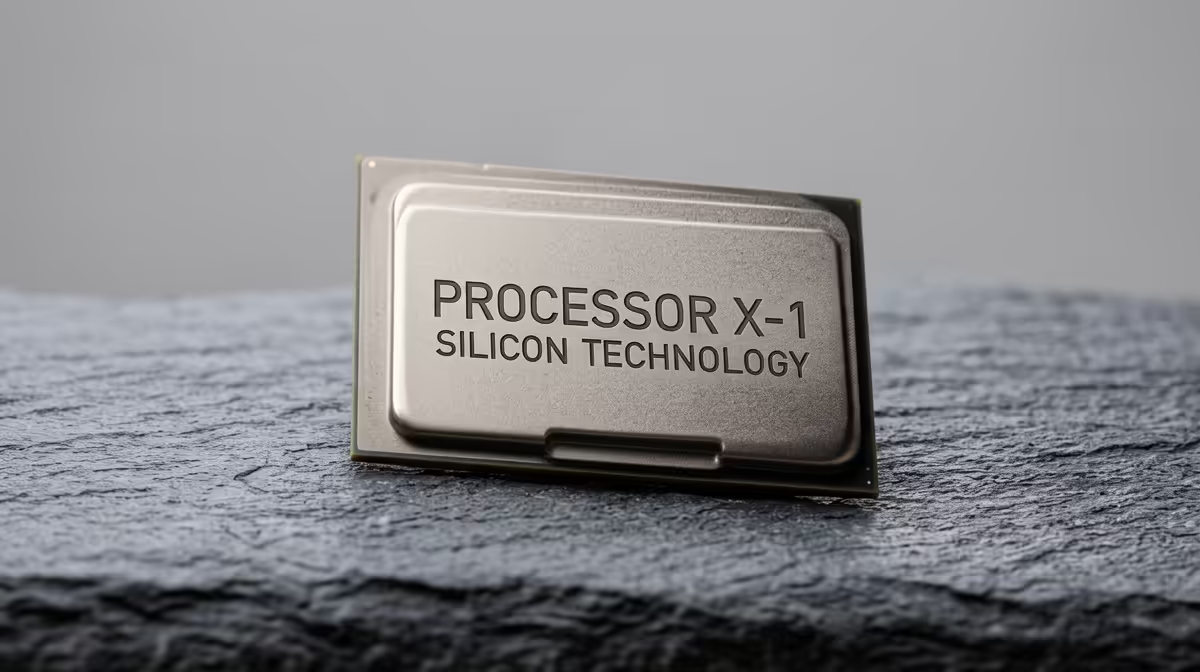
Is your brand-new graphics card not delivering the buttery-smooth frame rates you were promised? Before you blame the GPU, the real culprit might be your processor. A CPU bottleneck can cripple your rig’s performance, leaving your expensive GPU twiddling its digital thumbs. In South Africa, where every component is a considered investment, diagnosing performance issues correctly is crucial. Let's run through some quick CPU bottleneck tests to see if your processor is holding you back. 🚀
Understanding the Signs of a CPU Bottleneck
Before diving into software, let's talk about the in-game symptoms. A classic sign of a CPU bottleneck is experiencing inconsistent frame rates, sudden stutters, or lag spikes, especially in moments with lots of action or complex physics… think a massive team fight in Dota 2 or driving through a crowded city in Cyberpunk 2077.
If your FPS is significantly lower than benchmarks for your specific GPU, or if performance barely improves when you lower graphical settings like textures and shadows, your CPU is likely the weak link. These are the first clues that you need to perform more specific CPU bottleneck checks.
The Definitive Test: Using Monitoring Software 🔧
The most reliable way to diagnose performance issues is with data. Tools like MSI Afterburner (which works with any brand of hardware) combined with the RivaTuner Statistics Server are perfect for this.
Here’s the simple process:
- Install & Configure: Download and install MSI Afterburner. During setup, make sure to also install the bundled RivaTuner. In Afterburner's settings, go to the "Monitoring" tab and enable the on-screen display (OSD) for GPU Usage, CPU Usage (for all cores), and Frame Rate.
- Fire Up a Game: Launch a game where you experience performance drops.
- Analyse the Numbers: Play for a few minutes and watch the OSD. If your GPU Usage is consistently sitting below 95% while one or more of your CPU cores are maxed out at 99-100%, you've found your bottleneck. The CPU can't feed the GPU data fast enough, leaving it underutilised. This is the clearest result you can get from any CPU bottleneck test.
Pro OSD Tip
In Afterburner's settings, you can assign custom colours to each metric in the OSD. Make your GPU usage green and your CPU usage red. This makes it incredibly easy to spot a bottleneck at a glance during intense gameplay!
Quick Diagnostic Checks to Confirm Your Suspicions
If you want more evidence, here are a few more simple tests you can run without much hassle. These checks help you isolate the problem and confirm your processor is the component that needs attention.
The Resolution Drop Test
This sounds counter-intuitive, but it works. Lower your game's resolution significantly (e.g., from 1440p to 1080p or even 720p) while keeping other settings the same.
- If your FPS increases dramatically: Your GPU was the limiting factor, and things are likely balanced correctly.
- If your FPS barely changes or stays the same: This is a huge red flag. It confirms the CPU is struggling to process the game logic and draw calls, and even at a lower resolution, it can't go any faster. Your system is severely CPU-bound.
Are Background Tasks the Real Villain?
Sometimes, the issue isn't your processor's raw power but what it's being forced to do. Before blaming your hardware, press Ctrl+Shift+Esc to open Task Manager. Check for any non-gaming applications consuming a high percentage of your CPU. A sneaky browser update or background scan could be stealing a surprising amount of resources from your game. Upgrading to one of the latest powerful AMD CPUs, with their excellent multi-core performance, can often help manage these background tasks more effectively.
Checking for Overheating
A processor that runs too hot will throttle itself to prevent damage, drastically reducing its performance and mimicking a bottleneck. Use a tool like HWMonitor to check your CPU temperatures while gaming. If you're seeing temps consistently above 90°C, your cooling solution might be inadequate or need a simple clean and re-application of thermal paste. Ensuring your PC is running cool is a vital step before considering an upgrade to new modern Intel CPUs, which also require robust cooling to perform at their best. ✨
If you've run these tests and confirmed your processor is the problem, the next step is planning an upgrade. A balanced system is a happy system, ensuring you get every frame of performance you paid for.
Ready to End the Stutter for Good? Don't let an outdated CPU ruin your gaming experience. Explore our massive range of CPU processors at Evetech and find the perfect core for a faster, smoother, and more responsive rig.











