

Master Your Visuals: The Ultimate CS2 Brightness Guide
Getting peeked from a pitch-black corner in CS2 is enough to make any South African gamer tilt. Whether you are holding A-site on Mirage or pushing through tunnels on Dust 2, visibility is everything. If your screen looks washed out or too dark, you are at a serious disadvantage. Let’s fix your CS2 brightness and HDR issues to ensure those lurkers have nowhere to hide 🔧.
Optimising In-Game Video Settings for Maximum Clarity
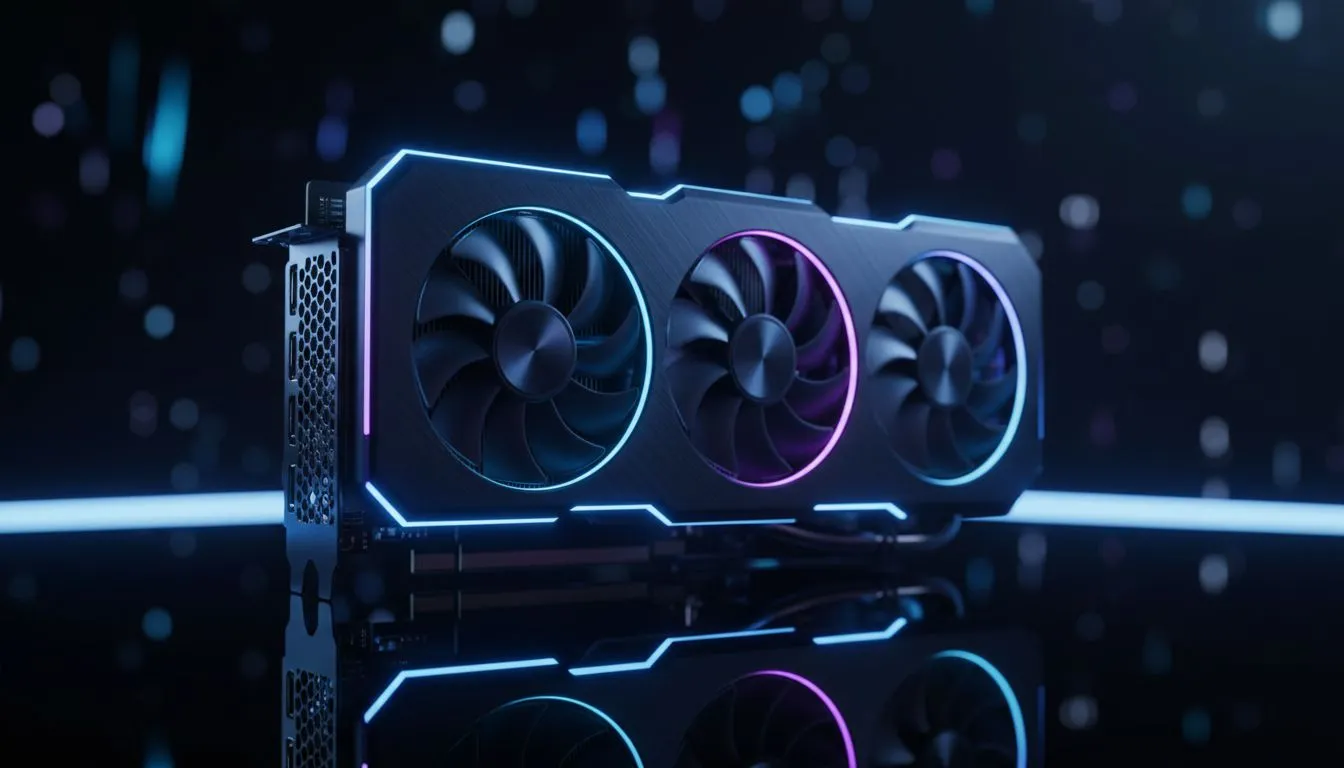
The first step is checking your in-game settings. Counter-Strike 2 handles lighting differently than Global Offensive. You should always play in "Television" mode rather than "Computer Monitor" in the brightness settings. This simple change often provides a more vibrant look. If your frames feel sluggish while trying to boost brightness, upgrading to one of our NVIDIA or ATI graphics cards can solve many lighting bottlenecks.
Brightness Pro Tip ⚡
In the CS2 video menu, set your "Boost Player Contrast" to Enabled. This adds a subtle glow around player models in dark areas, making them pop against the background. It is a must-have for competitive play in South Africa where every millisecond counts.
Fixing HDR Issues and Dark Corners
HDR (High Dynamic Range) in CS2 can be tricky. If your monitor supports it, the game might look stunning but feel inconsistent. Sometimes, the physically based rendering makes shadows too deep. To fix this, ensure your "High Dynamic Range" setting is set to "Quality". If you notice flickering or weird colour shifts, the performance provided by the MSI graphics card range ensures your frames stay stable while handling these complex lighting calculations.
Driver-Level Tweaks for Better Visibility
Sometimes the game settings are not enough. You can use your GPU control panel to boost "Digital Vibrance" or "Saturation". This makes the game colours more distinct, helping you spot enemies faster. If you are on a budget but want modern features, we recommend exploring the Intel Arc graphics card options for a modern architecture that handles Source 2 quite well 🚀.
Unlike specialised workstation graphics cards meant for CAD or rendering, gaming GPUs allow for these aggressive colour profiles. If you prefer the red team, the AMD Radeon graphics cards offer excellent driver-level contrast tools like Radeon Image Sharpening to keep your visuals crisp ✨.
Hardware Matters for Competitive Play
No amount of software tweaking can fix a low-quality panel or a struggling GPU. If you are still seeing ghosting in dark areas, it might be time for a hardware refresh. Investing in a high-refresh-rate monitor and a capable GPU ensures that your brightness settings actually translate into a competitive edge. Don't let a dark corner cost you the round... especially when the solution is just a few clicks away.
Ready to Light Up the Battlefield? Don't let poor visibility hold back your rank. For the best performance and visual clarity in South Africa, you need the right hardware. Explore our massive range of graphics card specials and find the perfect upgrade to dominate your next match.











