

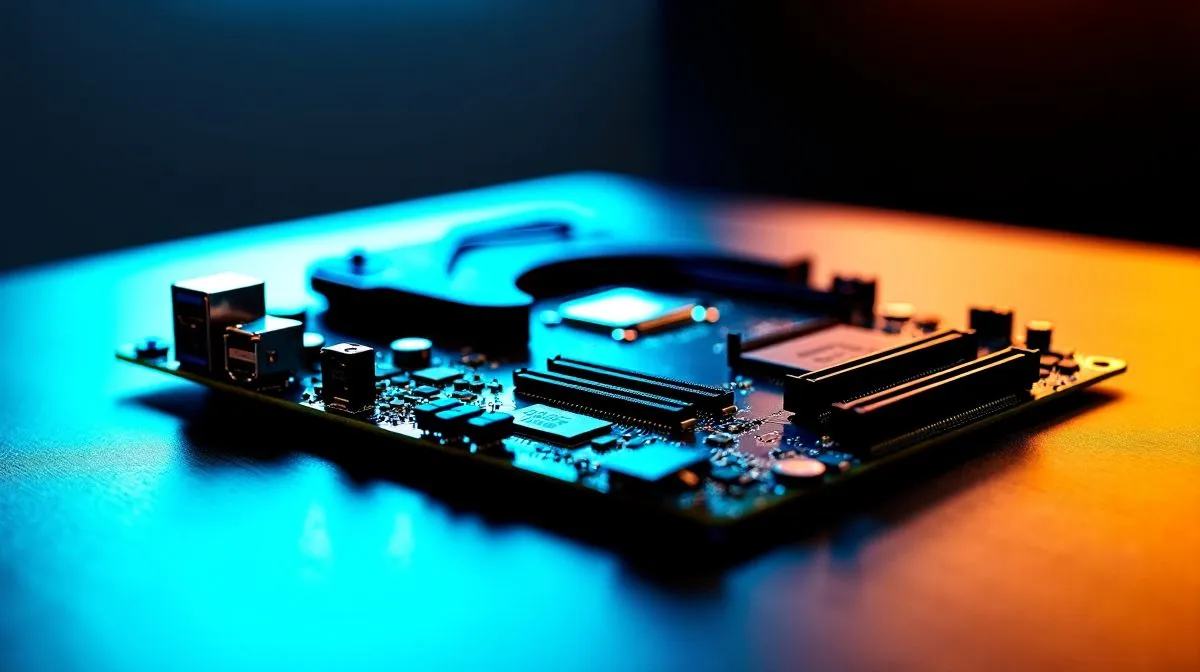
DDR5 BIOS Setup Guide for PCIe 5.0 on Modern PCs — Quick Start
Hit the ground running: if you upgraded to DDR5 and a PCIe 5.0 GPU or NVMe, the BIOS settings can make or break stability and performance. South African gamers and creators often upgrade CPUs and boards to push higher frame rates or faster renders. This guide walks you through core BIOS toggles, memory training tips and troubleshooting so your modern PC behaves like it should. 🔧
DDR5 BIOS Setup Guide for PCIe 5.0 on Modern PCs — Memory and Profiles
First, update your motherboard firmware. Then enable XMP (Intel) or DOCP (AMD), but expect DDR5 profiles to need fine tuning. If you need a compatible processor, explore our Intel CPU selection and our AMD CPU range to match your board. After enabling a profile, run memtest or stress suites for several passes. If instability appears, try raising DRAM voltage in small steps or loosen timings gently.
Productivity Pro Tip ⚡
On Windows, use the PowerToys FancyZones utility to create custom snap layouts for your windows. It's a lifesaver for managing multiple apps on an ultrawide monitor, letting you organise your timeline, preview window, and asset folders perfectly for video editing.
DDR5 BIOS Setup Guide for PCIe 5.0 on Modern PCs — PCIe Settings and Slot Behaviour
Look for BIOS options labelled PCIe Link Speed, Gen Switch or Slot Configuration. Leave high speed lanes at Auto or set to Gen5 for native PCIe 5.0 devices. If you test a PCIe 4.0 card, forcing Gen4 can improve compatibility. For multi-threaded workloads consider pairing with AMD Ryzen 9 processors, or choose Intel Core Ultra 9 models for single-thread focused tasks. 🚀
Run benchmarks and check device managers to confirm lanes and link widths are negotiated correctly. For PCIe NVMe drives, ensure firmware is up to date and NVMe mode is enabled. If your board supports bifurcation, only change those settings if you understand slot wiring; consult your motherboard manual first.
If settings break stability, reset CMOS to restore defaults and reapply changes one at a time. Keep an eye on motherboard QVL lists and memory vendor guidance when buying kits. For a quick parts check and to compare models in ZAR, take a look at our main CPU category for current stock and pricing.
Document every change. Save a BIOS profile after a successful boot, then try one variable at a time. I helped a Cape Town streamer who was dropping frames because the board defaulted to conservative memory timings; saving a stable profile shaved minutes off encoding and stopped crashes. Keep Windows power plan on high performance during tests, and always update GPU drivers after BIOS changes. Small paperwork and patient testing prevents expensive returns and keeps builds stable.
Final sanity checks include verifying memory clocks, running an overnight stress test, and confirming Windows and chipset drivers match BIOS revisions. Small changes matter in DDR5 land; patient tuning yields a reliable system and peak throughput. ✨
Ready to Find Your Perfect Match? The Mac vs Windows debate is complex, but for maximum power, choice, and value in South Africa, Windows is hard to beat. Explore our massive range of laptop specials and find the perfect machine to conquer your world.











