

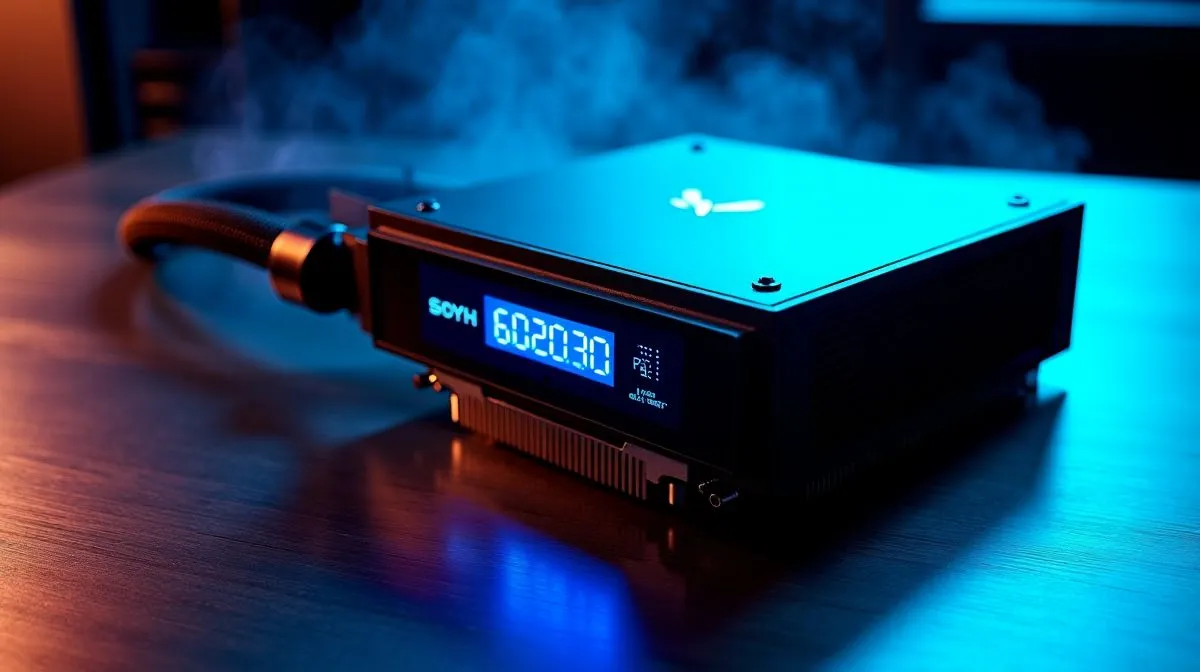
Digital Display Liquid Cooler Setup for Intel and AMD — Quick Start
Getting a digital display liquid cooler? In South Africa, that glossy LCD on top of many AIOs is both stylish and useful. This guide shows step‑by‑step how to mount, cable, and configure one for both Intel and AMD sockets, with fan choices, airflow tips and software notes that avoid rookie mistakes. Small tweaks keep your CPU cool and your desktop looking sharp. 🔧
Digital Display Liquid Cooler Setup for Intel and AMD — Mounting & Orientation
Start by checking socket compatibility on your cooler and motherboard. For Intel LGA and AMD AM4/AM5, orient the pump so tubes don’t kink and the radiator sits high enough to avoid air pockets. When choosing case fans, consider 120mm or 140mm sizes; both have trade‑offs in noise and pressure. Explore 120mm or 140mm fan options for tight builds and high airflow here: https://www.evetech.co.za/PC-Components/case-fans-97.aspx?attributes-size=120mm and https://www.evetech.co.za/PC-Components/case-fans-97.aspx?attributes-size=140mm.
Digital Display Liquid Cooler Setup for Intel and AMD — Fans, Lighting & Airflow
Match fan blade design to radiator fin density. High static pressure fans push through dense radiators better. If you prefer RGB flair or a clean look, select either illuminated or non‑illuminated fans depending on RGB control needs. Browse RGB and non‑RGB fans to suite your aesthetic: https://www.evetech.co.za/PC-Components/case-fans-97.aspx?attributes-lightingeffects=RGB and https://www.evetech.co.za/PC-Components/case-fans-97.aspx?attributes-lightingeffects=None. For brand loyalty, Corsair and Deepcool each offer strong AIO packages — see their fan ranges here: https://www.evetech.co.za/PC-Components/case-fans-97.aspx?brands=CORSAIR and https://www.evetech.co.za/PC-Components/case-fans-97.aspx?brands=Deepcool.
Digital Display Liquid Cooler Setup for Intel and AMD — BIOS, Software & Display Setup
Once mounted, enter BIOS to confirm pump header and CPU fan RPM reporting. Many motherboards need a-type headers for pump control; consult your manual. Use vendor software to customise pump curves and the display. If you plan to show temps on the LCD, set a conservative profile first to avoid thermal spikes.
Installation Pro Tip ⚡
Before tightening standoffs, dry‑fit the radiator and tubing route. This saves fumbling after thermal paste is applied and avoids lifting the block off the CPU.
Digital Display Liquid Cooler Setup for Intel and AMD — Final Checks & Performance
Run a controlled stress test and watch the display readout. If temperatures spike, check for trapped air, loose screws, or reversed fan orientation. Swap to higher static pressure fans if deltas remain large. Want quieter operation? Try slowing the fans by 10–15% and compensate with a slightly higher pump curve. For a wide selection of case fans and replacements locally, browse Evetech’s fan category: https://www.evetech.co.za/PC-Components/case-fans-97.aspx.
A short installation checklist: verify socket mount, set BIOS pump to full for burn‑in, ensure fan direction matches push or pull plan, and personalise the display through software. Little adjustments save big headaches.
If you’re installing in Cape Town, Johannesburg, or anywhere in South Africa, factor in ambient temperatures — summer months push higher idle readings. Many local builders choose a modest pump increase under load and relaxed fan speeds at idle. Unsure about a profile? Evetech support can guide model‑specific settings and explain local warranty and RMA steps. Happy building.
Ready to Find Your Perfect Match? The Mac vs Windows debate is complex, but for maximum power, choice, and value in South Africa, Windows is hard to beat. Explore our massive range of laptop specials and find the perfect machine to conquer your world.











