

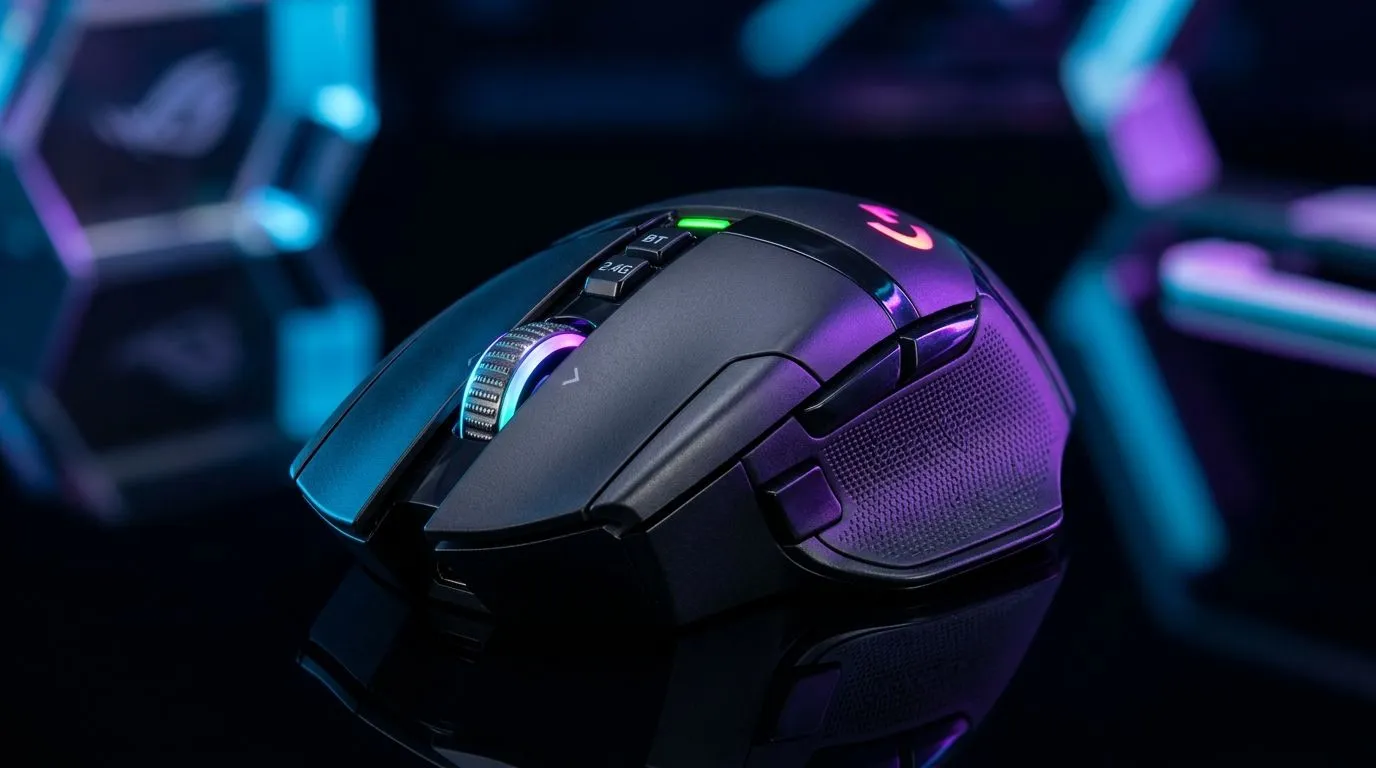
Dual Wireless Gaming Mouse 2.4GHz Bluetooth Setup Guide: Get Lag-Free Control Fast 🎮
You’ve just bought a new dual wireless mouse and now you’re thinking… “Why won’t it stay connected?” If you play on PC after work or grind ranked sessions on weekends, setup time matters. This guide walks you through a clean 2.4GHz + Bluetooth setup, so you get smooth tracking, reliable pairing, and proper battery habits. We’ll keep it practical for South African gamers and tech buyers, whether you’re on Windows, macOS, or both.
Dual Wireless Gaming Mouse 2.4GHz Setup Guide: 2.4GHz Dongle First ⚡
Most dual wireless gaming mice ship with a 2.4GHz receiver (a small USB dongle). The big win with 2.4GHz is stability and low latency, especially in busy Wi-Fi environments.
Step-by-step (2.4GHz)
- Plug the USB dongle directly into your PC (preferably a rear port on desktops).
- Power on the mouse and switch it to 2.4GHz mode if it has a dedicated toggle.
- Wait 5–10 seconds. The mouse should connect automatically on most modern models.
- If your mouse has DPI buttons, do a quick test in-game or on the Windows mouse settings page.
If you already know you want a wireless upgrade, start by browsing Evetech’s full selection of wireless options: wireless mouse picks.
Common fixes
- Dongle on a USB hub? Try a direct port. Hubs can add instability.
- Mouse still not detected? Unplug the dongle, reboot your PC, then reconnect.
- Cursor jumps? Close background apps that grab mouse input (screen recorders, remote tools).
Dual Wireless Gaming Mouse 2.4GHz Bluetooth Setup Guide: Switch to Bluetooth Without Headaches 🔧
Bluetooth is convenient when you swap devices, like moving between a laptop and a desktop, or hopping onto a Steam Deck-style handheld setup (depending on your OS support).
Step-by-step (Bluetooth)
- Put the mouse into Bluetooth mode.
- On Windows, go to Settings → Bluetooth & devices → Add device.
- Choose Bluetooth and select your mouse from the list.
- If you see a pairing code prompt, accept it.
On gaming mice that support it, Bluetooth often uses a separate profile, so don’t mix it up with the 2.4GHz channel.
Bluetooth pairing habits that prevent dropouts
- Pair once, then switch modes carefully.
- Avoid leaving the mouse in “pairing” mode for long periods.
- Keep the mouse within a couple of metres during pairing.
If you want a specific category first, check mouse accessories for relevant add-ons and extras that can improve daily comfort.
Dual Wireless Gaming Mouse 2.4GHz Bluetooth Setup Guide: Tune for Real Gameplay 🚀
Setup isn’t just about connecting. It’s about feel. After pairing, spend 60 seconds tuning.
Quick performance checklist
- Confirm DPI in-game matches your desktop settings.
- Set polling behaviour if your mouse software supports it (higher polling can feel smoother).
- Disable pointer acceleration for consistent aim (Windows has a mouse acceleration setting).
Productivity Pro Tip ⚡
On Windows, use the built-in Bluetooth menu to quickly disconnect and re-pair your mouse if you notice stutter after sleep. Go to Settings → Bluetooth & devices, remove the device, then re-add it. It’s faster than restarting every time, and it avoids lingering connection states.
A micro-story from local LAN nights ✨
I’ve seen this happen at a South African LAN: someone plugs in the dongle, joins Discord, then wonders why aiming feels “off.” It turns out the mouse was still on Bluetooth, not 2.4GHz. After switching modes and reloading the game sensitivity page, the difference was immediate. Small steps, big comfort.
Dual Wireless Gaming Mouse 2.4GHz Bluetooth Setup Guide: When to Choose 2.4GHz vs Wired
Still unsure? Here’s the practical rule: if you want maximum consistency for competitive play, 2.4GHz is the sweet spot. If you’re sensitive to any wireless variance, wired removes that variable entirely.
If you’re comparing buying options or want alternatives, explore:
Dual Wireless Gaming Mouse 2.4GHz Bluetooth Setup Guide: Final Thoughts Before You Jump Into Ranked 🎮
Once you get the dongle connected, Bluetooth paired, and your sensitivity synced, the rest is routine. Most issues come from mode confusion, weak USB placement, or skipping a clean re-pair after sleep. Do the checklist above and you’ll be ready fast.
Ready to Find Your Perfect Match? The Mac vs Windows debate is complex, but for maximum power, choice, and value in South Africa, Windows is hard to beat. Explore our massive range of laptop specials and find the perfect machine to conquer your world.











