

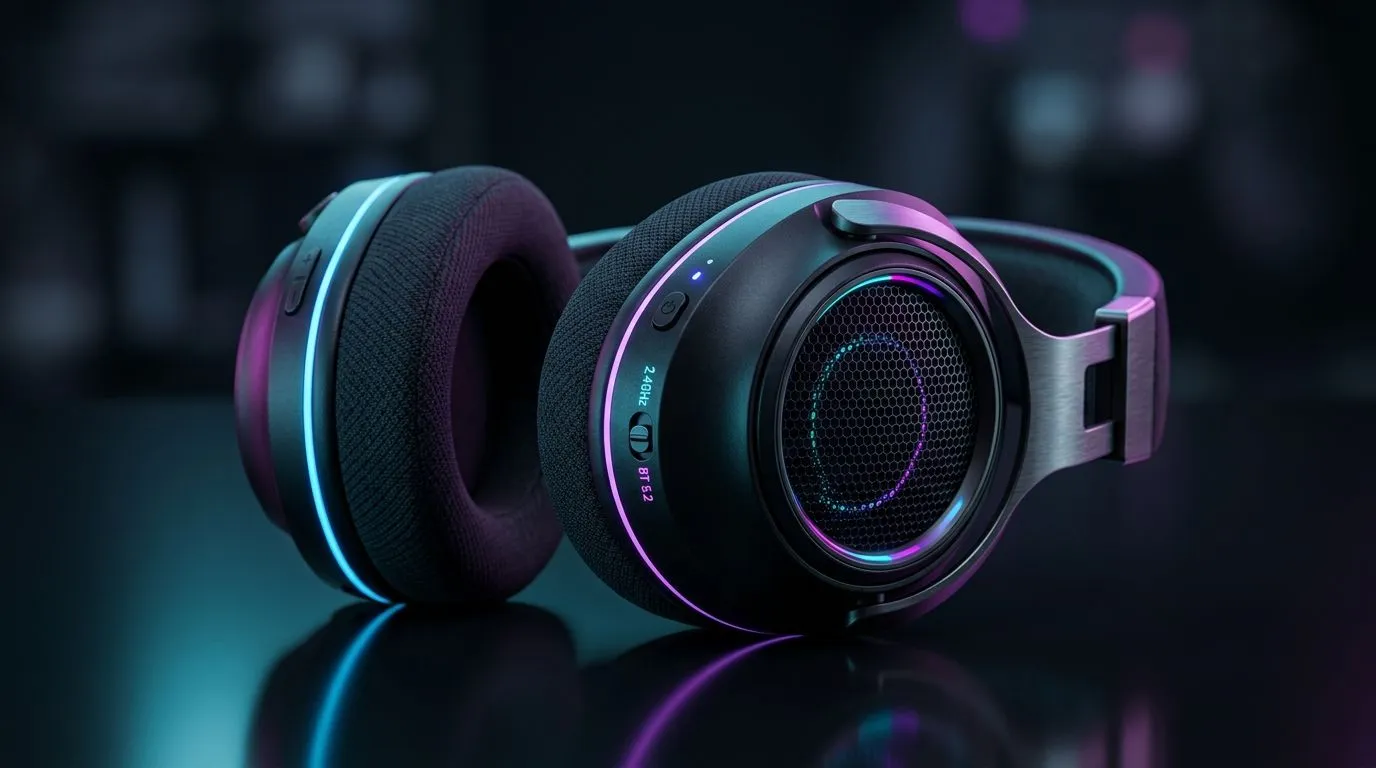
Dual Wireless Mode Setup for 2.4GHz and Bluetooth 5.2 Gaming: The “no-lag” comfort sweet spot 🎮
South African gamers want two things at once: immersion and stability. You’re in a raid, the room is full of Wi-Fi noise, and your headset suddenly decides to “buffer” the vibe. That’s where Dual Wireless Mode Setup for 2.4GHz and Bluetooth 5.2 Gaming becomes your secret weapon. With the right setup, you can use the ultra-low-latency 2.4GHz mode for gaming, then switch to Bluetooth for quick phone calls or casual listening. 🔧
If you’ve ever fiddled with connections for ten minutes, you’ll appreciate a clean, repeatable routine. Let’s set it up properly, then talk best practices for day-to-day use.
What “Dual Wireless” really means for sound and latency ⚡
Most dual-mode wireless headsets give you:
- 2.4GHz wireless: typically prioritises low latency for gaming.
- Bluetooth 5.2: prioritises compatibility and convenience for phones and tablets.
In plain terms… 2.4GHz is for when “now” matters. Bluetooth is for when “it works with everything” matters more.
For gaming buyers, the real win is switching without restarting your whole PC rig. Many headsets also let you control audio independently from the device pairing process, which makes life easier when you move between Discord and your phone.
Step-by-step: Dual Wireless Mode Setup for 2.4GHz and Bluetooth 5.2 Gaming 🔧
1) Start with the 2.4GHz receiver
- Plug the headset’s USB 2.4GHz dongle into a USB port on your PC.
- Turn on the headset and select the 2.4GHz mode (often indicated on the headset by an LED or a mode button).
- In Windows sound settings, pick the headset as the default output.
If your headset supports a “connect once” workflow, this is usually fast after the first setup. Still, test with a quick YouTube clip or a Discord voice check to confirm both mic and output.
2) Pair Bluetooth 5.2 for your phone or second device
- Put the headset into Bluetooth mode.
- On your phone, open Bluetooth settings.
- Select the headset name and pair.
You can then keep Bluetooth ready for calls while the PC stays on 2.4GHz.
3) Switch modes without confusion
When you’re ready to game:
- Switch the headset back to 2.4GHz
- Ensure your PC uses the 2.4GHz audio device (don’t leave Bluetooth set as default)
When you’re done gaming:
- Switch to Bluetooth
- Pick the headset in your phone’s output list (most devices remember)
Productivity Pro Tip 🔧
On Windows, keep your headset stable by setting the 2.4GHz device as the default audio output, then use the Windows Sound settings only when you switch modes. This avoids accidentally gaming with Bluetooth latency after pairing your phone. You’ll notice the difference instantly in fast FPS moments.
Local buying guide: what to check before you commit 🕹️
When choosing a headset for dual wireless gaming, check:
- Does it include a 2.4GHz dongle, not just Bluetooth?
- Is Bluetooth version stated as 5.2 or higher (it affects feature support and efficiency)?
- Mic quality and comfort for South African long sessions after work and weekends.
If you want a practical starting point, browse options from Evetech’s headset selection, including models like the Razer Barracuda X Chroma Wireless on this best-deal page:
And if you’re comparing multiple headsets for your setup, these category pages make it easier to narrow down choices:
- https://www.evetech.co.za/PC-Components/razer-headphones-headsets-105
- https://www.evetech.co.za/components/headphone-headsets-100
Common pitfalls (and how SA gamers avoid them) ✨
- Leaving Bluetooth as default on Windows: you’ll still hear audio, but delays can feel “off”.
- USB congestion: try a rear USB port if your front ports share bandwidth with hubs.
- Pairing too many devices: if your headset remembers multiple phones, it may reconnect to the last one. Remove unused pairings on your phone if needed.
Once you’ve done this setup once, it becomes muscle memory. And honestly… less messing around means more time in matches.
Ready to Find Your Perfect Match? If you want the smoothest dual wireless experience without sacrificing comfort, latency, or mic clarity, it’s worth picking the right headset for your rig. Explore our massive range of gaming headsets and upgrade with confidence. Shop Evetech headset specials and get kitted for your next session.











