

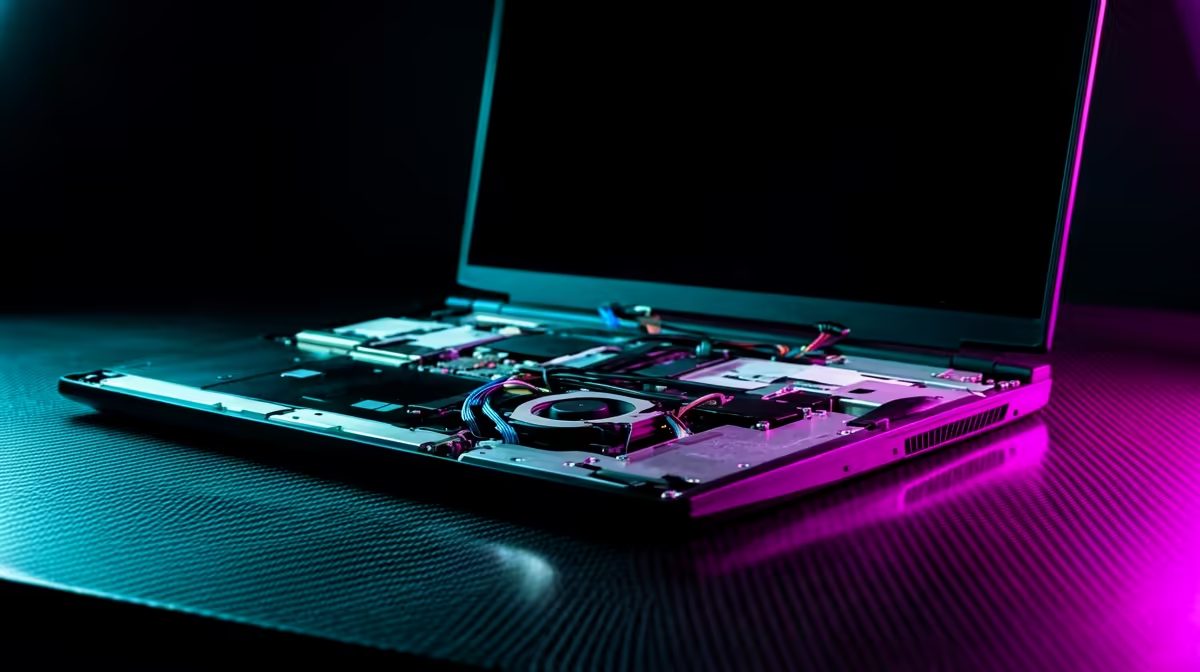
Your editing PC is your creative engine. But when it starts sputtering during a render or lagging on the timeline, your workflow grinds to a halt. In South Africa, dust and power surges add extra challenges. This isn't just about cleaning... it's about reclaiming your speed and creativity. This essential guide to editing PC maintenance in South Africa will show you how to keep your machine running like a dream, saving you time and frustration. ✨
The 'Why' Behind Editing PC Maintenance
Let's be honest, nobody gets into video editing or graphic design to spend their time troubleshooting a slow computer. A poorly maintained PC doesn't just lag; it actively costs you time, kills your creative momentum, and can even jeopardise deadlines. In the unique South African climate, factors like fine Highveld dust or coastal humidity can accelerate hardware issues.
Regular maintenance isn't a chore; it's a professional necessity that ensures your hardware delivers the performance you paid for.
Software Tune-Up: Your First Line of Defence
Before you even think about opening your PC case, the biggest performance gains are often found right on your desktop. A clean digital environment is crucial for a smooth editing experience.
Declutter Your Digital Workspace
Over time, your system accumulates a mountain of temporary files, old cache data from projects, and other digital junk. This can slow down drive access speeds and bog down your entire system.
- Clear Your Cache: Your editing software (like Adobe Premiere Pro or DaVinci Resolve) stores massive cache files. Find the option in your software's settings to regularly clear the media cache.
- Run Disk Cleanup: Use the built-in Windows Disk Cleanup or Storage Sense utility to remove temporary files and system clutter.
A clean software environment is vital, whether you're optimising a brand new rig or squeezing every last drop of performance from one of the many powerful PCs for under R20k on the market.
Keep Your Drivers and Software Updated
Software developers and hardware manufacturers are constantly releasing updates that include critical performance optimisations.
- GPU Drivers: This is the big one. Always update to the latest graphics card drivers, especially NVIDIA's Studio Drivers, which are specifically optimised for creative applications.
- OS & Editing Software: Don't ignore Windows updates or new versions of your editing suite. They often contain bug fixes and efficiency improvements that make a real difference.
Performance Pro Tip ⚡
Use Windows Storage Sense (Settings > System > Storage) to automatically clean up temporary files and empty your Recycle Bin. It's a simple set-and-forget tool that keeps your main drive from getting clogged with junk, ensuring your editing software has the fast access it needs.
Hardware Health: Tackling Dust and Heat 🔧
Heat is the number one enemy of performance. When components get too hot, they automatically slow down (a process called thermal throttling) to protect themselves. The main cause of overheating? Dust.
A regular schedule for your editing PC maintenance must include a physical clean-out every 3-6 months, depending on how dusty your environment is.
The Physical Clean-Up
- Power Down & Unplug: Completely disconnect your PC from the wall.
- Go Outside: Take your PC case to a well-ventilated area.
- Use Compressed Air: Use short, controlled bursts of compressed air to blow dust out of your case fans, CPU cooler, GPU fans, and power supply. Gently hold the fan blades with a finger to stop them from spinning too fast.
- Clean Your Filters: Most modern cases have removable dust filters on the intakes. Pop them out, give them a good clean, and let them dry completely before putting them back.
Monitor Your Temperatures
You can't fix what you can't see. Install a free tool like HWMonitor or Core Temp to keep an eye on your component temperatures. Under a heavy rendering load, your CPU and GPU shouldn't consistently be sitting above 90°C. If they are, even after a good clean, it might be time to reapply thermal paste or look at a better cooling solution. This is crucial for getting the most out of modern, high-performance components found in today's powerful Intel PCs.
Knowing When to Upgrade Your Rig
Sometimes, no amount of maintenance can bridge the gap between your hardware's capabilities and the demands of modern 4K or 6K workflows. If you're spending more time watching progress bars than creating, it might be time for an upgrade. 🚀
Key signs include constant stuttering during timeline playback, inability to use effects in real-time, and export times that stretch for hours. If your current rig is showing its age, exploring what the latest AMD Ryzen machines can offer might just be the performance leap your workflow needs.
Is Your PC a Bottleneck? Proper maintenance can work wonders, but it can't turn an old PC into a rendering powerhouse. If you're tired of fighting lag and slow exports, it's time to upgrade. Explore our range of powerful Workstation PCs and equip yourself with a machine built to handle your creative vision.











