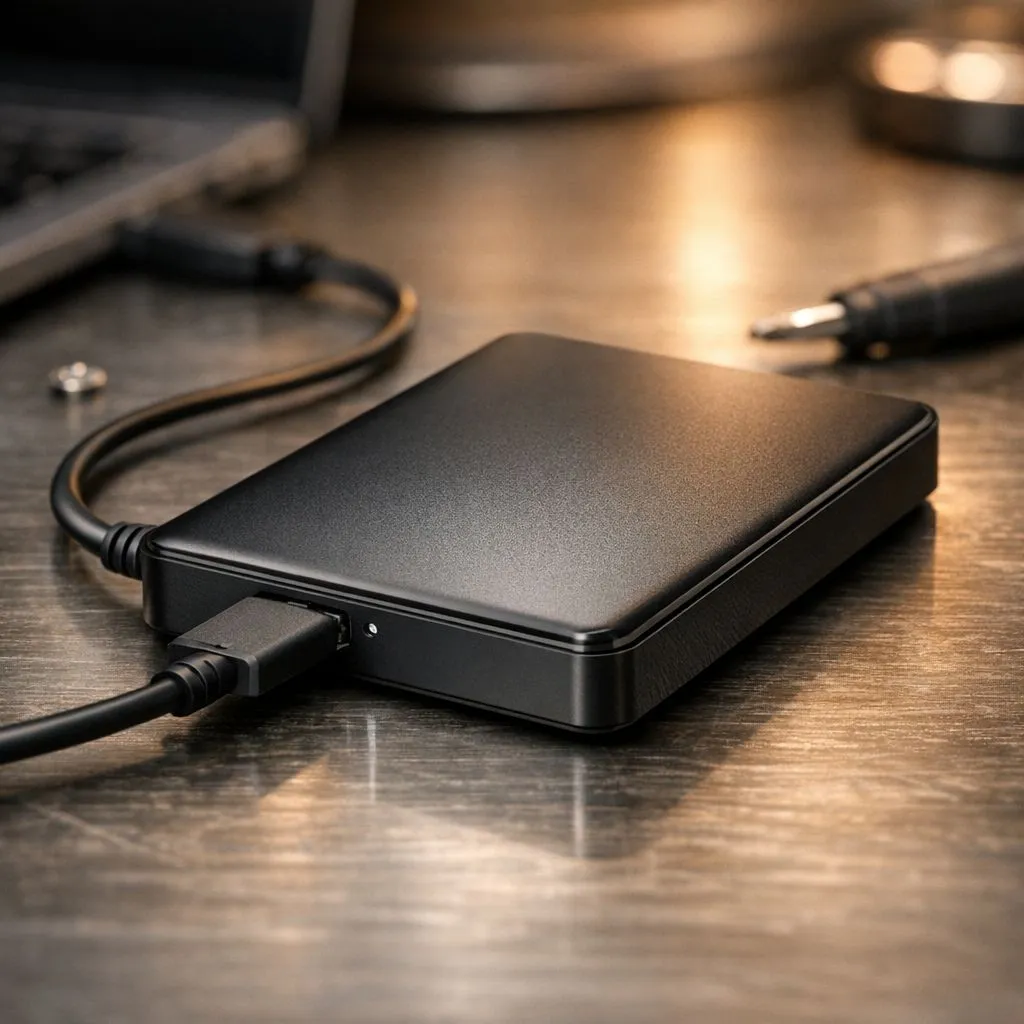
There is nothing more frustrating than plugging in your drive to transfer a 100GB game and seeing… nothing. If your search for an External Hard Drive Not Detected Windows: Quick Fixes guide brought you here, don't panic. Whether it is a software glitch or a cable issue, most storage problems in South Africa can be solved in minutes without needing a technician or spending thousands of Rands. 🔧
Check the Physical Connection and Power
Before diving into software settings, ensure the hardware is actually getting power. USB ports on the front of a PC case sometimes fail to provide enough juice for mechanical drives. Try plugging your device directly into the motherboard ports at the back. If you are using external form factor drives, try a different USB cable to rule out a faulty lead. Sometimes the simplest fix is just a tighter fit or a different port.
Initialise Your Drive in Disk Management
If the drive is spinning but not showing in File Explorer, Windows might not have assigned it a drive letter. Right-click the Start button and select Disk Management. Look for a disk marked as "Unallocated" or "Not Initialised". This often happens with brand new internal solid state drives that have been placed in an external enclosure. Right-click the black bar and select "New Simple Volume" to format it and make it visible to the system. ⚡
Storage Health Hack ⚡
your drive shows up in Disk Management but refuses to format, try the 'chkdsk' command in Command Prompt. Type 'chkdsk X: f' (replace X with your drive letter) to fix file system errors. This can often revive a drive that seems dead after a sudden power cut or load-shedding event.
Update Drivers and USB Controllers
Outdated chipset drivers can cause communication breakdowns between your OS and your hardware. Open Device Manager and expand the "Universal Serial Bus controllers" section. If you see a yellow exclamation mark, right-click and select "Update driver". While modern Gen 5 NVMe performance is handled natively by Windows 11, older external controllers might require specific manufacturer drivers to function correctly. 🚀
When to Consider a Replacement
If the drive makes a clicking sound or isn't detected on any other computer, the hardware may have reached the end of its life. Upgrading to high-speed external SSDs is usually the best move for gamers who need reliability. Brands like ADATA storage solutions offer rugged options that handle South African conditions well. Alternatively, Western Digital drives provide massive capacity for those with large media libraries. ✨
Ready to Find Your Perfect Match? Dealing with a dead drive is a headache you don't need. For maximum speed, reliability, and the best storage value in South Africa, upgrading to an SSD is the ultimate fix. Explore our massive range of laptop specials and storage deals to find the perfect hardware to keep your data safe.