

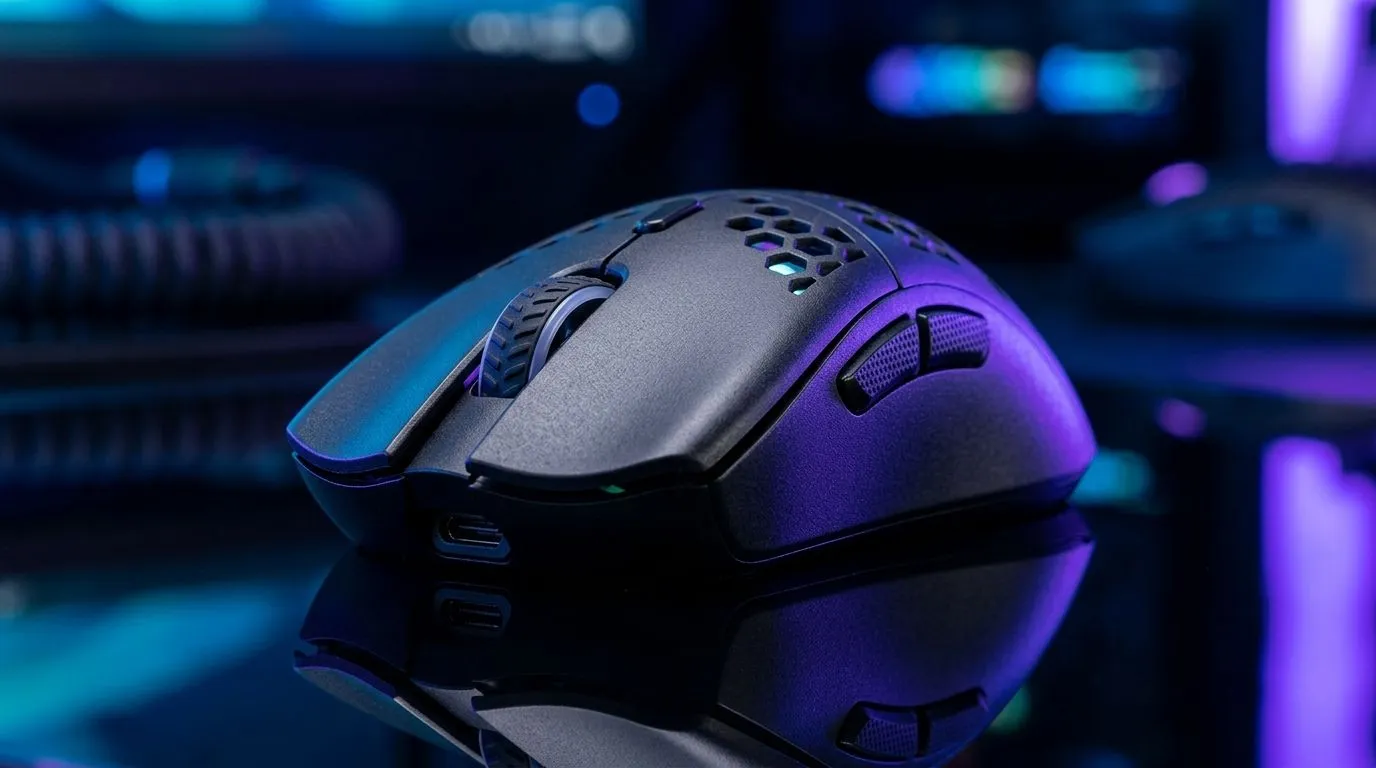
Fix Inconsistent DPI on Lightweight Gaming Mice: The “Why is my crosshair drifting?” checklist 🔧
If your lightweight gaming mouse suddenly feels jumpy or inconsistent, it’s usually the DPI signal… not your aim. In South Africa, you’ll often switch between desks, laptops, and different mousepads (and sometimes different PCs entirely). Add cheap USB hubs, RGB software, or a shaky surface… and DPI can feel “wrong” even when the number on the screen looks right.
This guide will help you fix inconsistent DPI on lightweight gaming mice, step by step. No guesswork. Just practical tests and the settings that actually matter.
Fix Inconsistent DPI on Lightweight Gaming Mice: Start with the fastest real cause 🚀
Before you reinstall anything, confirm what’s happening:
- Does the cursor speed change inside the same desktop? If yes, it’s likely a Windows acceleration or driver setting mismatch.
- Does it only happen in games? Then you’re dealing with per-game sensitivity, polling/USB settings, or conflicting software.
- Is it worse when you move slowly? That can point to sensor calibration, surface mismatch, or power-saving.
A quick micro-story from the Evetech floor: players would swear “my DPI is broken.” After testing, the mouse was fine. Windows Pointer Precision was on… and once turned off, their aim stopped “breathing.”
Fix Inconsistent DPI on Lightweight Gaming Mice: Windows settings that commonly cause it ⚡
On Windows, do this:
- Control Panel / Settings → Mouse → Additional mouse options
- Turn off Enhance pointer precision (Windows acceleration)
- Set Pointer speed to a consistent value (don’t keep “feathering” it)
- Make sure you’re using the same profile across sessions (especially after driver updates)
If you use a lightweight mouse on a laptop, remember: some laptops alter power plans when you game.
Fix Inconsistent DPI on Lightweight Gaming Mice: Check sensor and surface alignment ✨
Lightweight mice often encourage quick, precise movements. That makes surface issues more noticeable. Try:
- Clean your mousepad (and the mouse feet)
- Avoid glossy desks for testing
- Test the same mouse on a known-good pad
If your sensor is optical, dust can also cause micro-stutters that look like DPI inconsistency.
Calibration Pro Tip 🔧
On Windows, set your mouse to a fixed Pointer speed and disable Enhance pointer precision, then test DPI changes in a single game training range for 10 minutes. If the issue disappears in consistent conditions, it’s not the mouse sensor. It’s the environment or conflicting software.
Fix Inconsistent DPI on Lightweight Gaming Mice: Software conflicts and connection habits ⚡
Now for the stuff that bites gamers the most:
Fix Inconsistent DPI on Lightweight Gaming Mice: Remove duplicate control layers
Many mice come with their own DPI/angle snapping software. If you also run motherboard RGB tools, headset software, or “mouse enhancers,” they can conflict. The symptoms look like DPI drift, acceleration feels, or inconsistent tracking.
Action:
- Use only the mouse software you trust
- Update mouse firmware if the manufacturer tool offers it
- Reboot after changing DPI
Fix Inconsistent DPI on Lightweight Gaming Mice: Wired, wireless, and USB behaviour 🚀
Wired mice tend to be simpler. Wireless adds variables like receiver placement, battery/power saving, and signal strength.
If you’re buying new (or replacing a cable), start here:
- If you want lightweight mouse accessories, browse mouse accessories here: Buy mouse accessories
- If you’re going wired for stability, check: Buy wired mouse
- If you need wireless reliability options, compare: Buy wireless mouse
- Want value today, especially for practice sessions and local FPS nights? See: Best gaming mouse deals
- For deeper specs and models, use: Gaming mouse components & options
Fix Inconsistent DPI on Lightweight Gaming Mice: Do a 5-minute verification test ✅
Do this before you blame your mouse:
- Pick one DPI step (example: your “main” DPI).
- Turn off Windows acceleration.
- Use the same mousepad.
- Test in-game for 10 minutes, no alt-tabbing for “settings chaos”.
- Only after that, change DPI and repeat.
If DPI changes feel inconsistent between test runs, the problem is usually software profiles or Windows acceleration. If it only happens on one surface, it’s the surface or sensor environment.
CALLTOACTION
Ready to Find Your Perfect Match? The Mac vs Windows debate is complex, but for maximum power, choice, and value in South Africa, Windows is hard to beat. Explore our massive range of laptop specials and find the perfect machine to conquer your world.











